


Track Your Students Zoom Attendance Through AU Connect App
By Khadija AhmedPublished 28 Sept 2021Updated 17 Oct 20221 min read
Note:
Tracking students’ Zoom attendance is an automatic procedure, however, these steps are available in case you would like to review and/or edit the attendance list. Keeping in mind that if you choose to not review/edit the list, the attendance will be reflected on the system the next day.
To track Zoom attendance through the app, please follow the below steps:
- Click on Login AU account.

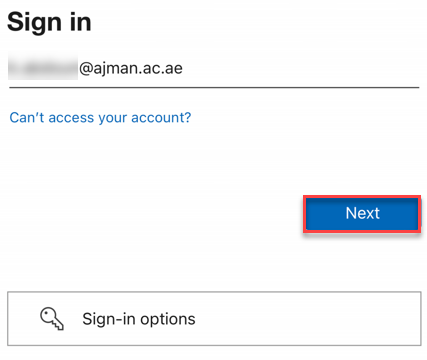
- Enter your AU email address, then click on Next
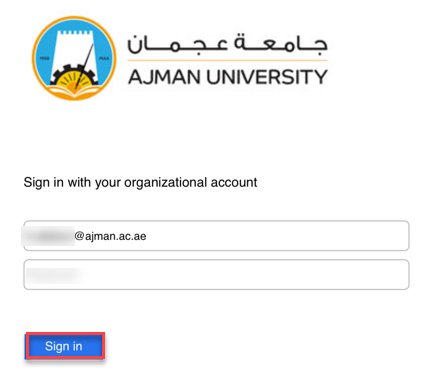
- Enter your password, then click on Sign in.
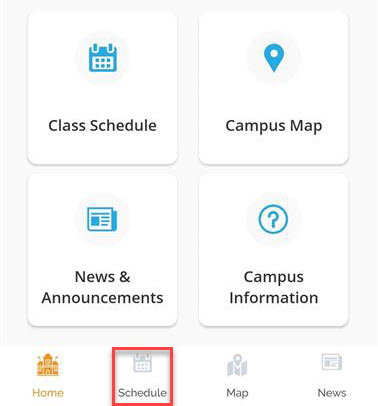
- Click on Schedule.
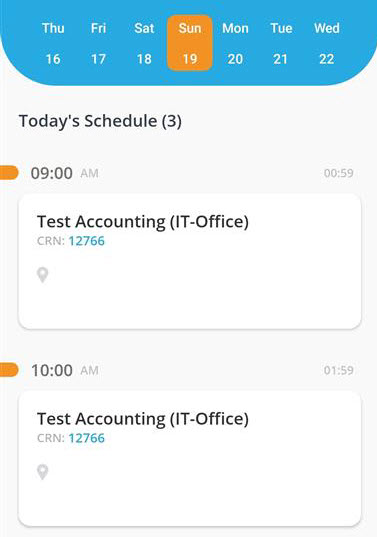
- Choose the class you’d like to track the attendance for.
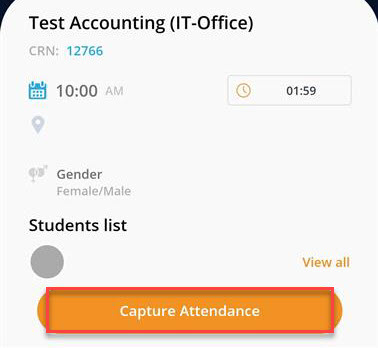
- Click on Capture Attendance to view a list of the enrolled students.
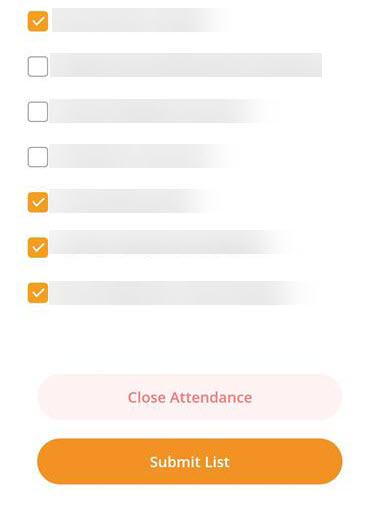
- The system will automatically select the students who attended more than 50% of the host (instructor) duration and you will be able to select or unselect any student.
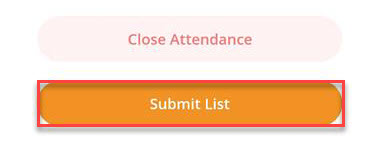
- Click on Submit List.
You may go back to the previous page by clicking on Close Attendance.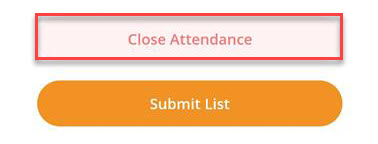
Was this article helpful?
Related articles
AU Connect Mobile App
Original source: https://it.ajman.ac.ae/docs/zoom-attendance-through-au-connect-faculty