

Exabis ePortfolio
10 articles
Exabis ePortfolio is a plugin for Moodle that allows students to create and manage electronic portfolios within the Moodle learning management system (LMS).
Electronic portfolios, also known as ePortfolios, are digital collections of artefacts such as documents, images, videos, and other multimedia items that showcase a student's learning, achievements, and reflections over time.
This category includes the following features:
- Fill out your CV
- Create Category
- Share Categories with others
- View Shared Categories
- Upload Artefacts
- Create, Edit and Delete Views
- Change a View's Layout
- Share your View
- View Shared Views
- Import/Export ePortfolio as SCORM-file
To access your ePortfolio, log in to Moodle. You can open it directly from the main menu or from within a course through the block drawer.
Accessing Moodle
You can access Moodle through Ajman University’s website -> Current Students -> Moodle. Log in to Moodle using your Student ID and password.
Accessing ePortfolio
-
From the main Moodle menu: Access Exabis ePortfolio directly from the main menu after logging in.
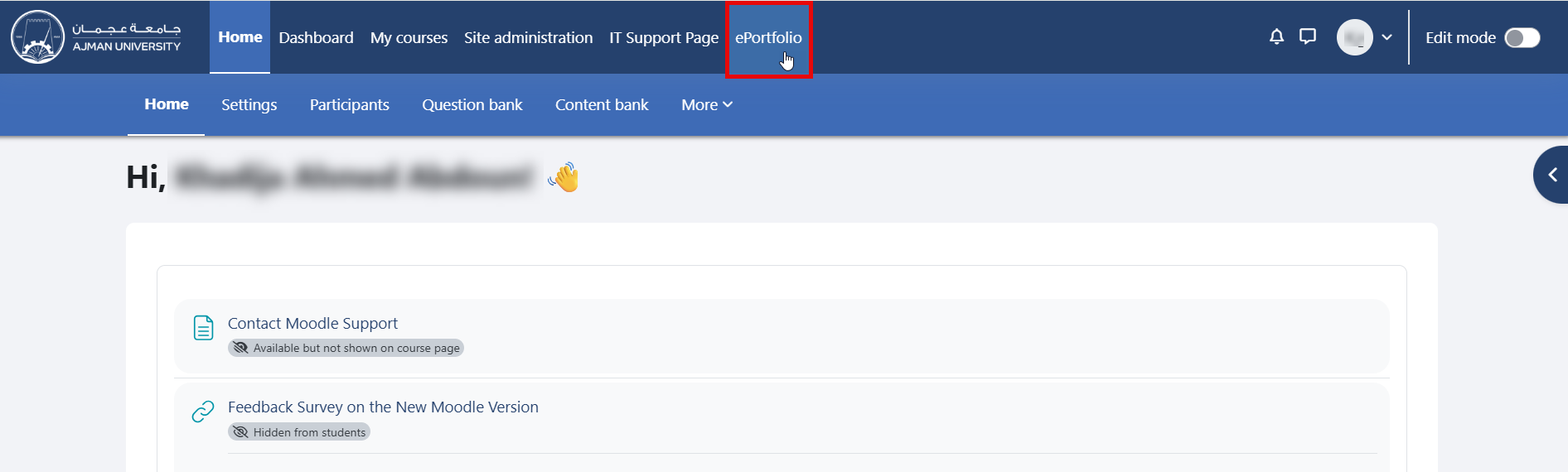
-
From within a course: Open the block drawer inside the course and click the arrow to access Exabis ePortfolio.
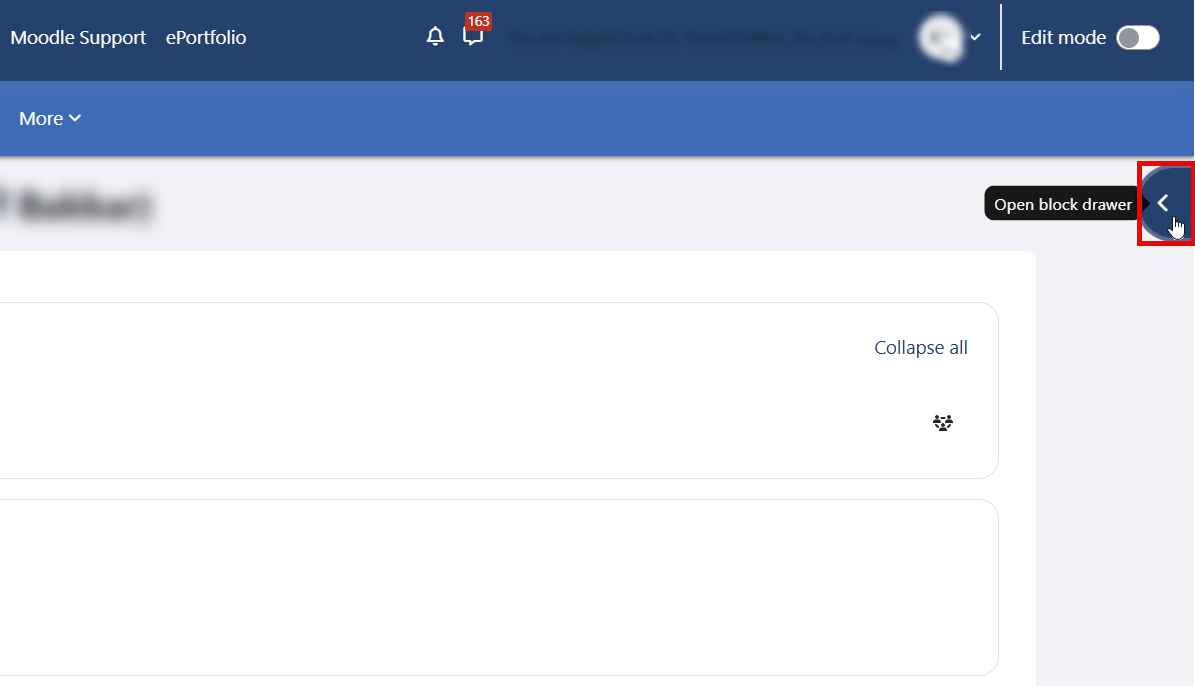
-
Click on one of the Exabis ePortfolio components listed in the block drawer to open it.
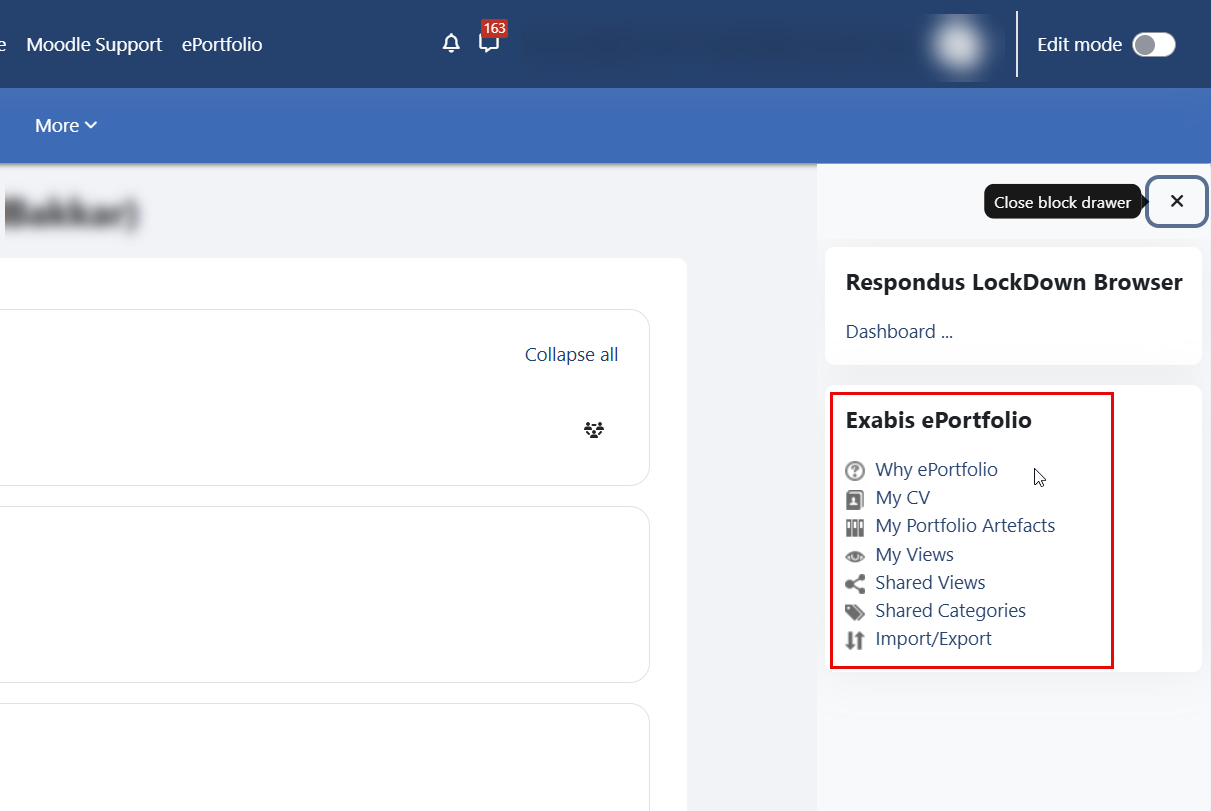
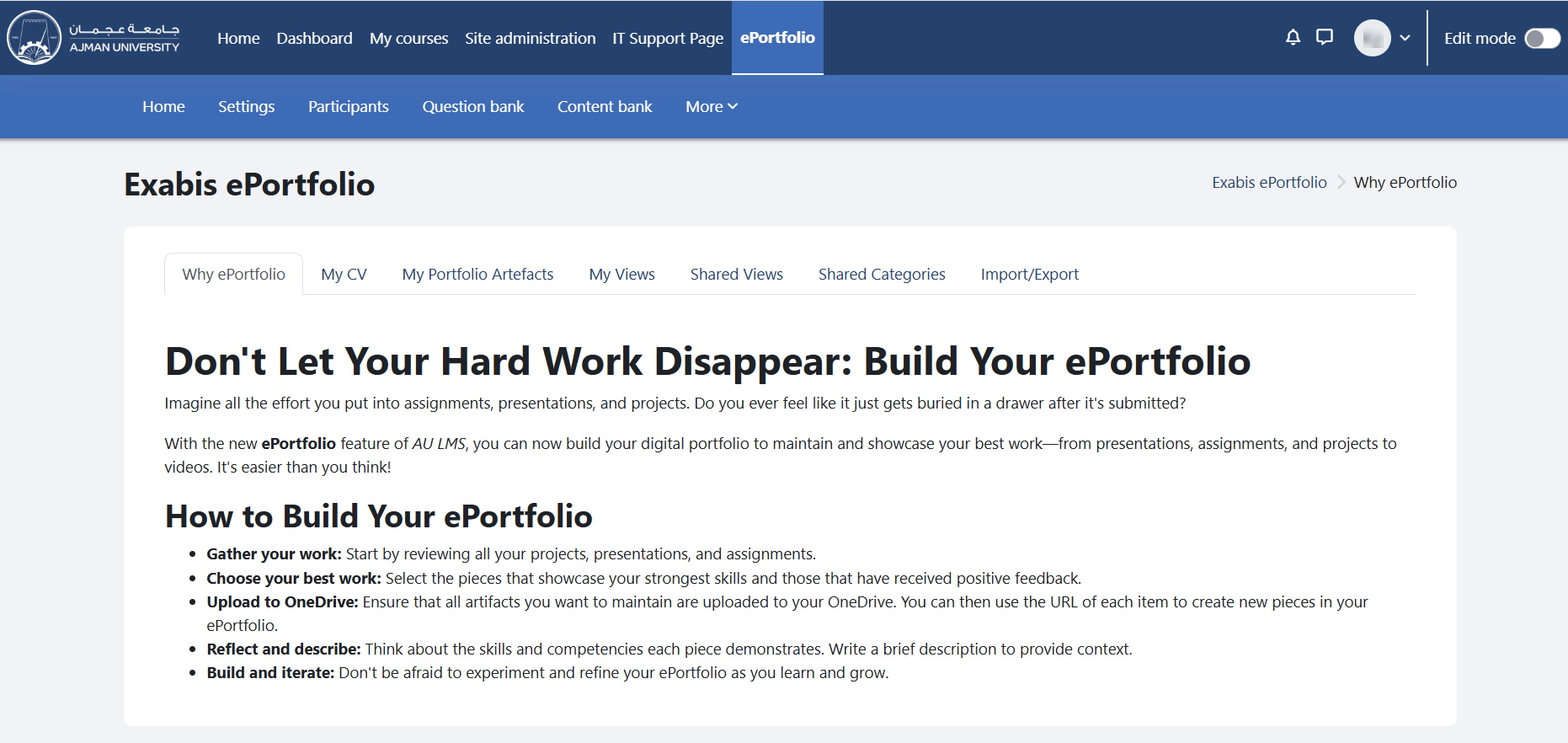
You can now begin building and managing your ePortfolio.
articles
- Fill out your CVYou can fill out the content fields of your CV by following the steps below: In the ePortfolio page, click on the tab "My CV". Click on the section you would…Updated 12 Sept 2025 · 1 min read
- Create CategoryYou have the option to establish categories for your artefacts, allowing you to group and organize your files into your portfolio. To create categories, please…Updated 12 Sept 2025 · 1 min read
- Share Categories with othersTo share your categories with others, please follow the steps below: In the ePortfolio page, click on the tab "My Portfolio Artifacts". Navigate to the…Updated 12 Sept 2025 · 1 min read
- View Shared CategoriesTo view shared categories, please follow the steps below: In the ePortfolio page, click on the tab "Shared Categories". Shared categories will be displayed…Updated 12 Sept 2025 · 1 min read
- Upload ArtifactsArtefacts in ePortfolio refer to the digital items or pieces of evidence that students collect, organize, and present to demonstrate their learning, skills,…Updated 12 Sept 2025 · 1 min read
- Create, Edit and Delete ViewsViews facilitate the display of various artifacts on a single page, making it suitable for sharing with any selected group of users. Upon creating a new view,…Updated 12 Sept 2025 · 1 min read
- Change a View's LayoutYou can change the layout of your display of a view, by following the steps below: Go to "My Views" and click on the "Edit" icon. Navigate to the "Layout" tab.…Updated 12 Sept 2025 · 1 min read
- Share your ViewViews can be shared either internally with other users, externally via an automatically generated link or by email. To start sharing your view, follow the…Updated 12 Sept 2025 · 1 min read
- View Shared ViewsTo view shared views, please follow the below steps: In the ePortfolio page, click on the tab "Shared Views". Views will appear here if other portfolio users…Updated 12 Sept 2025 · 1 min read
- Import/Export ePortfolio as SCORM-fileTo transfer ePortfolio data, you can Import/export as a SCORM-zip-file. Ensure that you select the specific view you wish to export/import before proceeding.…Updated 12 Sept 2025 · 1 min read