

Moodle
35 articles · 5 topics
Moodle is an e-service that allows AU faculty to create personalized learning environments for their courses each semester, where they can upload lecture materials, create various types of assignments and quizzes, and use other interactive features. The main features of this e-service which you will be using throughout the semester are available in the navigator on the left side of this webpage.
Furthermore, the upgraded Moodle 4.3 will include additional features, which are detailed in the user guide. To understand the differences between Moodle 3.5 and Moodle 4.3, please refer to the article List of Changes from Moodle 3.5 to 4.3.
You can watch the recorded webinar: Comprehensive Beginner’s Guide to Moodle
Access Moodle
- You can access Moodle through:
Ajman University’s website → MyAU → Faculty/Staff → Moodle.
- Log in using your AU email (example: x.lastname@ajman.ac.ae) and password.
Access your Current Courses
To access your courses, click on “My Course” from the navigator, as illustrated below.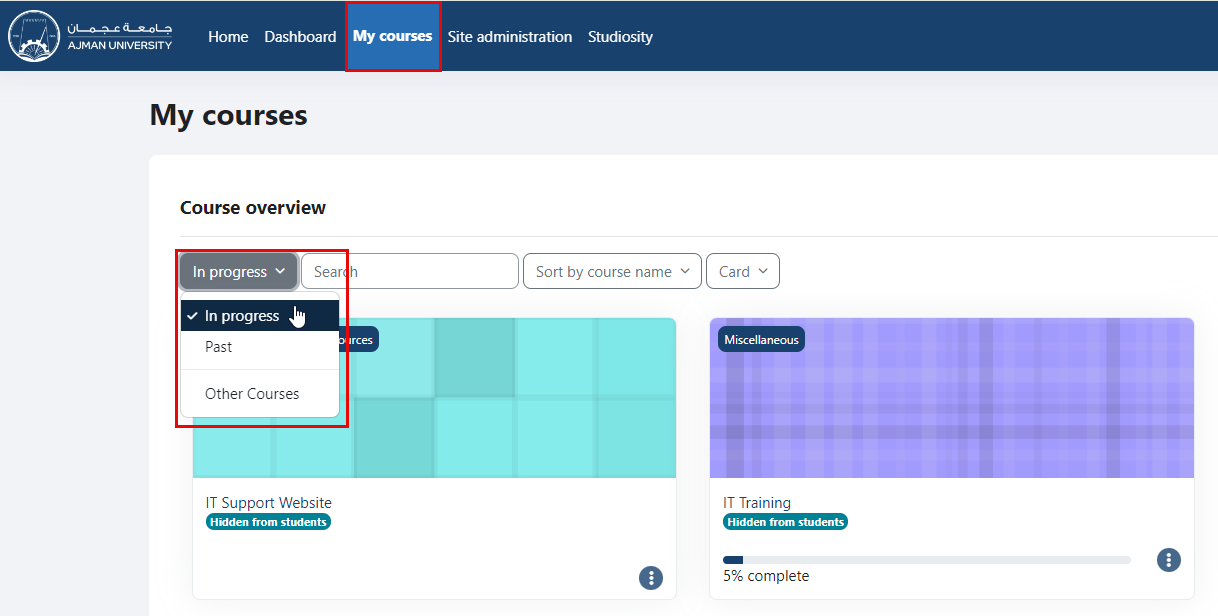
You will be directed to a page that lists all the courses assigned to you as an instructor in the Banner system for the current semester. You can click on the course that you would like to work on.
Note:
Make sure to select "In Progress" courses from the drop-down menu
Access your Past Courses
To view and access your previous courses, click on “My Course” from the navigator, and then select the "Past" option from the drop-down menu as illustrated below.
Moodle Features
You may conduct the following activities within each of your courses:
- Post announcement to students.
- Upload the teaching material, and learning resources.
- Add resources, such as books & files.
- Set assignment.
- Set quizzes.
- Conduct surveys.
- Communicate with students through chat, or by sending messages to students or receiving messages from them.
- Others.
The course page is divided into sections (Topics). You can edit section names and add activities such as announcements, file uploads, assignments, or quizzes.
Topics
 Turnitin Assignment5 articles
 Online Exams for Faculty10 articles
 LockDown BrowserLockDown Browser is a secure browser that enhances the integrity of online exams in Moodle. When students use…2 articlesCommunication MethodsMoodle provides several tools and features that can enhance communication between instructors and their…7 articlesDean Privilege in MoodleMoodle provides College Deans with privileges designed to support effective monitoring of academic…2 articles
articles
- List of Changes from Moodle 3.5. to 4.3This article provides a detailed comparison between Moodle 3.5.11 and the newly released Moodle 4.3. With numerous enhancements aimed at improving user…Updated 10 Jul 2025 · 2 min read
- Upload Files or LecturesInside the course, enable editing by clicking the "Edit mode" toggle switch, as illustrated below: Navigate to the section where you would like to add the…Updated 24 Jul 2025 · 1 min read
- Backup & RestoreAt the beginning of each semester, you might need to restore the course materials created in previous semesters. To do this, back up the course from the…Updated 1 Sept 2025 · 2 min read
- Post an AnnouncementTo add an announcement for a specific course, follow the steps below:Inside the course, click Announcements. Click Add discussion topic. Enter the Subject and…Updated 30 Jul 2025 · 1 min read
- Create a Standard AssignmentCreate a Standard Assignment with File Submission: Inside the course, enable editing by clicking on the Edit mode toggle switch, as illustrated below: Under a…Updated 30 Oct 2025 · 1 min read
- Grade Standard AssignmentIn this article, the process of grading a Standard Assignment will be explained in detail. You can download all student submissions for offline review and use…Updated 30 Jul 2025 · 2 min read
- Download Grades from the GradebookExporting grades from Moodle is a simple process that allows you to review, analyze, or archive them for future reference. With just a few clicks, you can…Updated 30 Jul 2025 · 1 min read
- Save a Sample Student Quiz Attempt as a PDF FileInstructors may be required to save samples of student quiz attempts as part of their course documentation. This guide explains how to review a student's quiz…Updated 8 Jun 2026 · 1 min read
- MathType & ChemTypeMathType and ChemType are new features in Moodle that allow you to enter mathematical equations (through MathType) and chemical formulas (through ChemType) in…Updated 25 Aug 2024 · 1 min read