


Post an Announcement
To add an announcement for a specific course, follow the steps below:
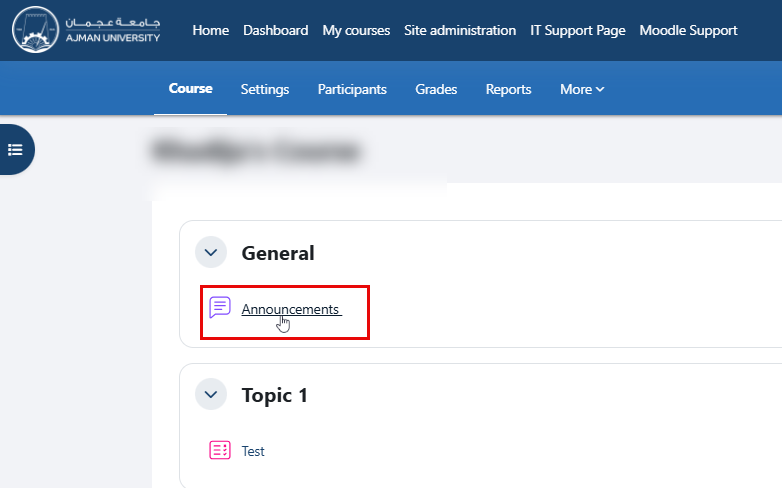
Inside the course, click Announcements.
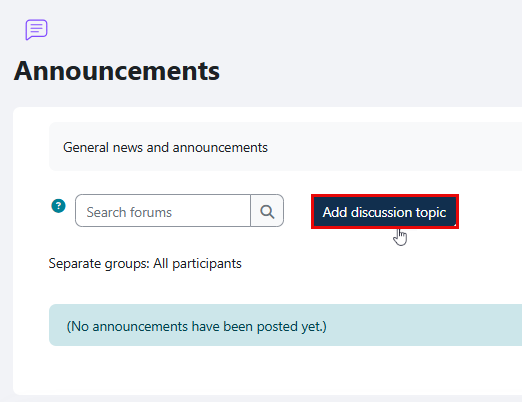
Click Add discussion topic.
Enter the Subject and Message, and optionally include any links or multimedia attachments, such as images or videos, by selecting Insert.
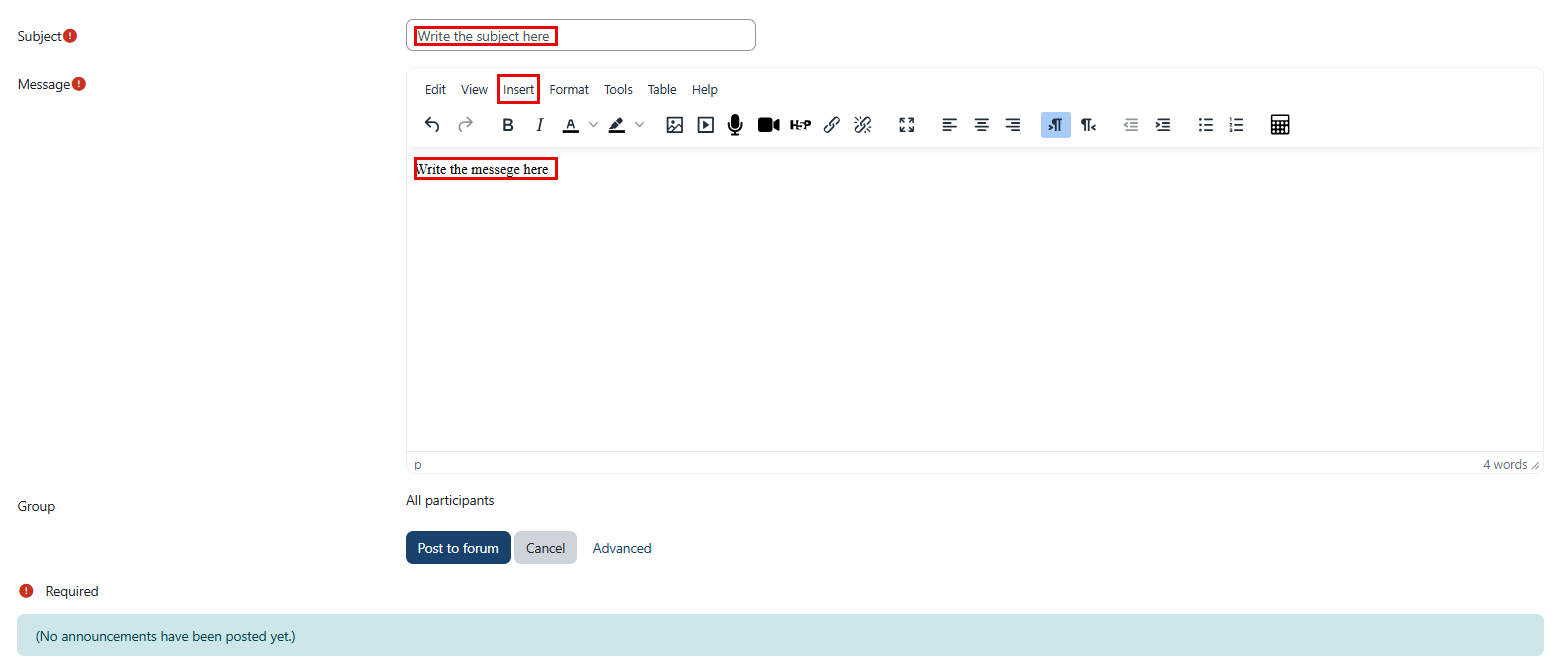
Note: Within the Advanced settings, you may attach files that are not limited to multimedia formats.
You can choose to notify students immediately via their AU email. If this option is not selected, the announcement will be delayed by 30 minutes to allow time for editing.

Note: This setting is accessible through the Advanced option, located next to the Post to Forum and Cancel buttons.

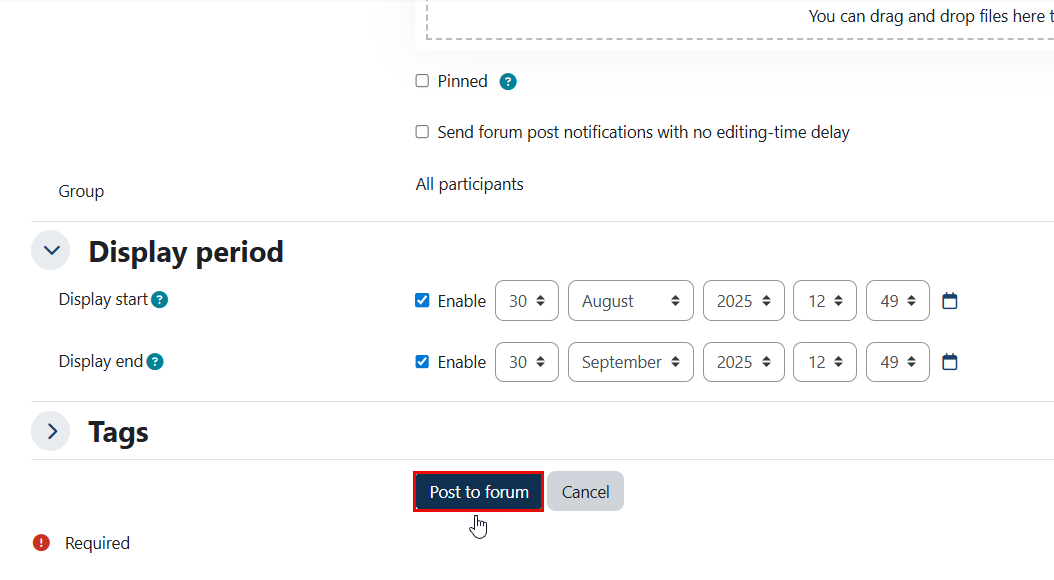
Click Advanced to set a Display Period, if needed, by selecting a start and end date/time. If this option is not enabled, the announcement will remain visible to students throughout the semester.

Click Post to Forum at the bottom of the page to post the announcement. It will be sent to the AU email addresses of students enrolled in the course.
Was this article helpful?
Related articles
Moodle
Original source: https://it.ajman.ac.ae/docs/clone-post-an-announcement