


Save a Sample Student Quiz Attempt as a PDF File
By Khadija AhmedPublished 8 Jun 2026Updated 8 Jun 20261 min read
Instructors may be required to save samples of student quiz attempts as part of their course documentation. This guide explains how to review a student's quiz attempt and save it as a PDF file.
Save a Sample Student Quiz Attempt (Respondus LockDown Browser Enabled)
If your quiz is configured to use Respondus LockDown Browser, you must first disable it before reviewing and saving a student's attempt as a PDF file.
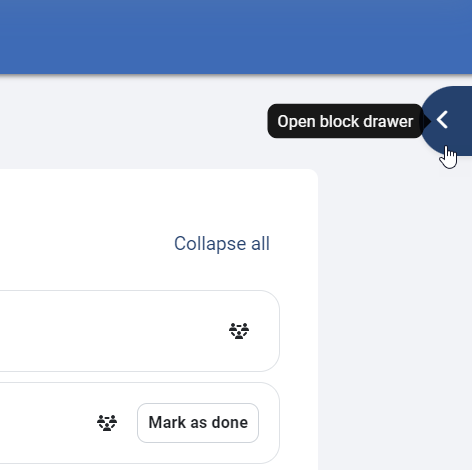
- In your Moodle course, open the block drawer on the right side of the screen.
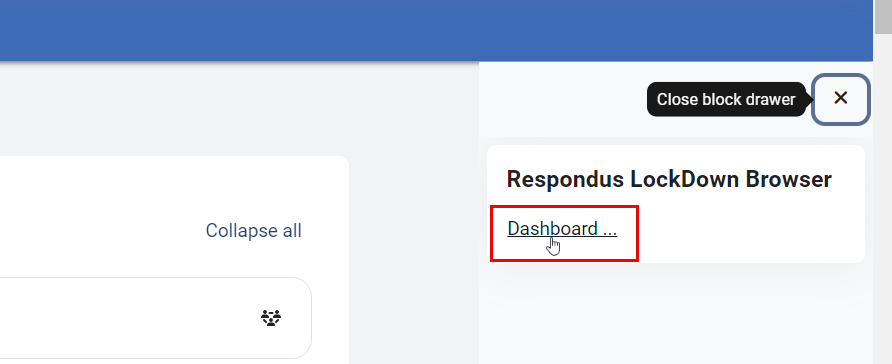
- A side menu will appear, including Respondus LockDown Browser. Click the Dashboard button.
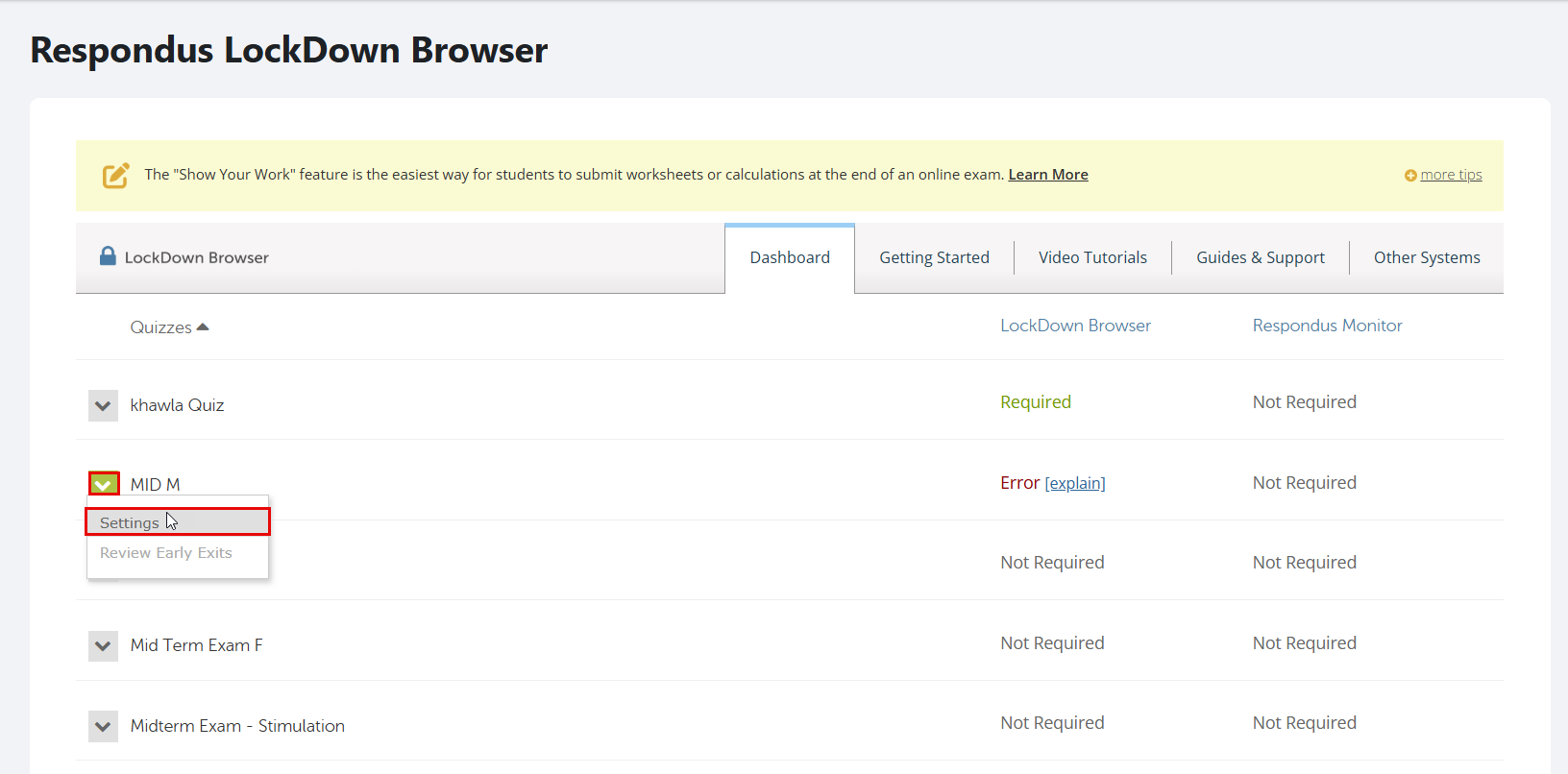
- You will be able to view the list of quizzes that were created in your course. Locate your quiz, click its drop-down menu, and then select Settings, where you can disable LockDown Browser for the quiz.
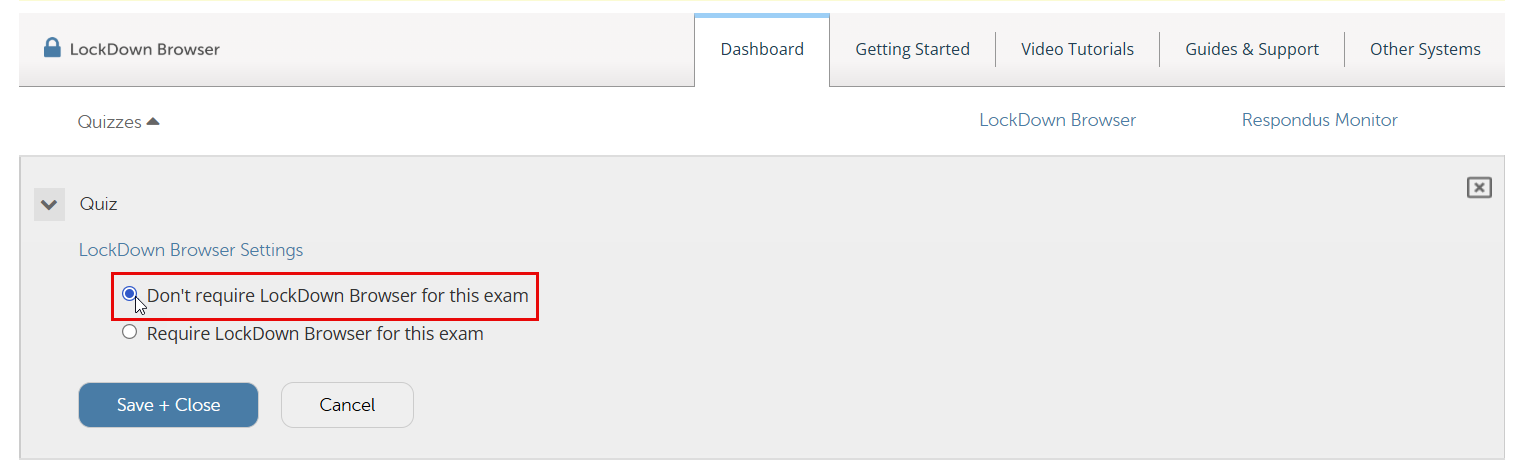
- Select "Don't require Respondus LockDown Browser for this exam," then click Save + Close.
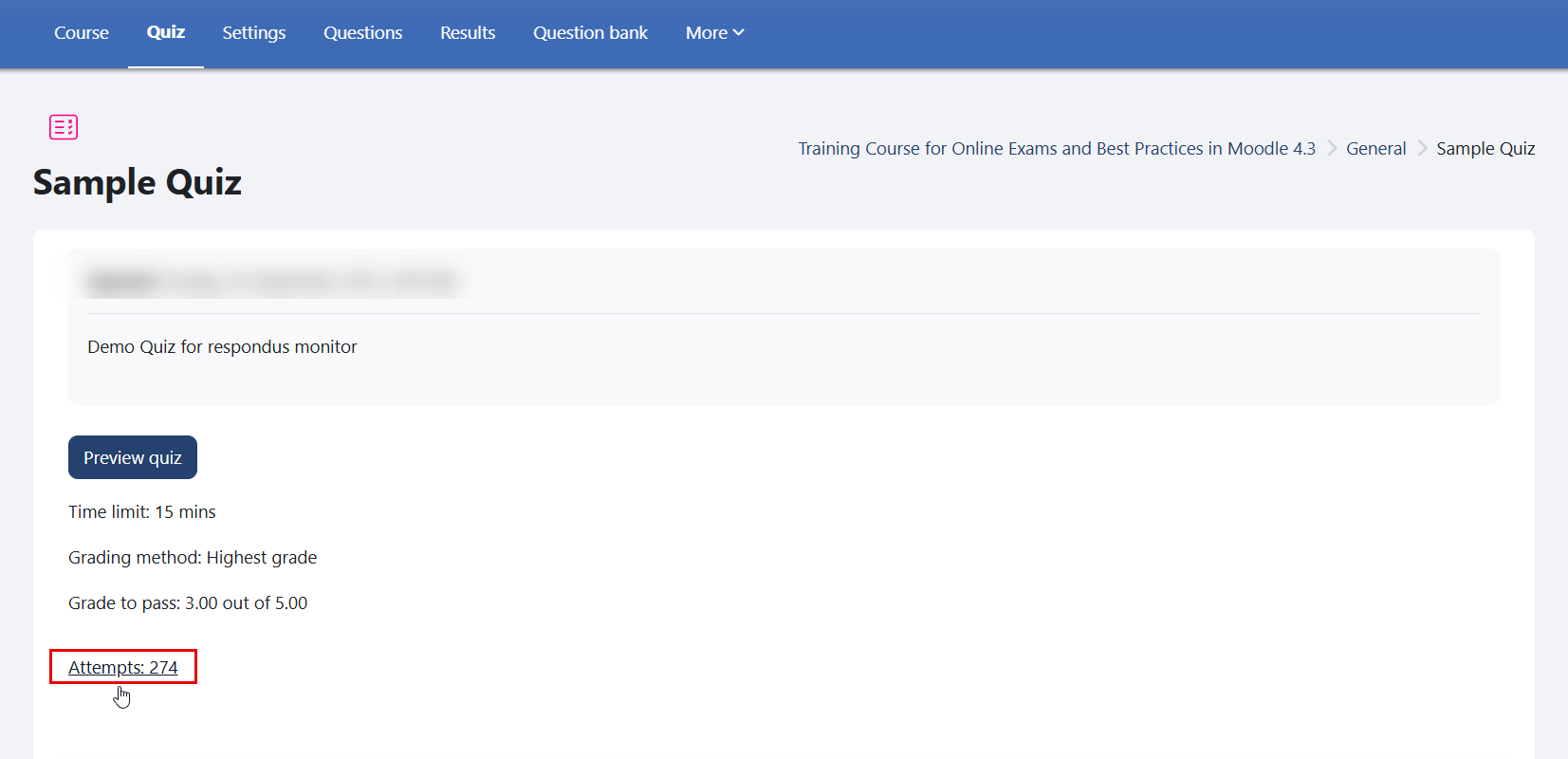
- Open the quiz, then click "Attempts."
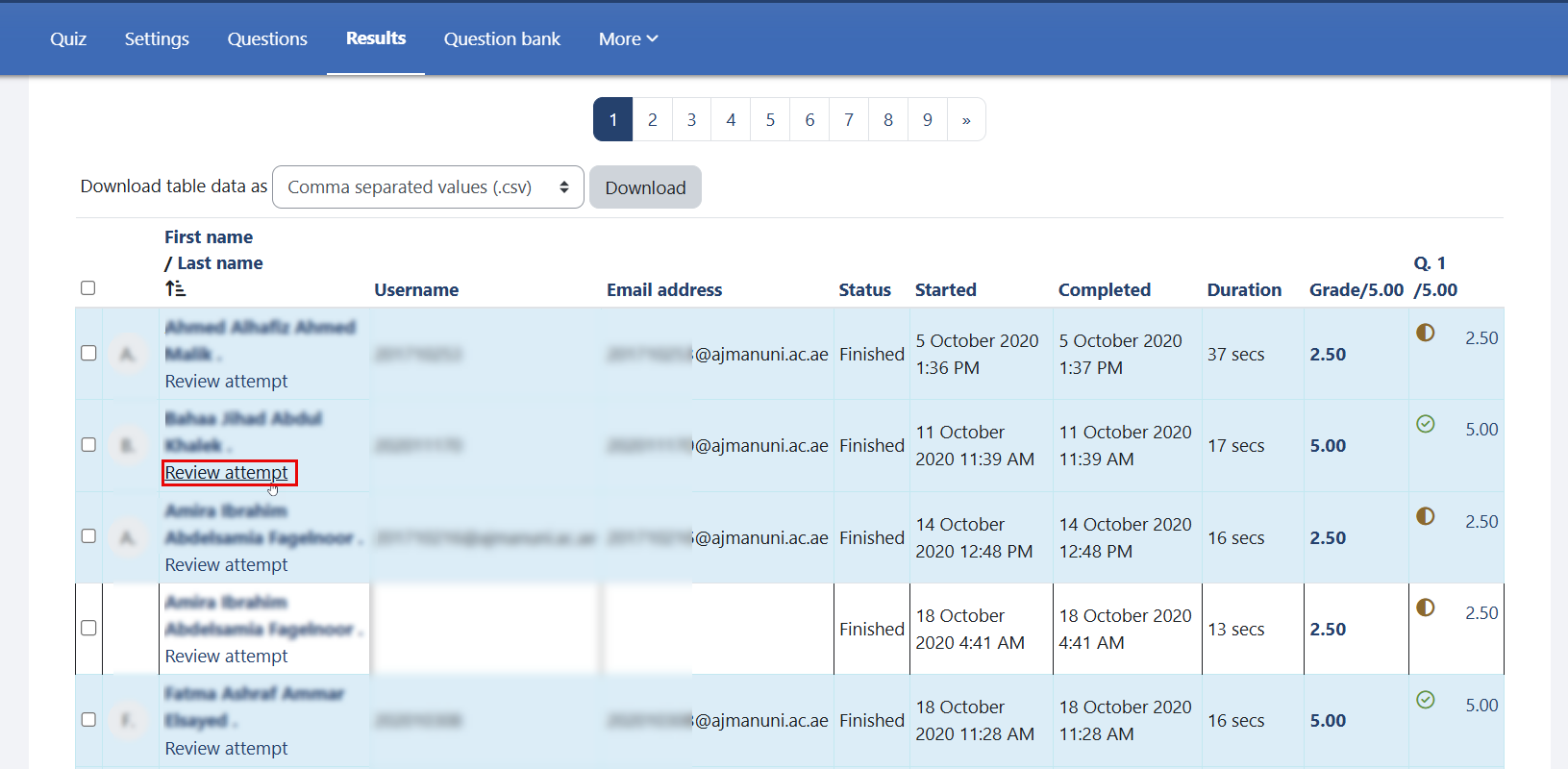
- Click "Review Attempt" under the student's name.
- When the student's answers page opens, press Ctrl + P on your keyboard.
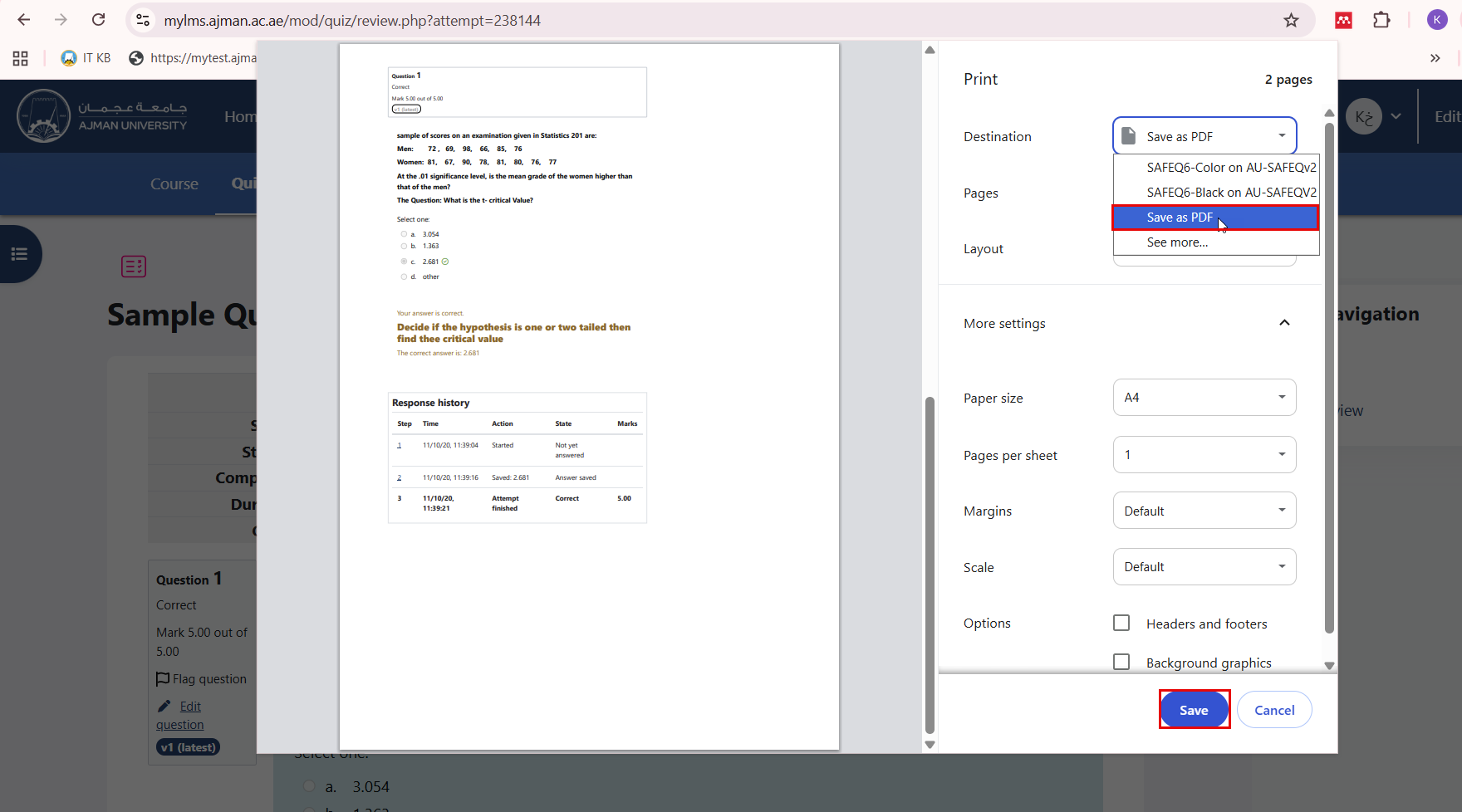
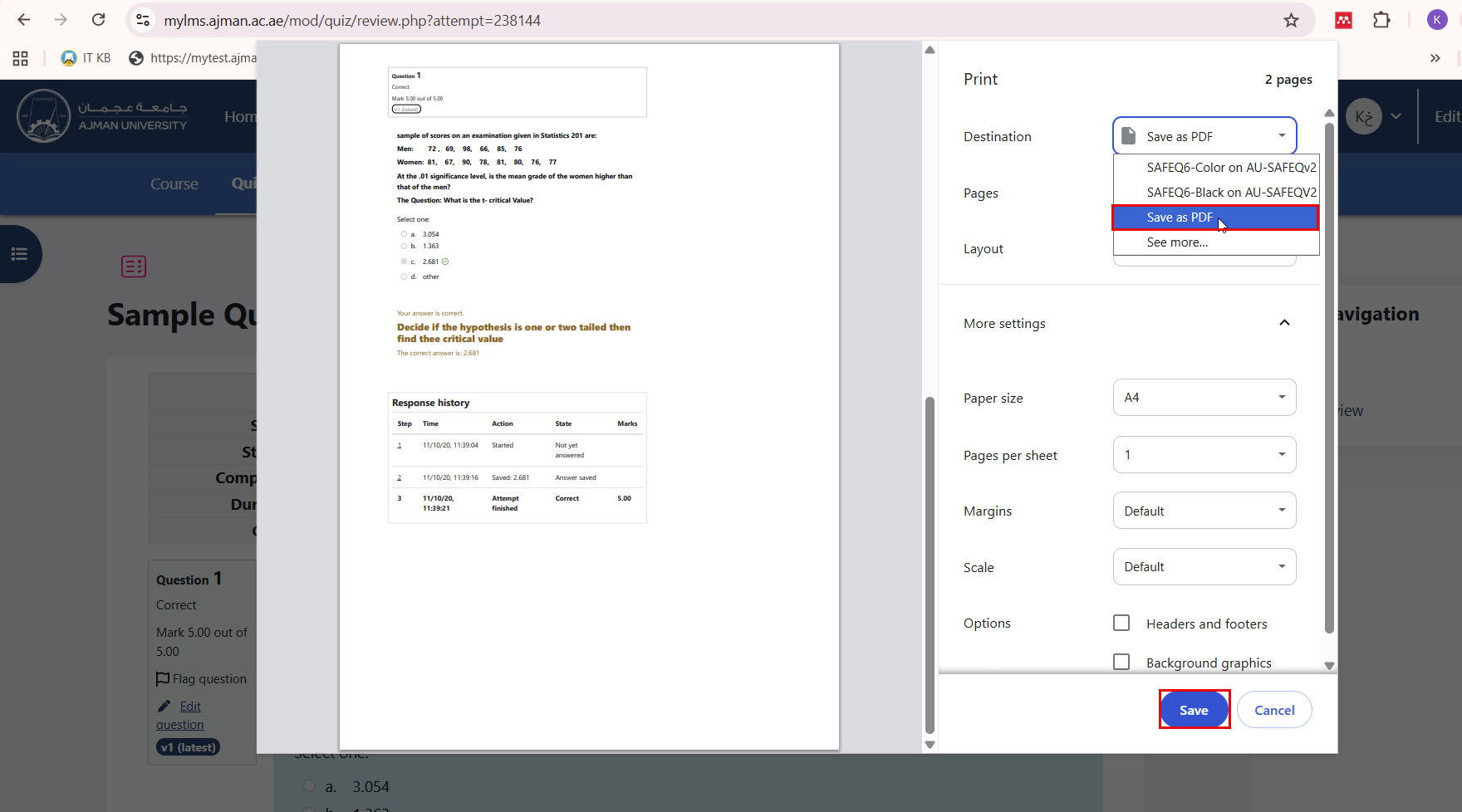
- Change the destination to "Save as PDF," then click "Save." Select the location where the file will be saved, and click "Save" again.
Save a Sample Student Quiz Attempt (Respondus LockDown Browser Disabled)
If your quiz is not configured to use Respondus LockDown Browser, you can start directly from the quiz attempt review page.
- Open the quiz, then click "Attempts."
- Click "Review Attempt" under the student's name.
- When the student's answers page opens, press Ctrl + P on your keyboard.
- Change the destination to "Save as PDF," then click "Save." Select the location where the file will be saved, and click "Save" again.
Was this article helpful?
Related articles
Moodle
Original source: https://it.ajman.ac.ae/docs/save-a-sample-student-quiz-attempt-as-a-pdf-file