


Send Notifications through AU-Connect App
هذه المقالة غير متوفرة بالعربية بعد. يتم عرض النسخة الإنجليزية.
You can send real-time notifications to registered students through the AU-Connect app for immediate communication of important announcements and updates.
Follow the steps below to send notifications through the app to your students.
-
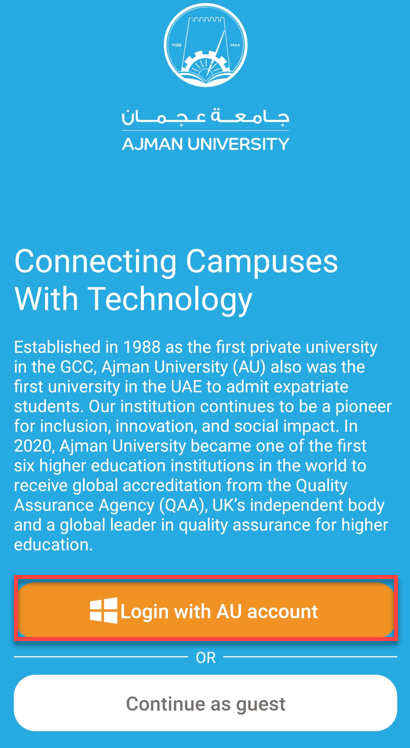
Click on "Login with AU account".
-
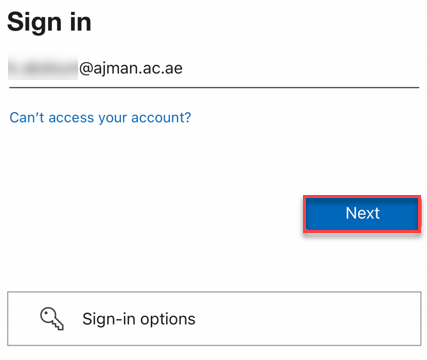
Enter your AU email address, then click on Next.
-
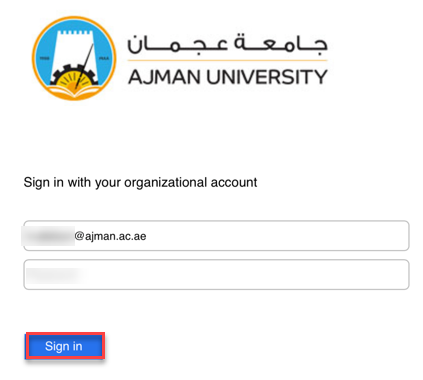
Enter your password, then click on Sign in.
-
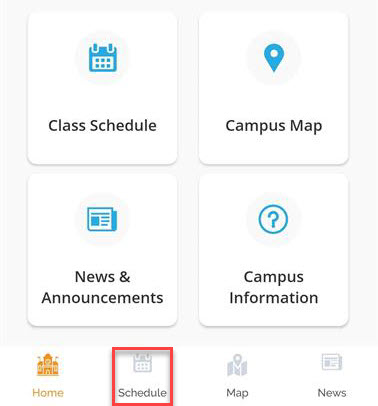
Click on "Schedule."
-
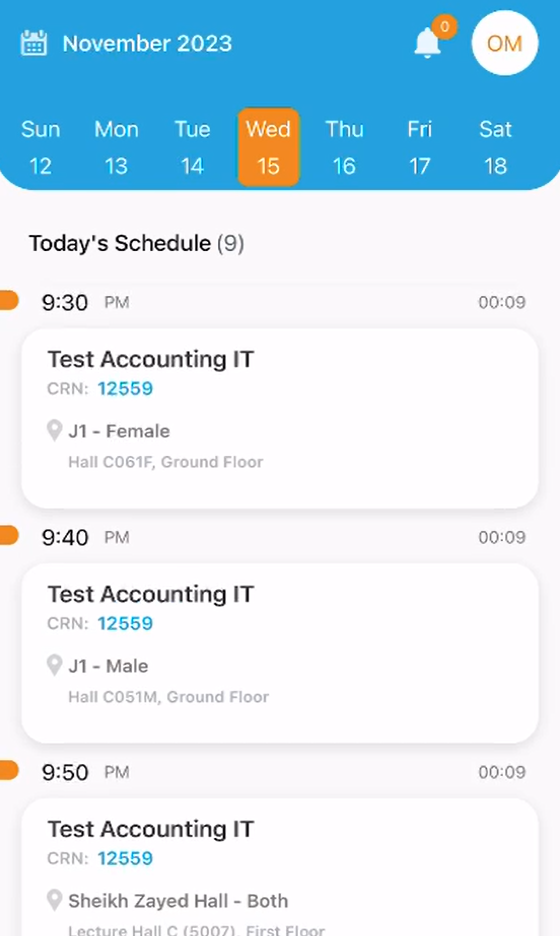
Choose the class you’d like to send notification to its students.
-
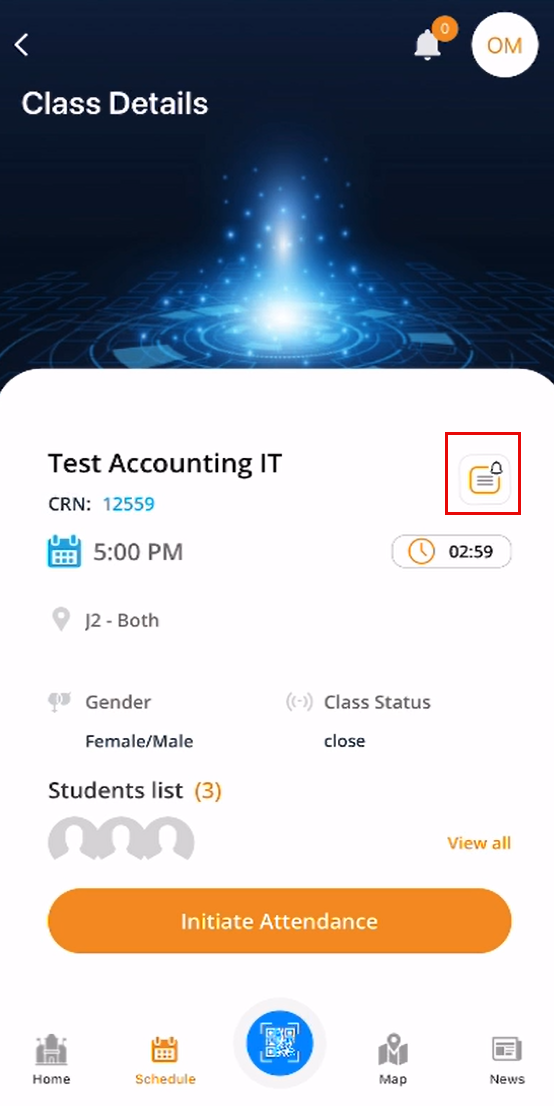
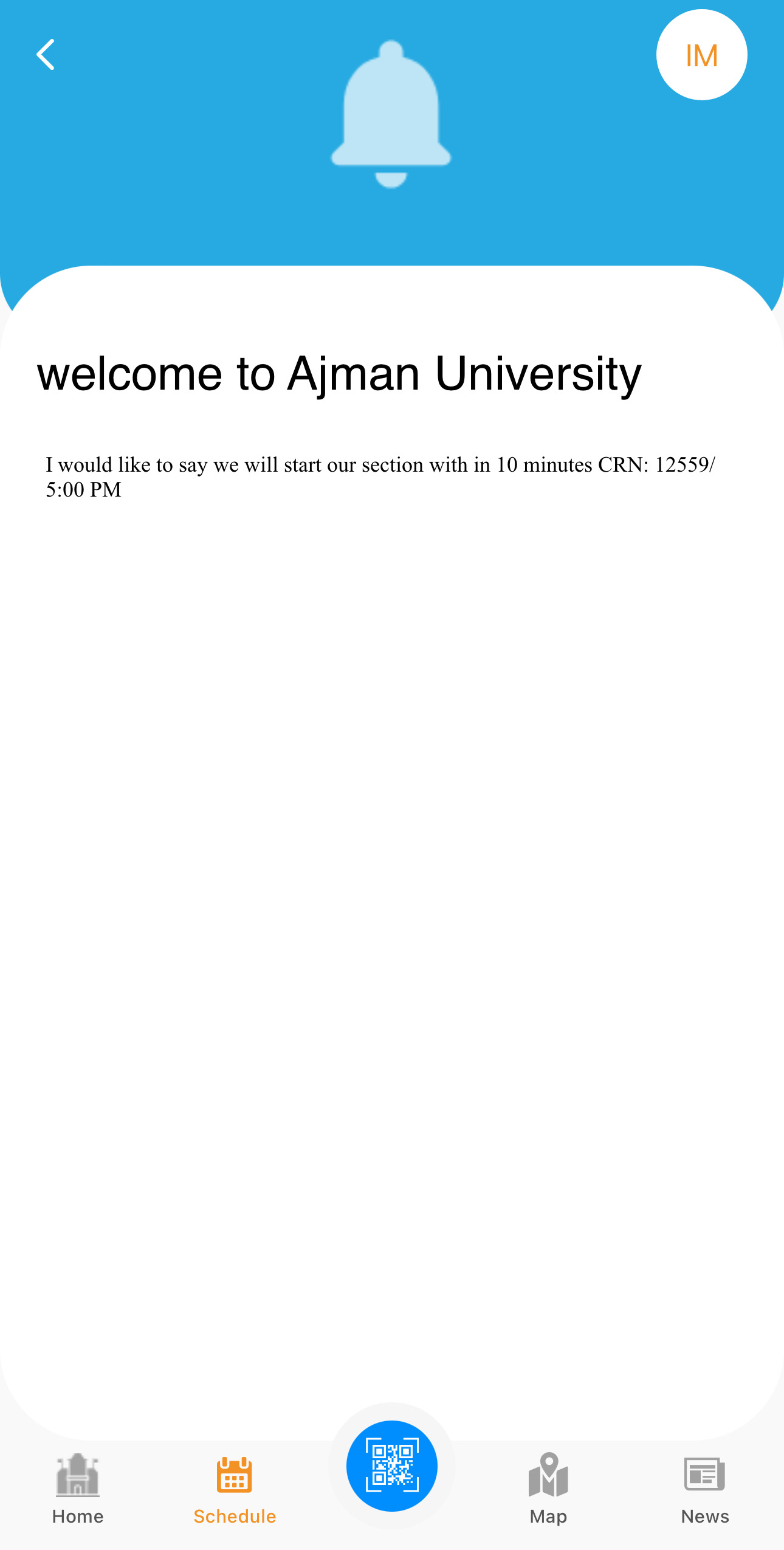
Click on the "Notification" icon.
-
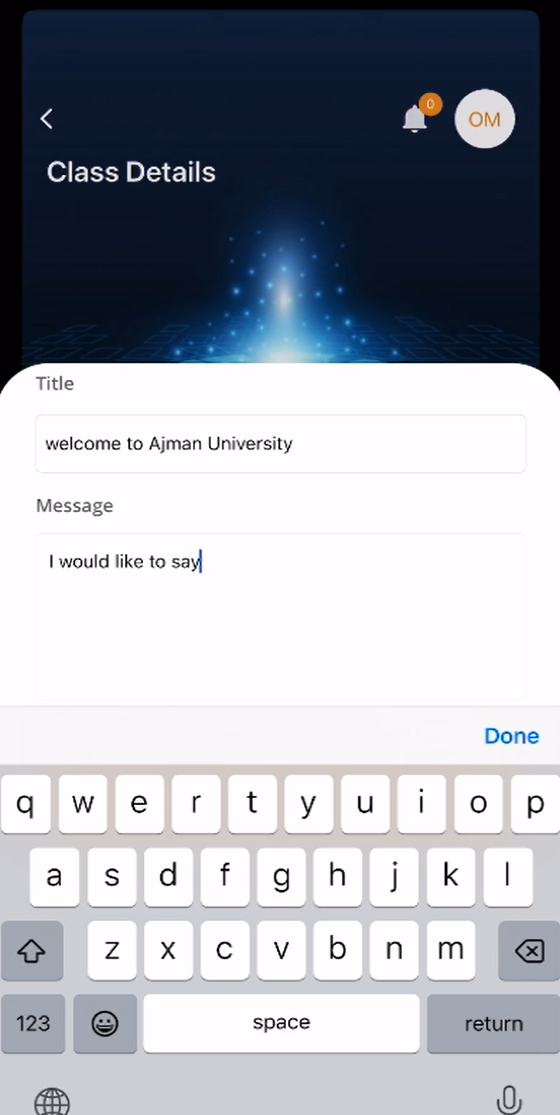
Type the notification details, including the title and message. Once done, click on "Done" and then "Send".
Note
Each notification can contain up to 350 characters.
-
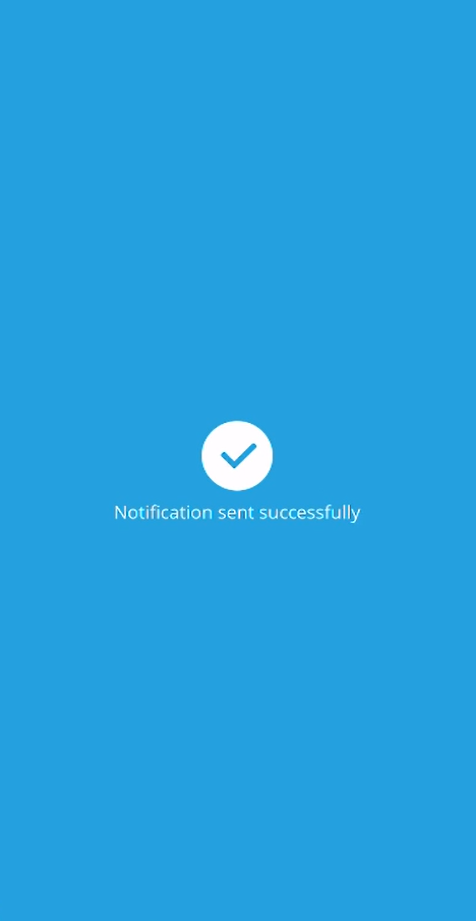
Your notification has been sent successfully to the registered students.
-
Students registered under this CRN will receive your notification.
هل كانت هذه المقالة مفيدة؟
مقالات ذات صلة
AU Connect التطبيق الذكي
المصدر الأصلي: https://it.ajman.ac.ae/docs/send-notifications-through-au-connect-app