


Campus Navigation for Guests
By Khadija AhmedPublished 28 Sept 2021Updated 1 Feb 20231 min read
To navigate inside the campus through the app, please follow the below steps:
- Click on Continue as guest.
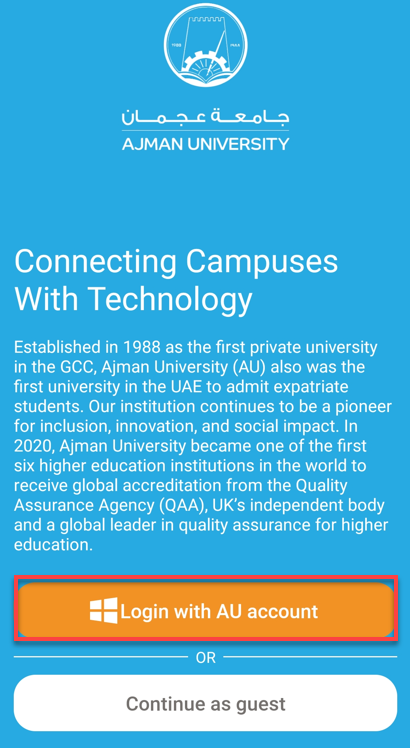
- Click on Campus Map to view all buildings on campus.
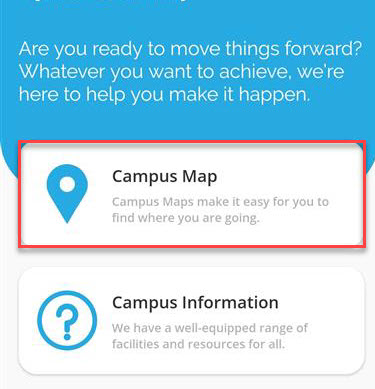
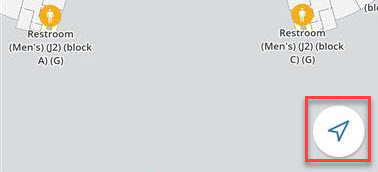
- Click on the location icon to show your exact location on campus.
- Click on the building icon to chose your destination.

- Turn on Bluetooth and GPS then Click on the location icon to show your exact location on campus.
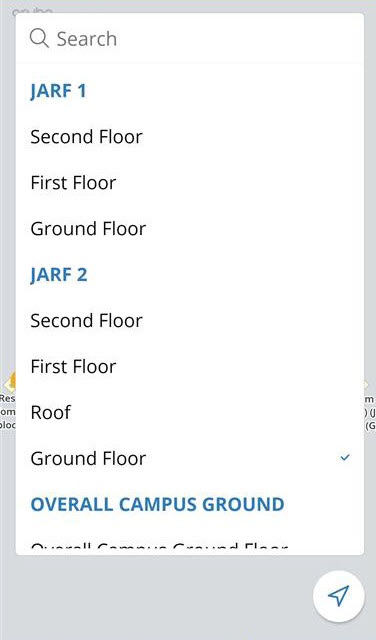
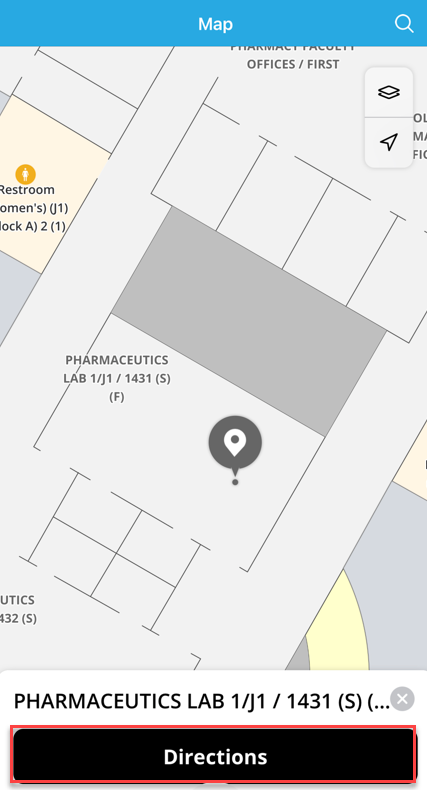
- Locate and click on the classroom/hall you would like to navigate to, then click on the "Directions" button to navigate to the chosen destination.
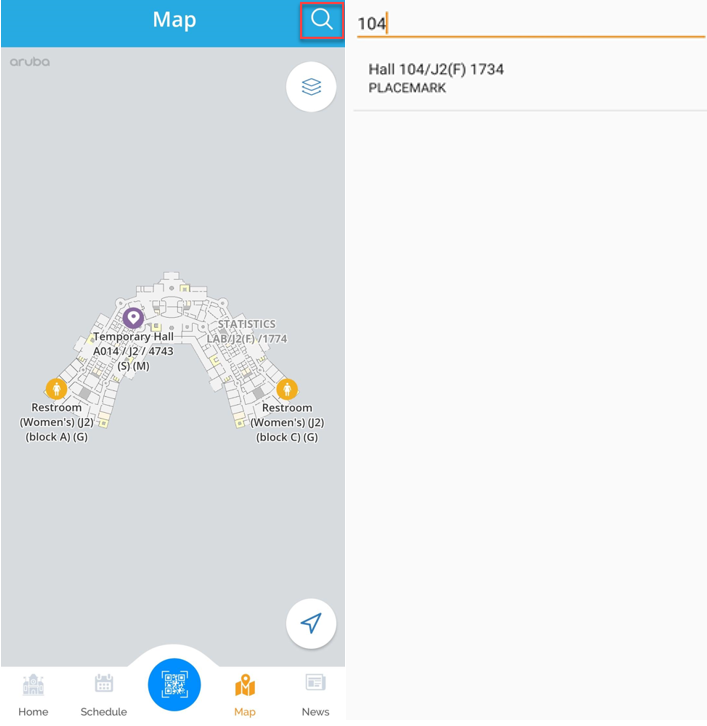
- To search for a destination, click on the search icon and enter the destination you wish to navigate to in the search bar. The relevant search result will be displayed where you can select and navigate to accordingly.
- Slide the black bar or click on the arrow to move the current location if the location option isn’t enabled. Otherwise, if the location option is enabled, then the arrow will move while you are moving.

Was this article helpful?
Related articles
AU Connect Mobile App
Original source: https://it.ajman.ac.ae/docs/campus-navigation-for-guests