


Track Student Attendance
Published 12 Jul 2021Updated 9 Dec 20211 min read
Watch our recorded webinar about this topic below:
You can track your students’ attendance by following the below steps:
- Log in to Banner.
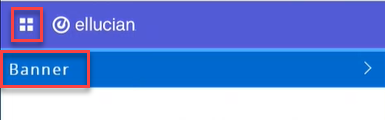
- Click on the menu located on the left, then click on Banner.
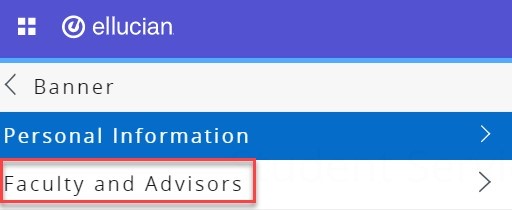
- Click on Faculty and Advisors.
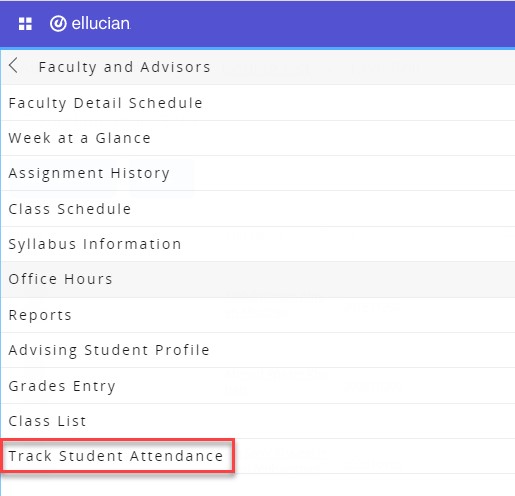
- Click on Track Student Attendance.
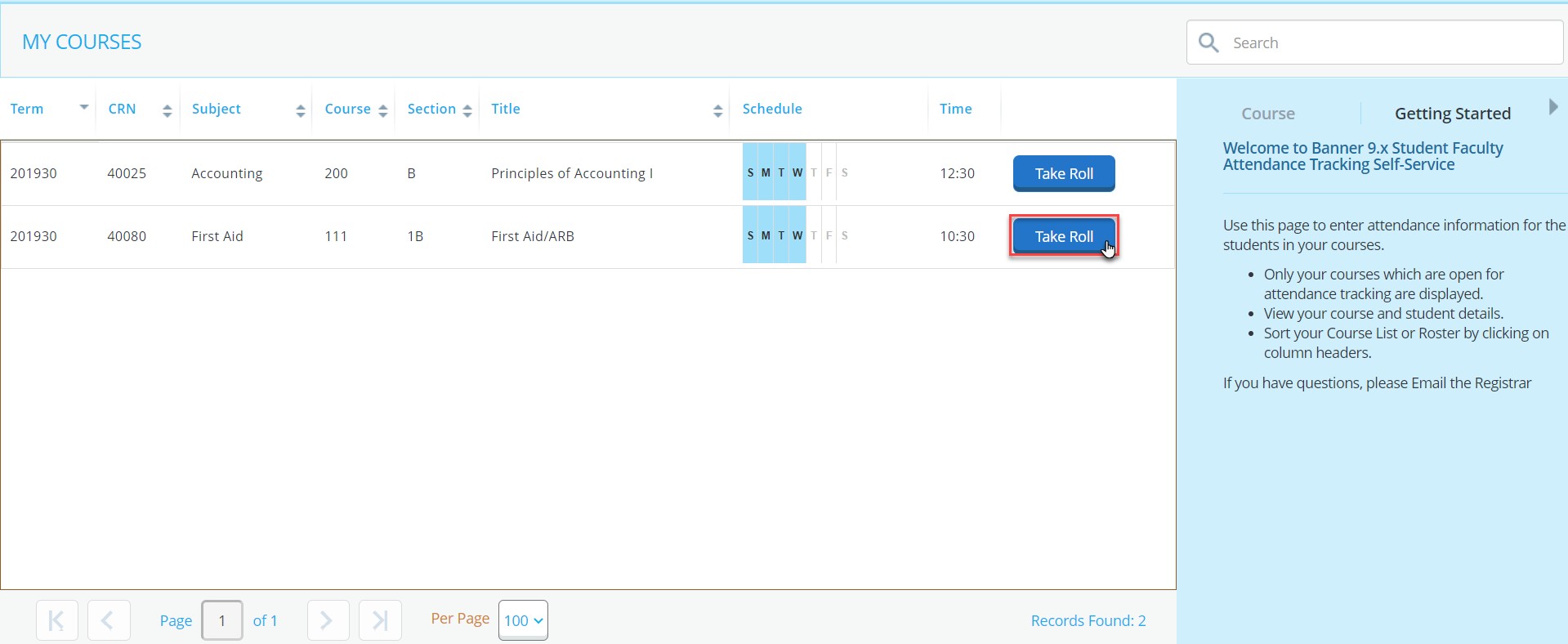
- Choose the course which you would like to enter the students’ attendance to, by clicking on Take Roll.
- For each student, click on the cell that is the meeting point of the session date and the student.
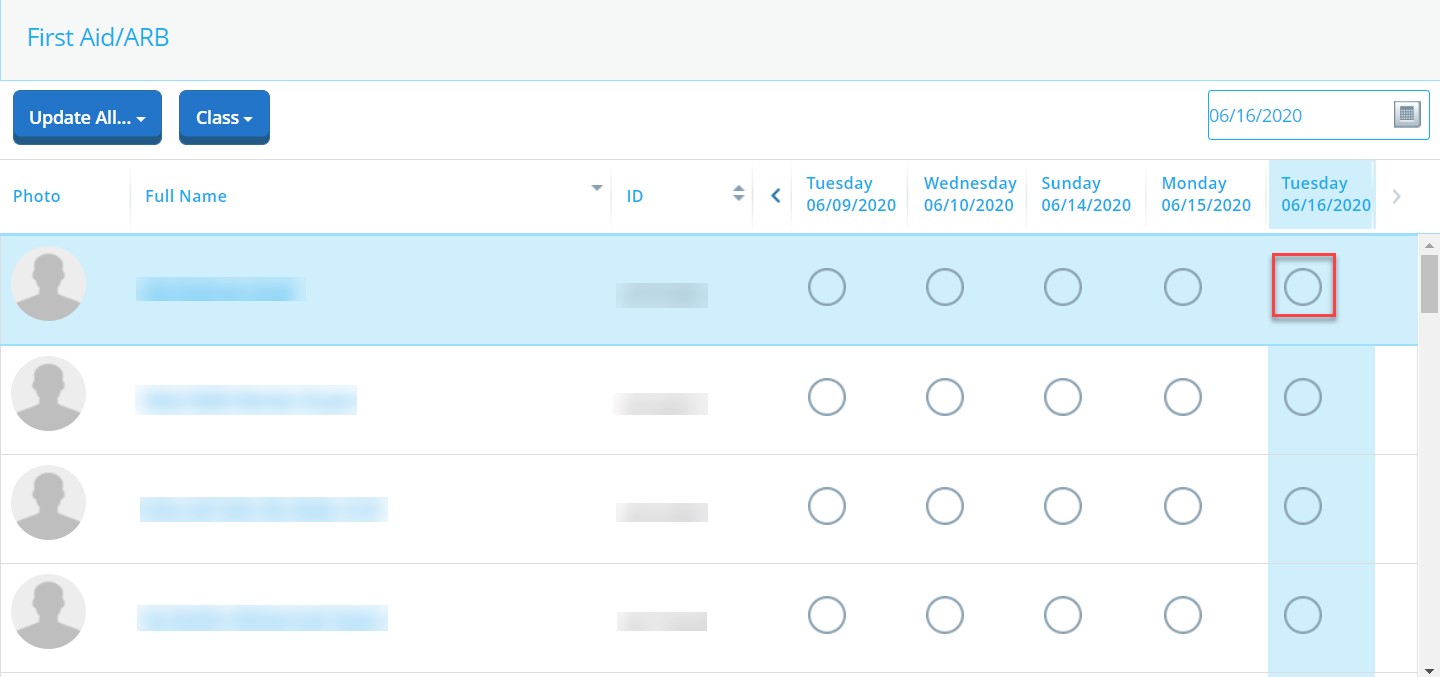
Note:
One click will mark the student as present (in green), while two clicks mark the student as absent (in red).
Mark your student as present
You can specify the duration each student attended the class by marking the student present, as explained previously, and then choosing the duration.
Mark your student as absent
If a student has an excuse for being absent, you can mark him/her as absent, as explained previously, check the Absence Notified box, and add notes.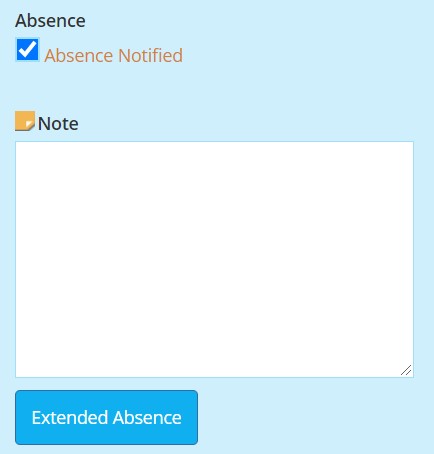
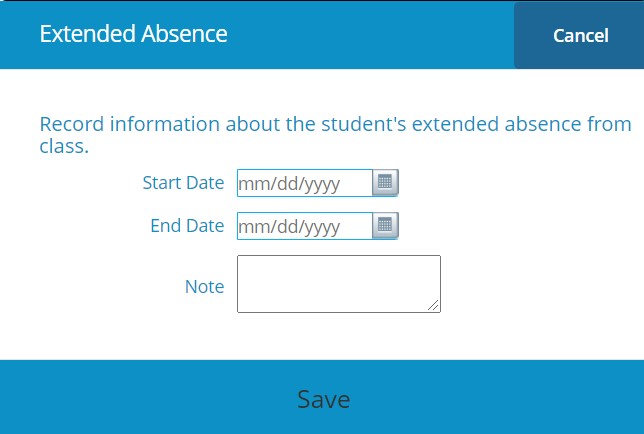
In case your student is absent for multiple classes, instead of marking each session as absent manually, you can click on Extended Absence, as illustrated below, then choose the start and end date and specify the reason.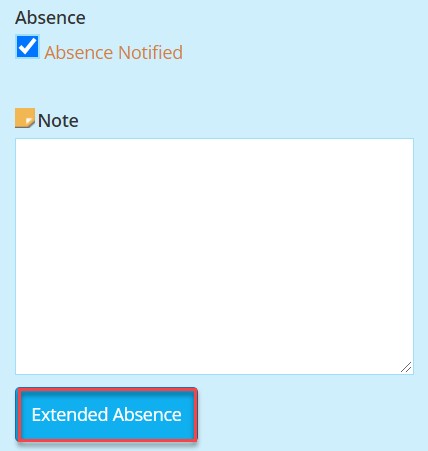
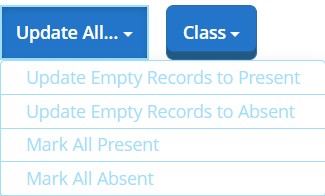
Update a group of records at once
- If you have a few absent students, you can mark them, then click on Update All, and then on Update Empty Records to Present.
- If you have a few present students, you can mark them, then click on Update All, and then on Update Empty Records to Absent. Noting that you still need to update the notified absence manually.
- If all your students attended the class, click on Update All, and then Mark All Present.
- If all your students were absent, click on Update All, and then Mark All Absent.
Was this article helpful?
Related articles
Banner SIS
Original source: https://it.ajman.ac.ae/docs/track-student-attendance