


Grading Audit Report
The Grading Audit Report in Argos helps check course data for any decimal or empty scores. It's like a magnifying glass for grading, making it easy to spot mistakes or missing info. Faculty members can use it to keep grading accurate and consistent, ensuring students get fair evaluations.
To generate this report, follow the steps below:
- Log in to Banner.
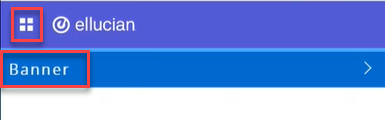
- Click on the menu on the left side of the page and then click on Banner.
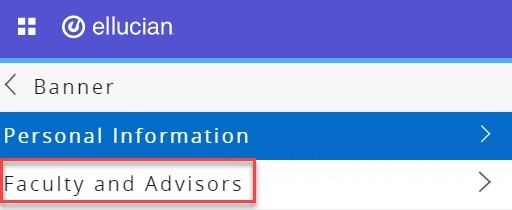
- Click on Faculty and Advisors.
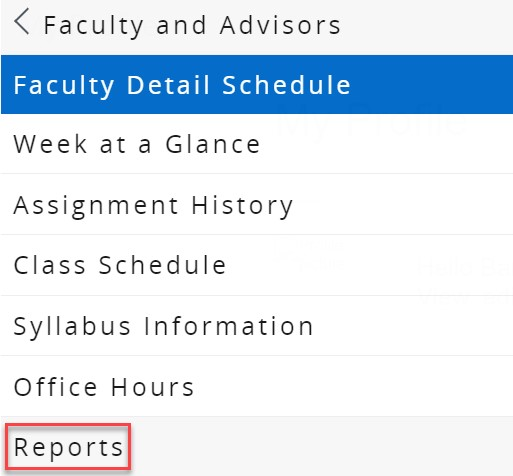
- Click on Reports.
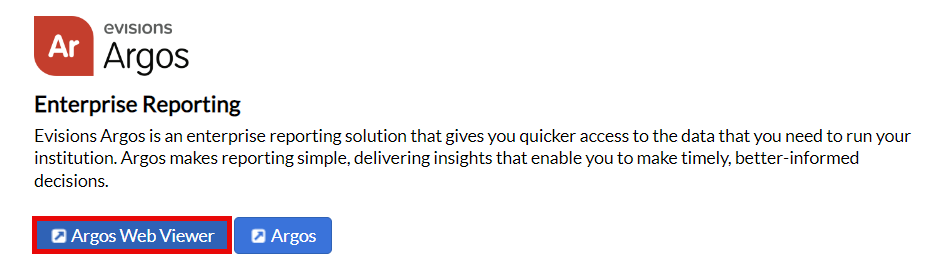
- Click on Argos Web Viewer.
Note:
Part-timers do not have access to Argos. If you are a full-time employee and you require an access to Argos, please reach out to the Helpdesk.
-
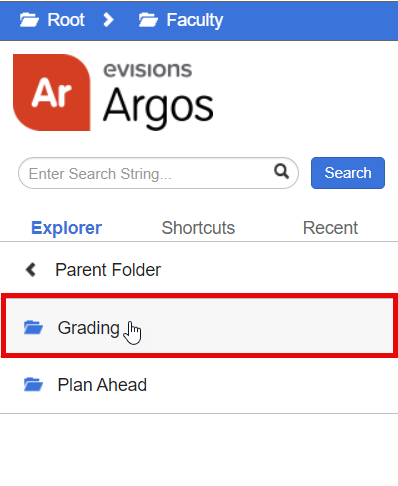
Click on Faculty folder, then Grading folder.
-
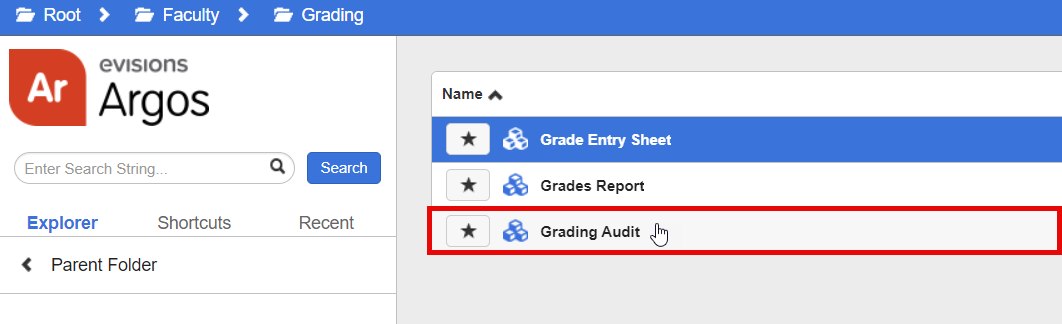
Click on Grading Audit.
-
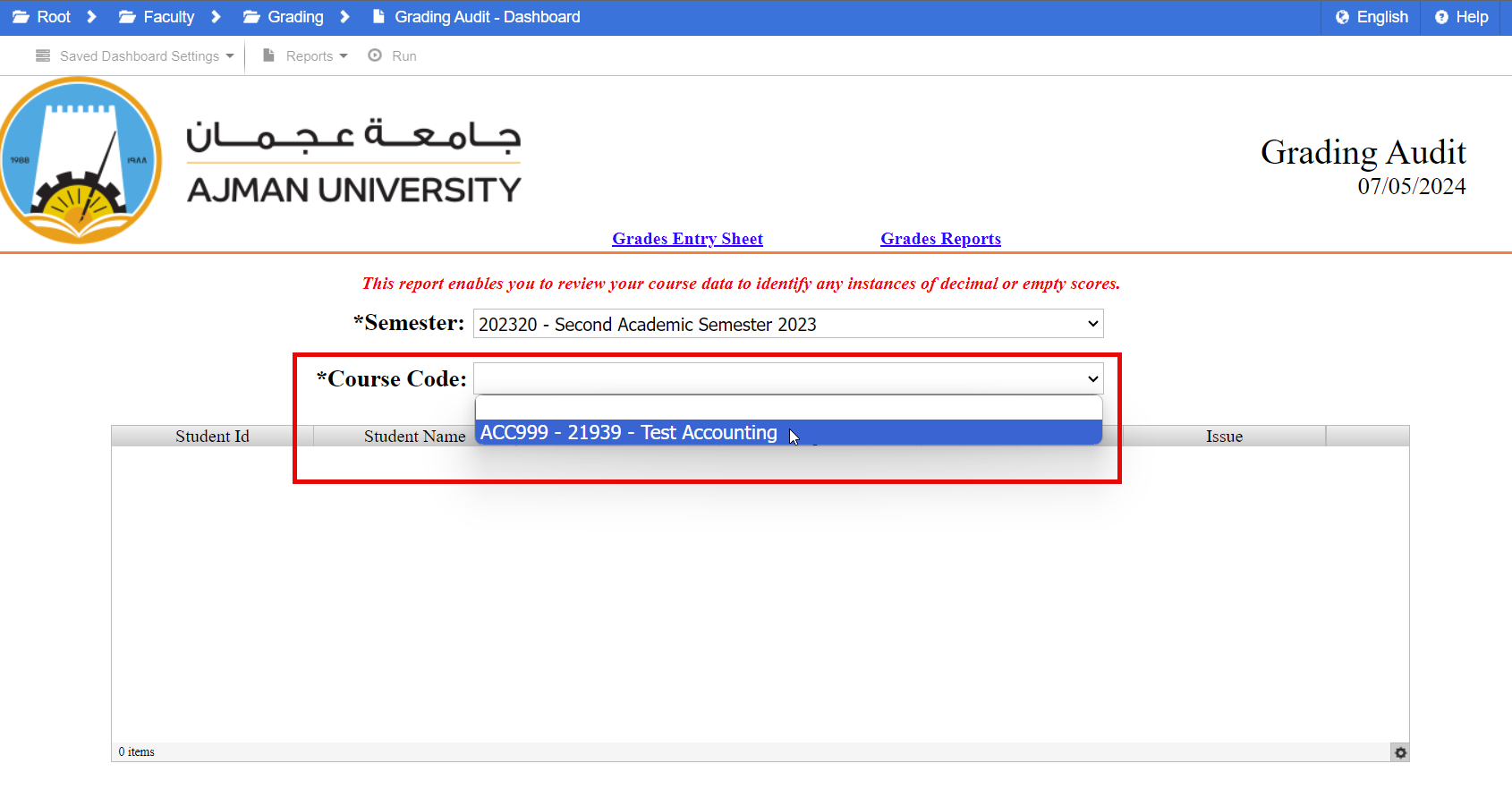
Select the Course Code.
Note:
The current semester will be selected by default.
-
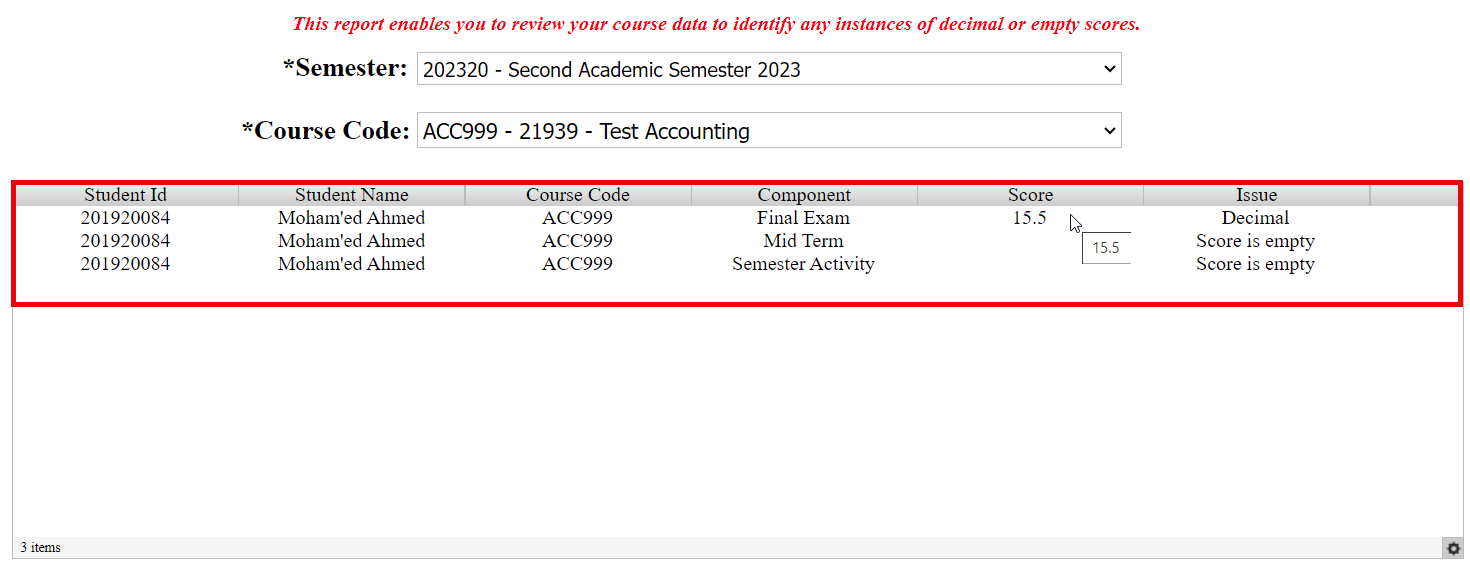
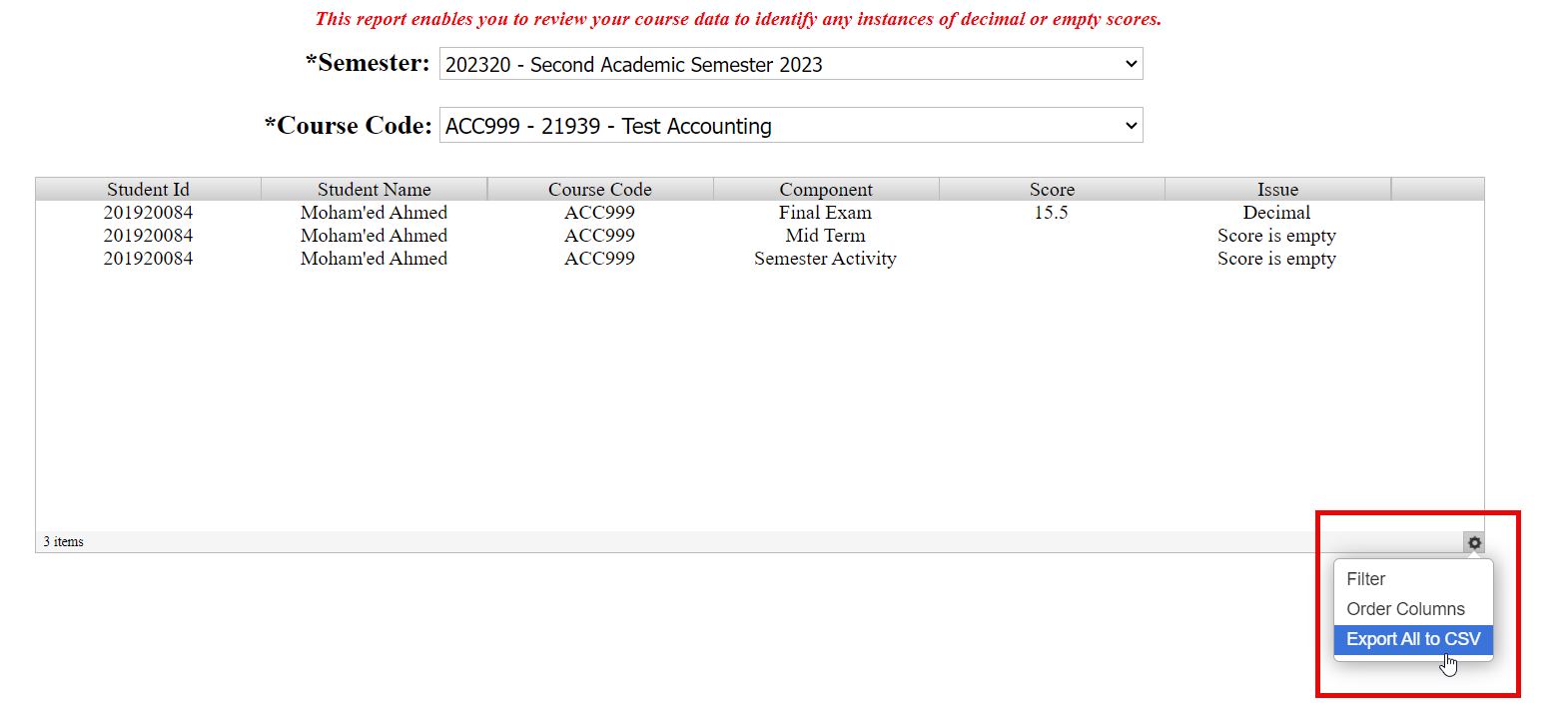
Decimal and empty grades will appear on the report.
-
You can export the report by clicking on the "Export All to CSV" option.
Was this article helpful?
Related articles
Banner SIS
Original source: https://it.ajman.ac.ae/docs/grading-audit-report