


Initiate Your Students’ Physical Attendance through the AU Connect App
By Khadija AhmedPublished 16 Dec 2021Updated 25 Aug 20251 min read
Through this feature, AU faculty members will be able to Initiate attendance, view, and edit the attendance before submitting it.
To initiate physical attendance through the app, please follow the below steps:
- Click on Login with AU account.

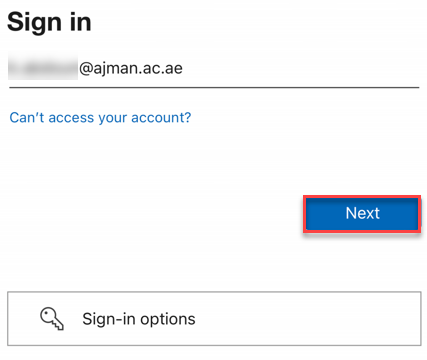
- Enter your AU email address, then click on Next.
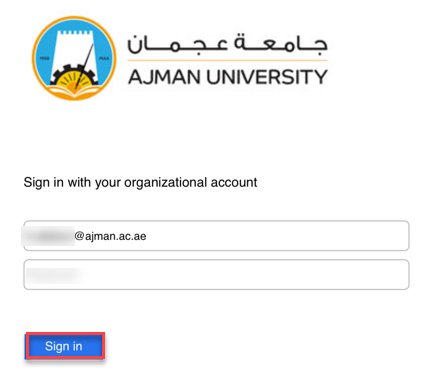
- Enter your password, then click on Sign in.
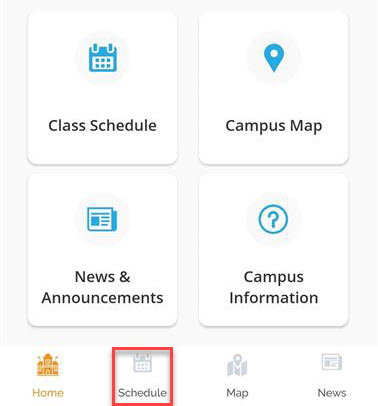
- Click on Schedule.
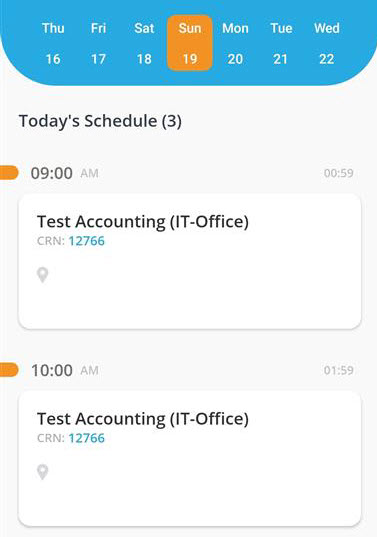
- Choose the class you’d like to track the attendance for.
- Click on Initiate Attendance so that the students can mark their attendance.
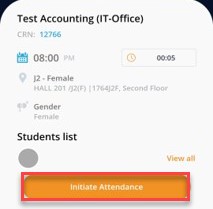 6. Once students mark their attendance, you will be able to view the attendance list, where will be 3 outcomes:
- Location verified (this means that the student is in the class)
- Location not verified (this means that the student isn’t in the class)
- Student checkbox isn’t checked (this means that the student didn’t mark his/her attendance)
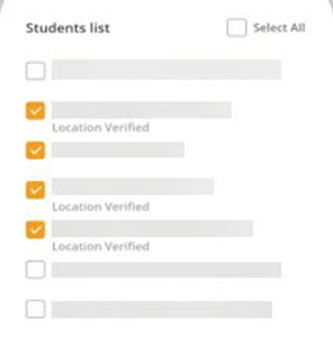
Note: You have the privilege to check/uncheck the student attendance checkbox.
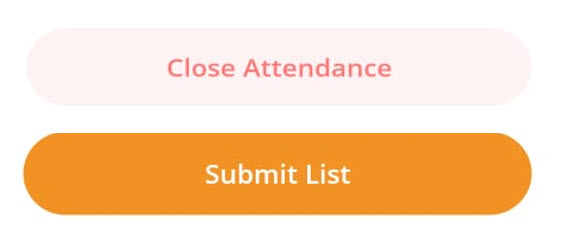
- You can click on Close Attendance to save the attendance without submitting it. Clicking this button allows you to re-initiate the physical attendance at a later stage during the class to allow more students to confirm their physical attendance. However, once all students confirm their attendance, you should click on Submit List to submit the attendance list and post it on Banner.
Was this article helpful?
Related articles
AU Connect Mobile App
Original source: https://it.ajman.ac.ae/docs/initiate-your-students-physical-attendance-through-au-connect-app