
Follow up on Closed Purchase Requisitions
هذه المقالة غير متوفرة بالعربية بعد. يتم عرض النسخة الإنجليزية.
This article will guide you through the process of following up on and tracking your closed purchase requisitions within the Dynamics 365. By following the steps outlined in this guide, you will gain a comprehensive understanding of how to effectively track and check the status of your closed purchase requisitions.
You can follow up on closed purchase requisitions in Dynamics 365 by following the below steps:
-
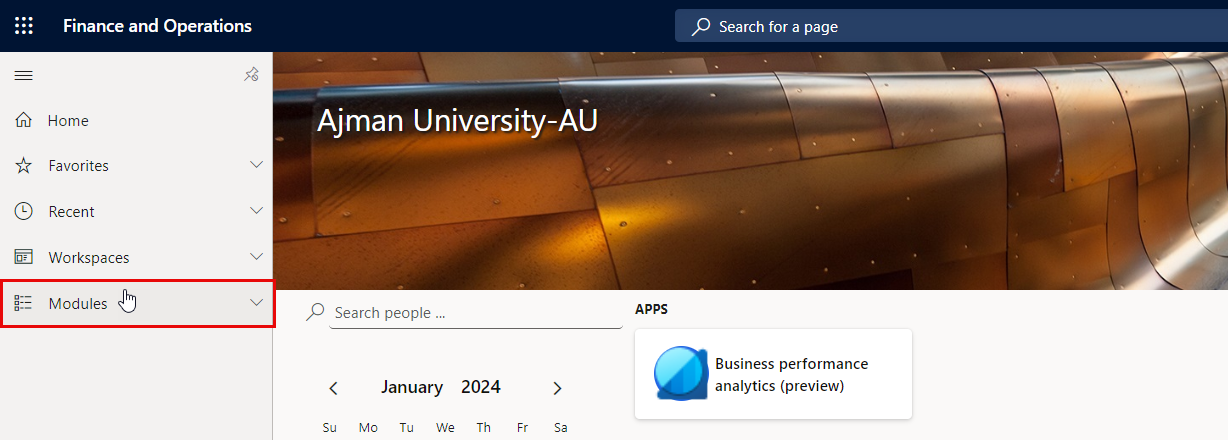
Once you have logged in, you will be on the Dynamics 365 home page. On the left-hand navigation pane, click on Modules.
-
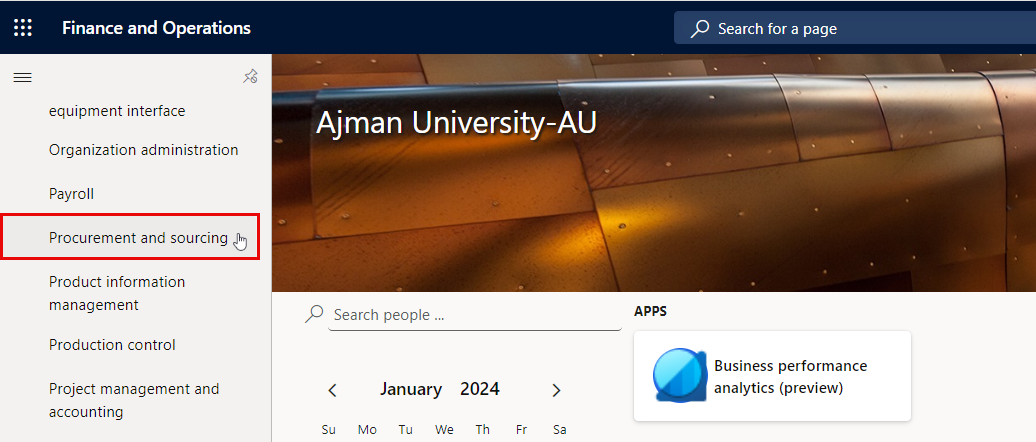
Navigate to and click on Procurement and Sourcing Module.
-
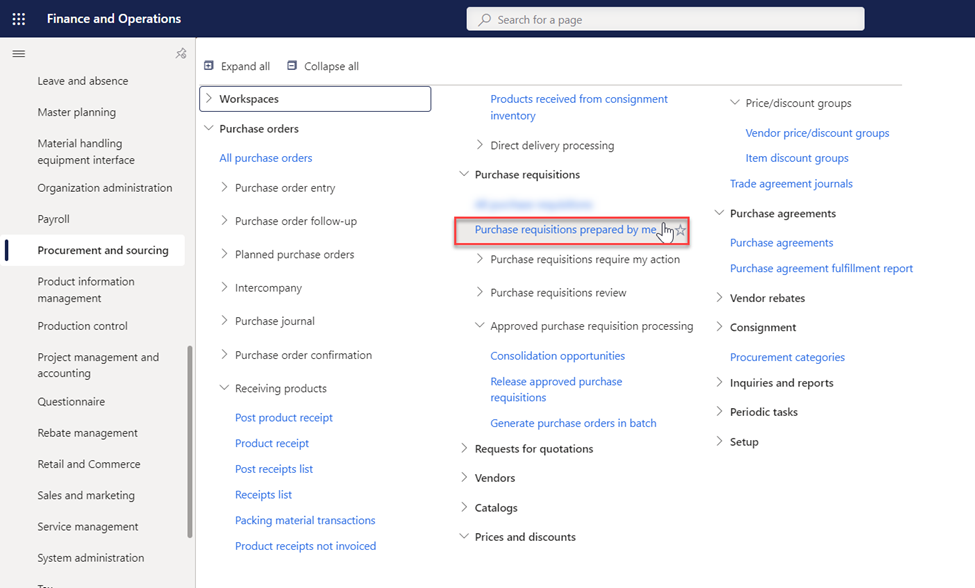
Click on “Purchase Requisitions prepared by me”.
-
In this module, locate the list of all existing purchase requisitions, and open the specific one you wish to track for its associated purchase order.
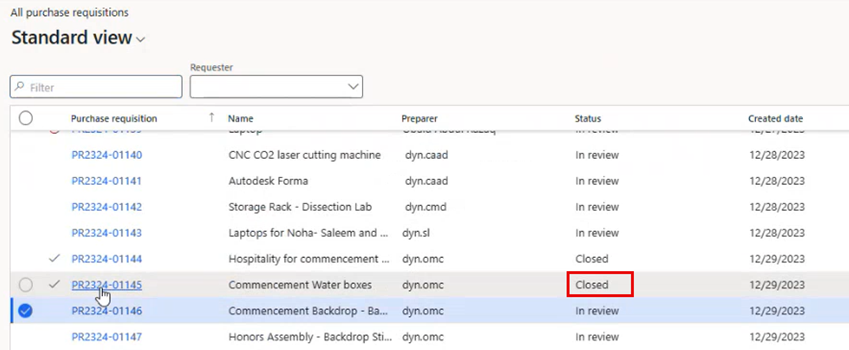
Note:
When the requisition is in "Closed" status, it indicates that the PR has been successfully converted into a purchase order. At this point, you can proceed to track and follow up on the purchase order.
-
Navigate to Lines Details > Details, and click on the purchase order number associated with the purchase requisition.
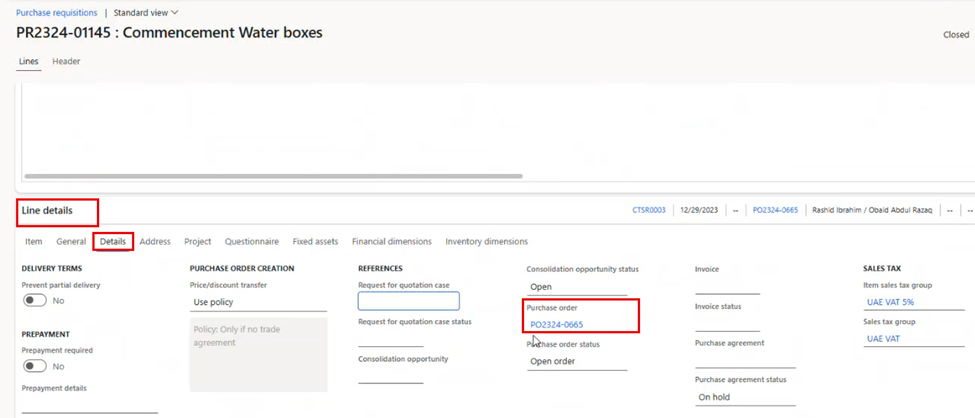
-
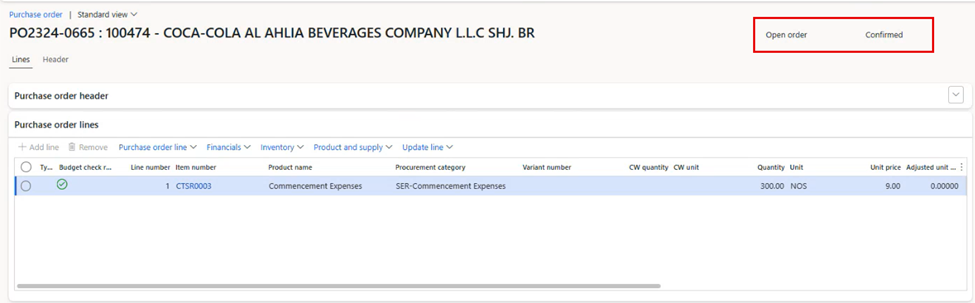
The status of the purchase orders will be displayed here.
هل كانت هذه المقالة مفيدة؟
مقالات ذات صلة
Finance and Procurement Process
المصدر الأصلي: https://it.ajman.ac.ae/docs/follow-up-on-closed-purchase-requisitions