

Activate PR Notifications in Dynamics 365 for AU Email
هذه المقالة غير متوفرة بالعربية بعد. يتم عرض النسخة الإنجليزية.
This guide provides step-by-step instructions for setting up Purchase Requisition (PR) notifications in Dynamics 365. It ensures that you receive notifications via your AU email instead of your department email.
Follow these steps to enable and receive PR notifications via your AU email:
-
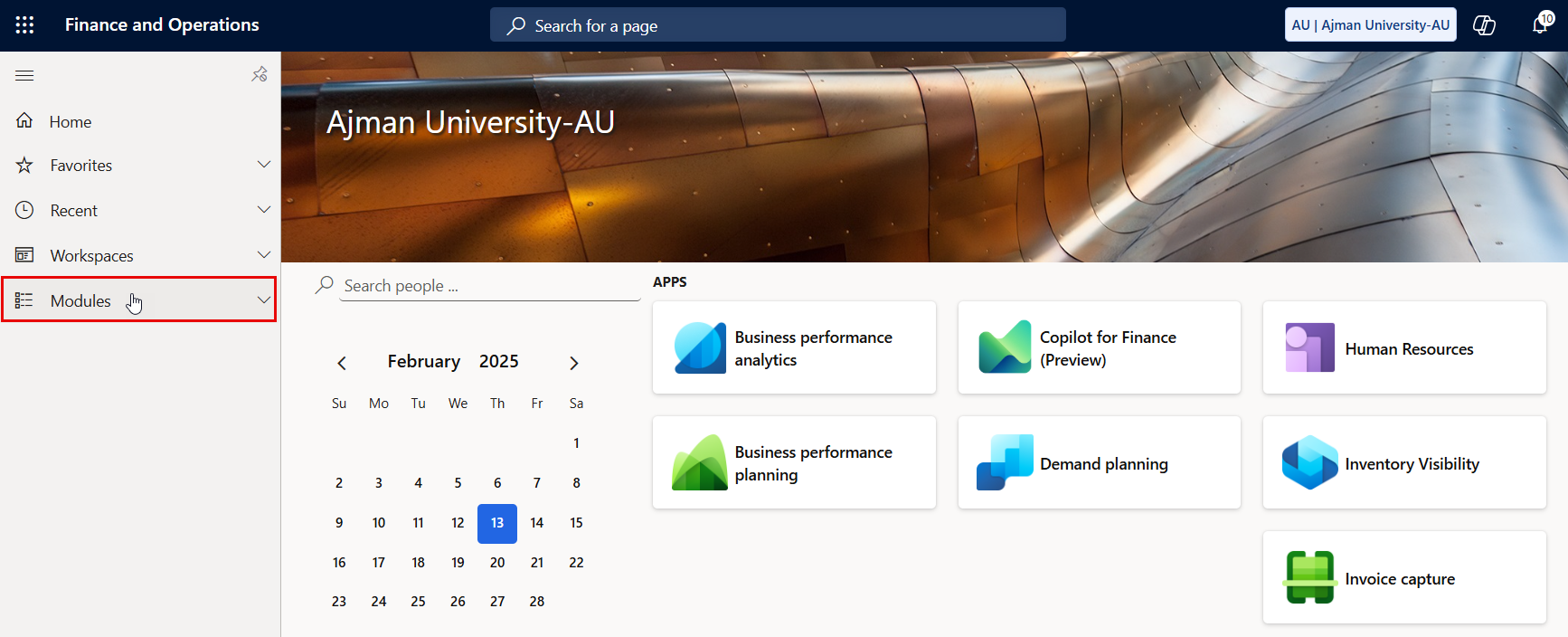
Once you log in, you will be directed to the Dynamics 365 home page. On the left-hand navigation pane, click on Modules.
-
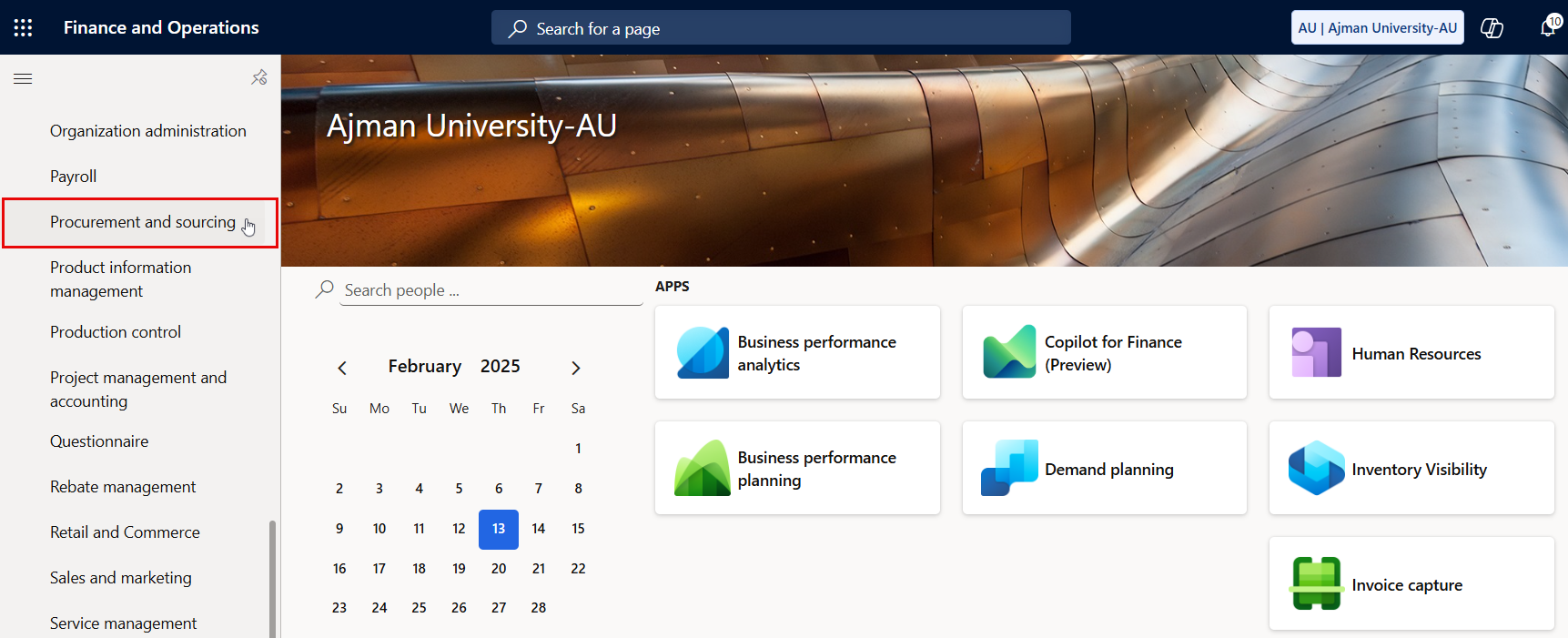
Navigate to and click on Procurement and Sourcing Module.
-
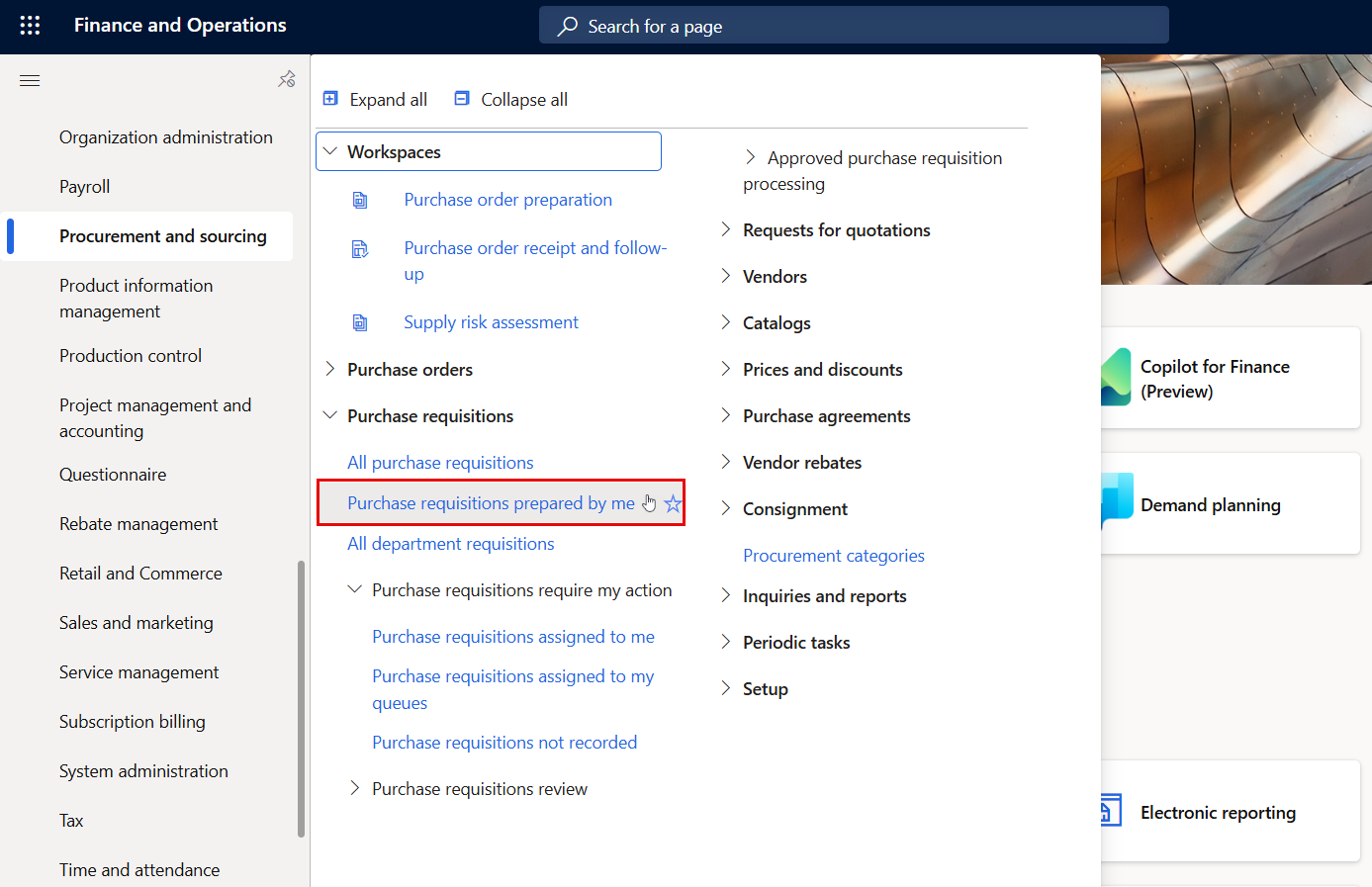
Click on “Purchase requisitions prepared by me”.
-
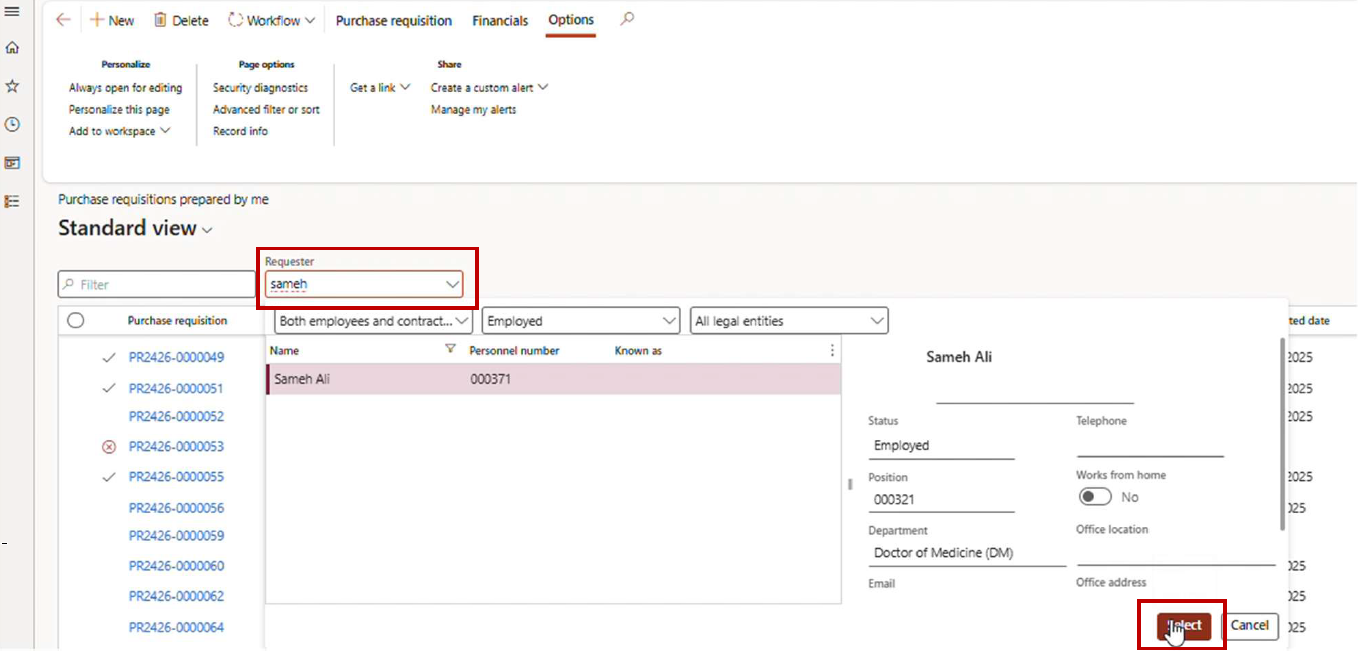
Click on Requester, select your name, and then click Select.
-
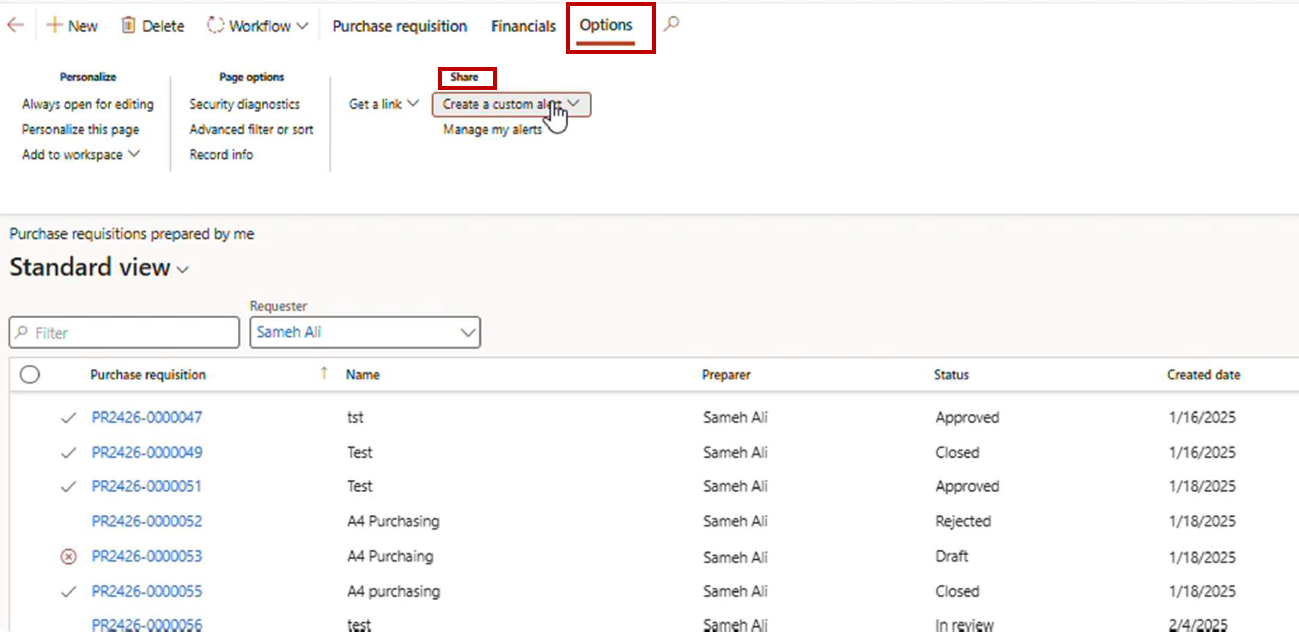
Locate and click the Options button at the top of the page. Then, navigate to the Share section and select Create Custom Alert.
-
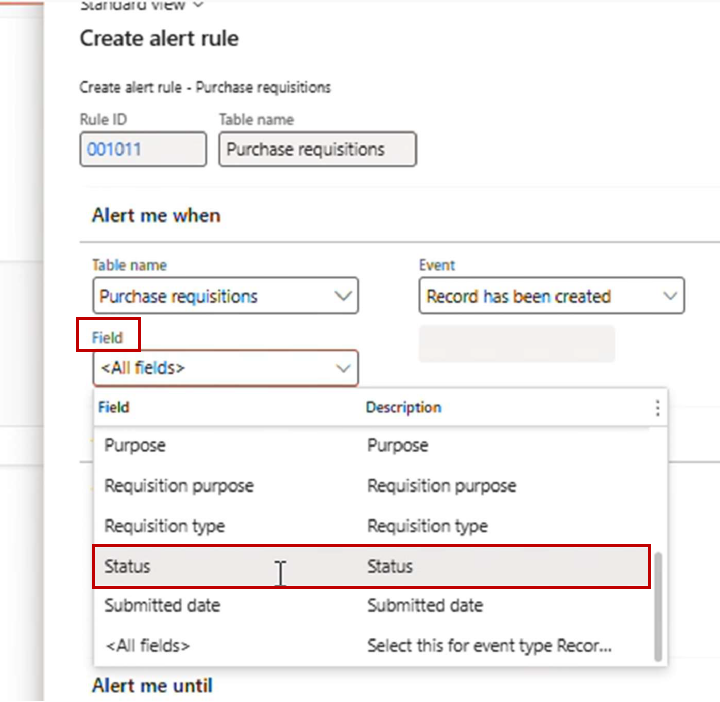
A screen with multiple options will appear, allowing you to configure your notification settings. Click on Field and select Status.
-
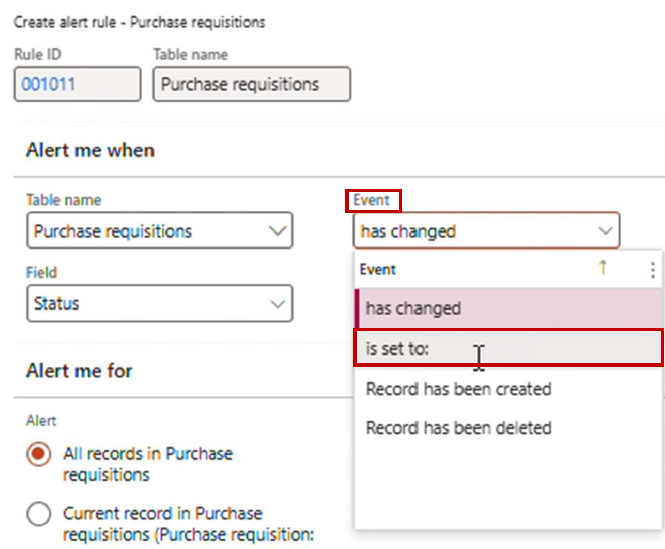
Click on Event and choose "Is set to:".
-
In the next field, select the status for which you would like to receive notifications.
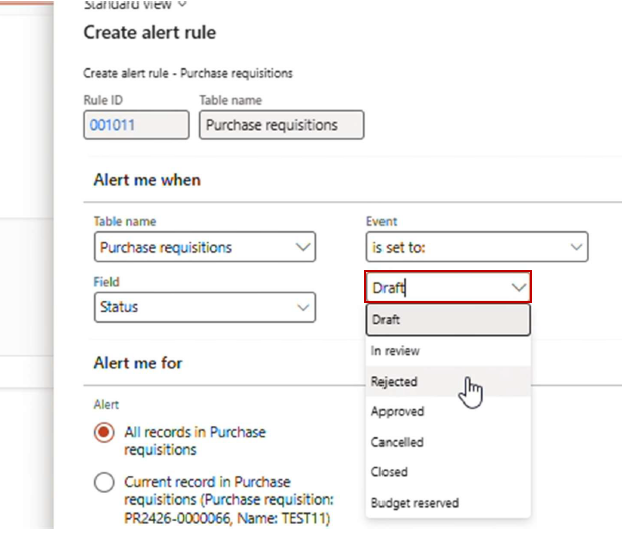
Note:
Each status must be configured separately. Multiple statuses cannot be selected or set up at the same time. Repeat the process to activate notifications for the remaining statuses, if needed.
-
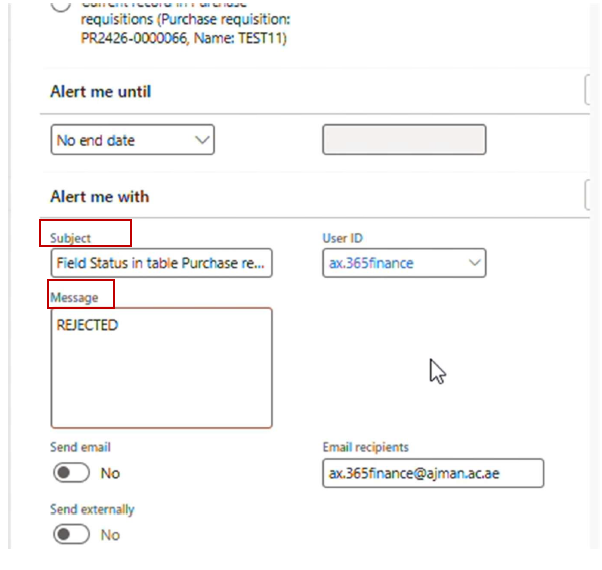
Enter the Subject of the message in the subject field and the notification text in the message text box.
-
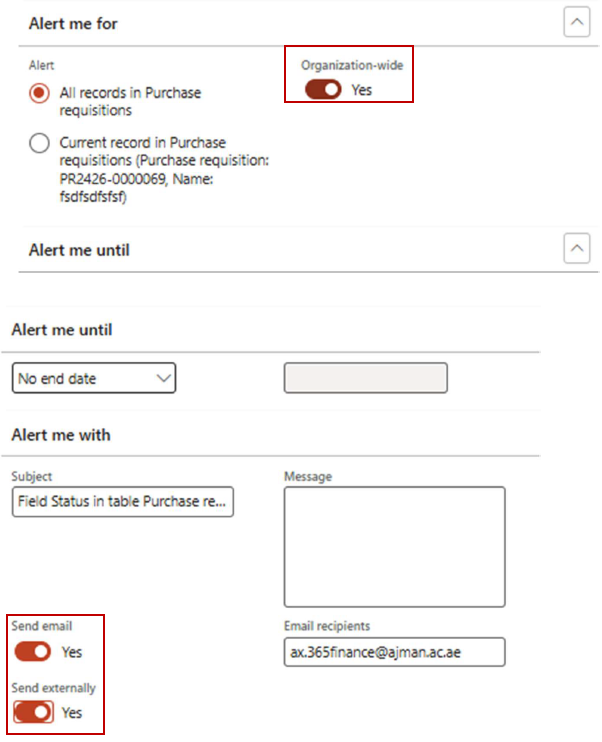
To receive the notification on your AU email, disable Organization-wide settings and enable Send Email and Send Externally.
-
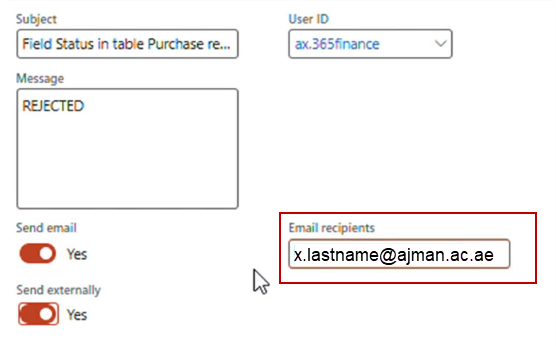
Enter your AU email address instead of your department email.
-
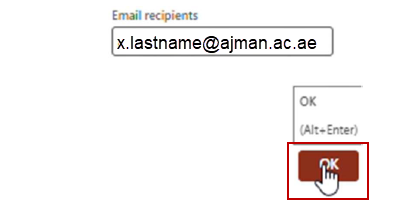
Click OK to save your changes.
هل كانت هذه المقالة مفيدة؟
مقالات ذات صلة
Finance and Procurement Process
المصدر الأصلي: https://it.ajman.ac.ae/docs/activate-purchase-requisition-notifications-in-dynamics-365-for-au-email