


Using Zoom for an Online Exam
Published 24 Jun 2021Updated 24 Jun 20211 min read
Notes:
If your instructor chose Zoom to monitor you during the online exam, please note the following:
- You should perform at least one mock exam using Zoom and LockDown Browser at least 48 hours prior the actual exam date and time.
- Learn more about downloading and signing in to Zoom through their dedicated articles.
- Before starting the exam:
- You must log in to Zoom using your university email and password, noting that if you fail to do so, please contact the Helpdesk.
- You must enter the Zoom meeting, unmute yourself and start your video.
- All Zoom meetings will be recorded automatically.
Access Zoom for the Online Exam
You can access Zoom for the online examby following the below steps:
- Log in to Moodle using your student ID and password.
- Select the course from the Dashboard.
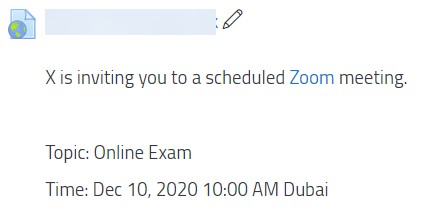
- Inside the course, find the Zoom button under Zoom topic and click on it (this will lead you to step 4), or look for an external link (this will lead you to step 5). These should look as the following:

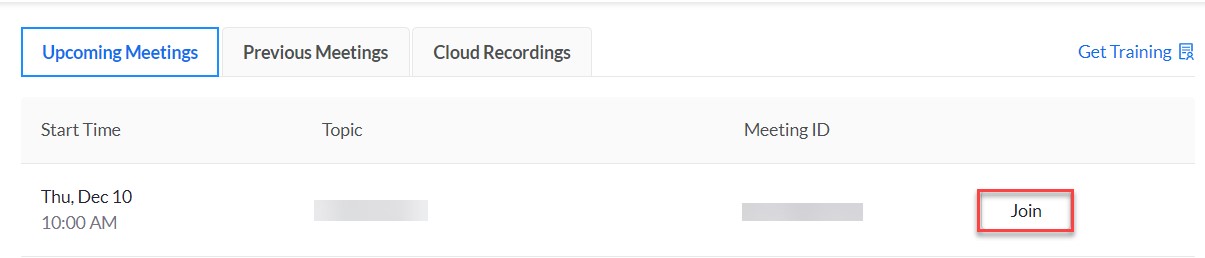
- Click on Join for the specific online exam meeting, as illustrated below:
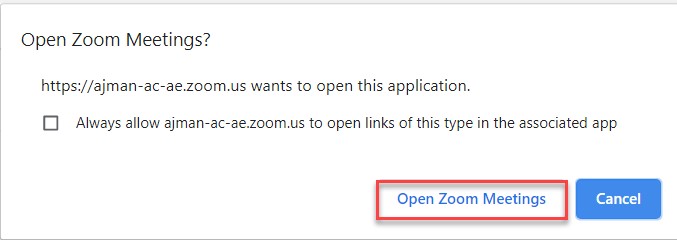
- Click on Open Zoom Meetings, as illustrated below:
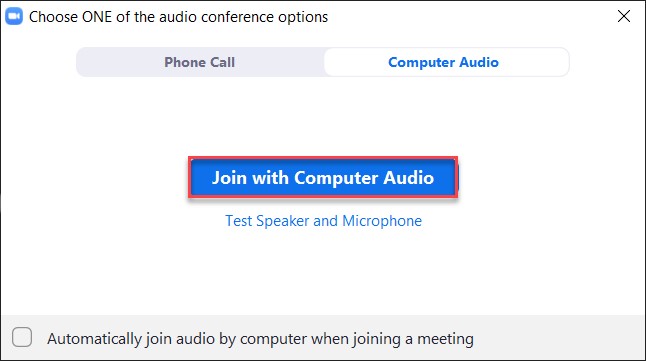
- Click on Join with Computer Audio, as illustrated below:
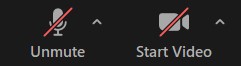
- Make sure that you adjust your microphone and camera through the two buttons illustrated below:
Launch Online Exams with LockDown Browser
Once you join the Zoom meeting and ensure that you can be seen and heard by the instructor, go to the online exam on Moodle and launch it using LockDown Browser. For more details and instructions to do this, please refer to the LockDown Browser category located in the navigator on the left side of the webpage.
Was this article helpful?
Related articles
Zoom
Original source: https://it.ajman.ac.ae/docs/students-zoom-online-exam