


Students sign in to Zoom
By Khadija AhmedPublished 23 Jun 2021Updated 13 Feb 20261 min read
Note: Signing in to Zoom for the first time
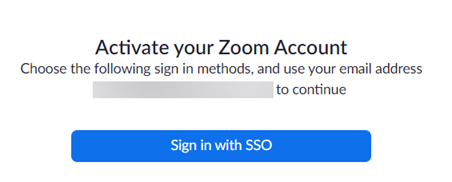
- When signing in to Zoom for the first time, you have to activate your account, by following the below steps:
- Click on Confirm your email address.
- Open your AU email, check the latest email sent from Zoom, and click on Activate Account.
 However, if you previously created an account with your AU email, you would have to click on I acknowledge and switch, in order to activate your AU account.
- Click on Sign in with SSO.
Watch our video tutorial about setting up your Zoom account:
To sign in to Zoom, you are required to use the Single Sign On (SSO). Therefore, please follow the below instructions:
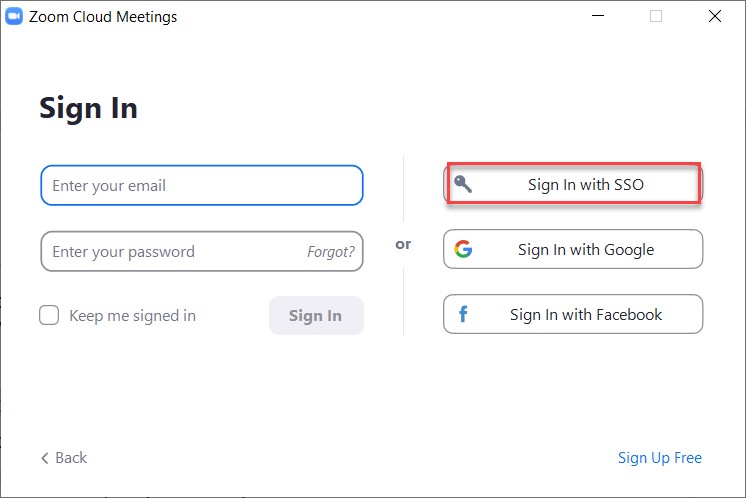
- Launch Zoom.
- Click on Sign In with SSO, as illustrated below:
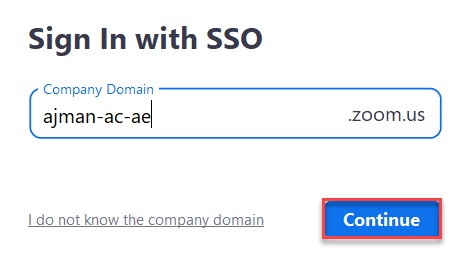
- Enter the Company Domain as ajman-ac-ae and click on Continue, as illustrated below:
- Sign in using your university email address and password.
- To join a Zoom meeting, click on Open Zoom Meetings, as illustrated below; or if you can’t see the box, click on Launch Zoom, as illustrated below:
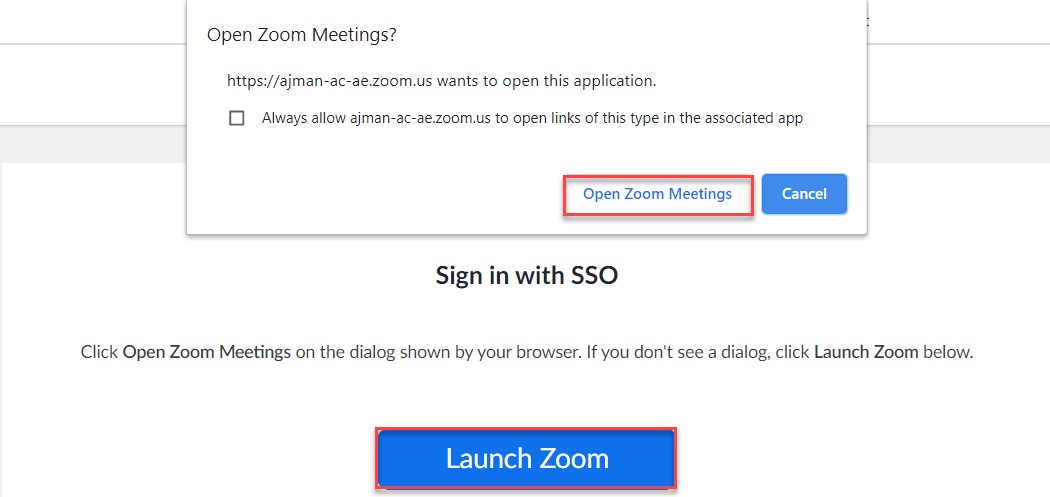
- To join a Zoom meeting, click on Open Zoom Meetings, as illustrated below; or if you can’t see the box, click on Launch Zoom, as illustrated below:
Note:
You will not be able to join Zoom meetings unless you sign in using the Single Sign On (SSO).Was this article helpful?
Related articles
Zoom
Original source: https://it.ajman.ac.ae/docs/students-sign-in-to-zoom