


Create a new request
Published 27 Jun 2021Updated 27 Jun 20211 min read
To create a new request on the ORS, please follow the below steps:
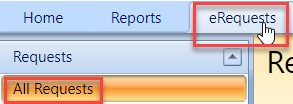
- On the homepage, click on the eRequests button and then on the All Requests button, as illustrated below:
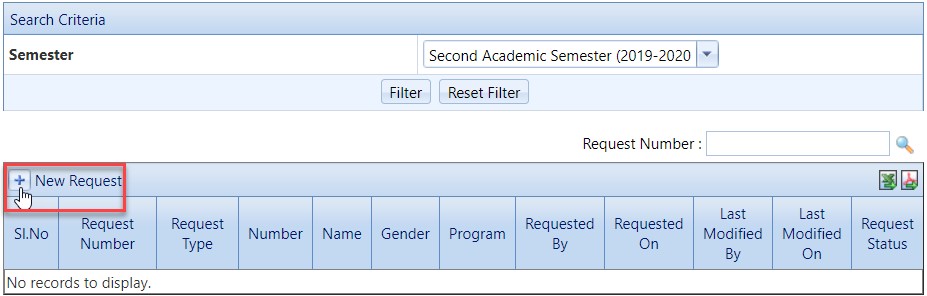
- Click on the New Request button, as illustrated below:
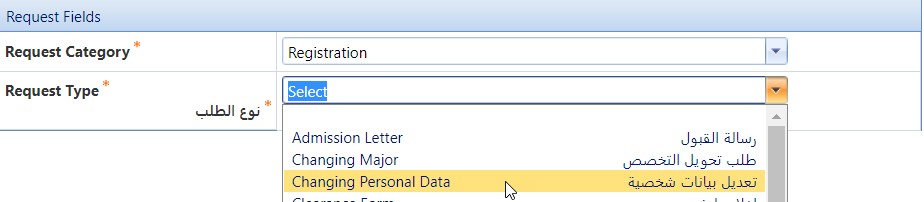
- Choose the request category, which is the office you are requesting from. For example, if you would like to change some of your personal data on the system, you would choose the “Registration” as a request category and “Changing Personal Data” as a request type, as illustrated below:
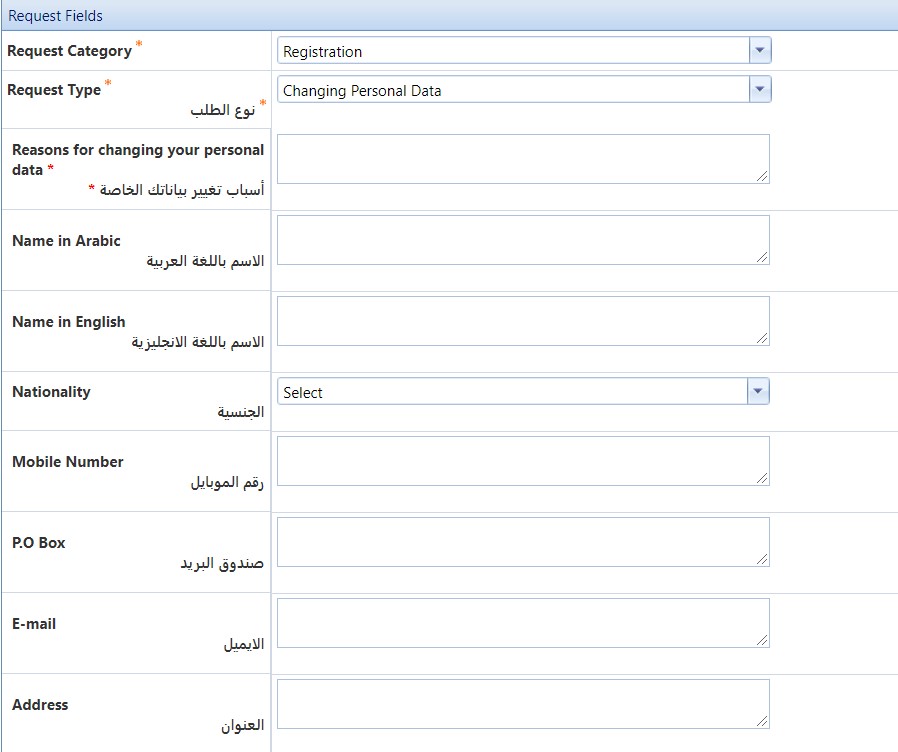
- Once you choose the request category and type, you will be presented with a related form to be filled, as illustrated below:
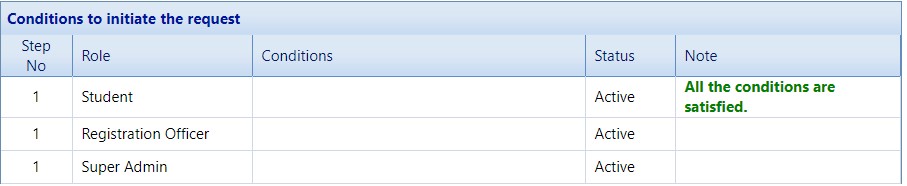
- You can scroll down to view the conditions which should be met in order to start this request, as illustrated below:
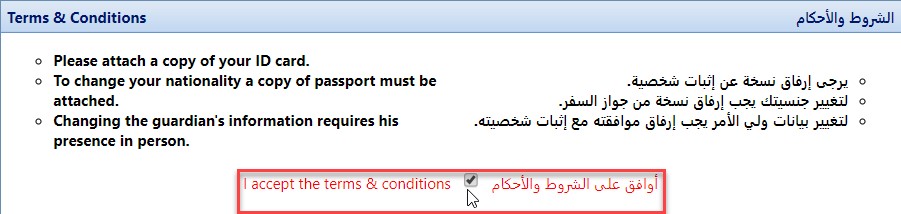
- Read and accept the terms and condition, as illustrated below:
- Once you have completed all the steps above and you are confident of all the details entered, click on the Submit button, as illustrated below:
Was this article helpful?
Related articles
Online Request System (ORS)
Original source: https://it.ajman.ac.ae/docs/students-create-a-new-request