


View and track the requests
Published 27 Jun 2021Updated 27 Jun 20211 min read
- In order to view your e-requests, click on the eRequest button from the main menu, as illustrated below:

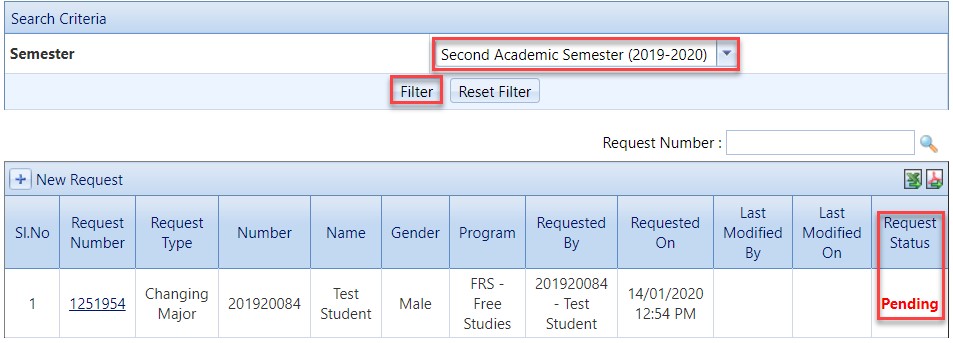
- By default, you will be able to view the e-requests for the current semester, however, you can filter the e-requests for each semester and you can view the status of each e-request, as illustrated below:
- To track the process/workflow for each request, click on the Request Number, as illustrated below:
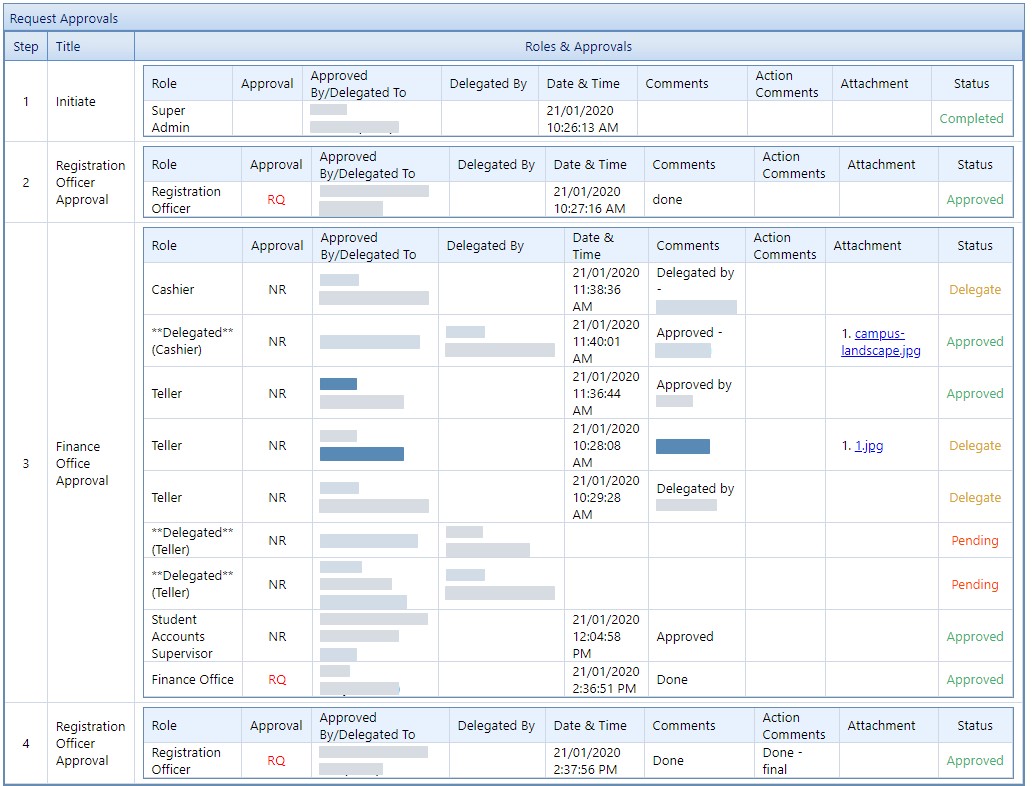
- Inside the request, you will be able to track the whole process/workflow, as illustrated below:
Was this article helpful?
Related articles
Online Request System (ORS)
Original source: https://it.ajman.ac.ae/docs/view-and-track-the-requests