

Sign in and Get Started
هذه المقالة غير متوفرة بالعربية بعد. يتم عرض النسخة الإنجليزية.
Sign in and Get Started:
You can access Oracle HCM, follow te below steps:
-
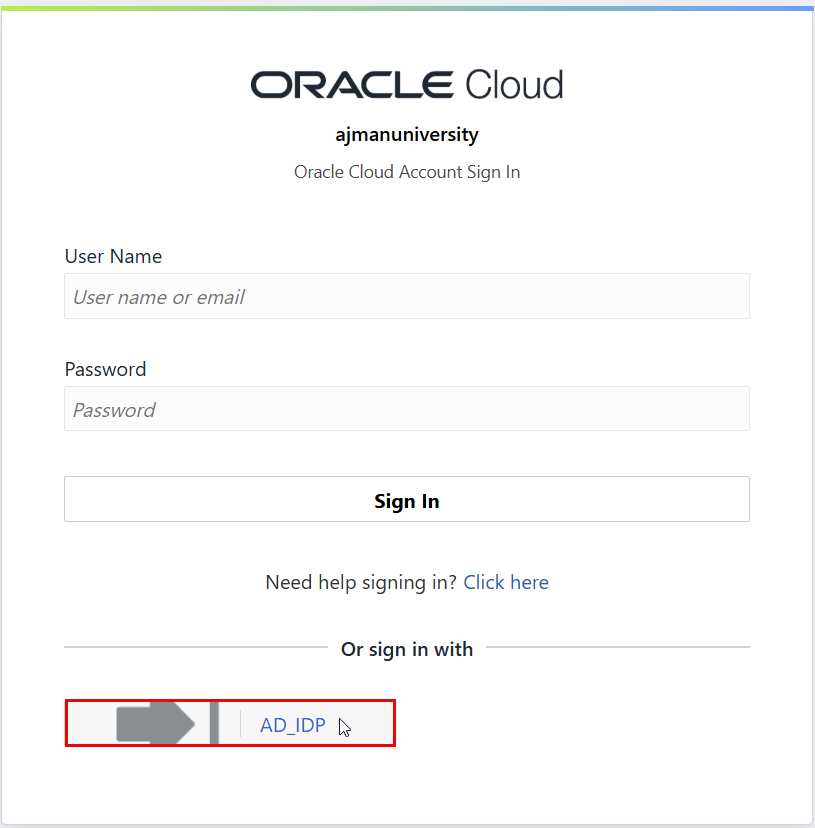
Use the following link provided by the office of IT to open the Sign in page. https://iabeey.fa.ocs.oraclecloud.com/
-
Click on AD_IDP.
-
Sign in using your AU email address and password to to land on the home page.
Here's the Home Page layout.
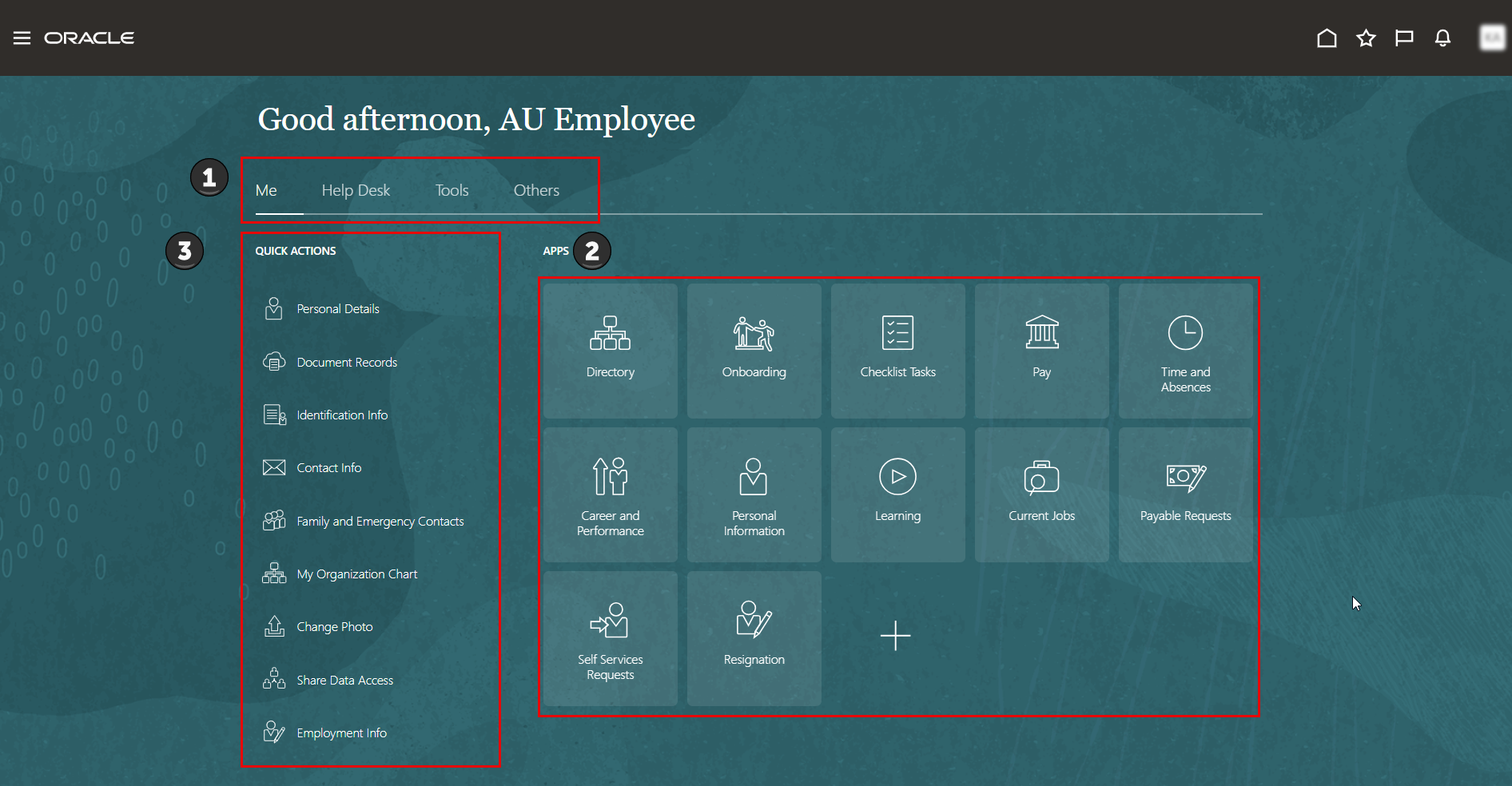
| Callout Numnber | Element | What You Use It For? |
|---|---|---|
| 1 | Tab |  |
| 2 | Apps Section | 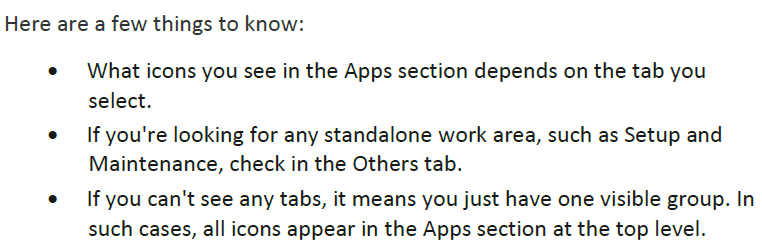 |
| 3 | Quick Actions section |  |
You might also find some important information displayed in specific sections of your home page.
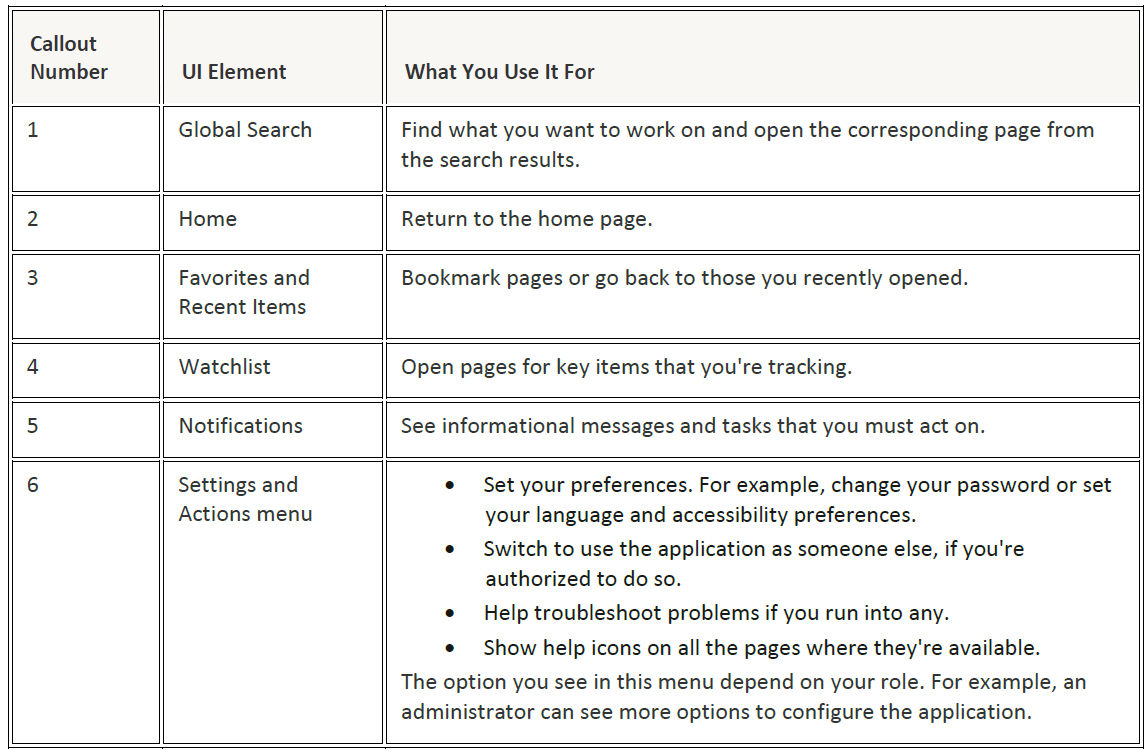
Where You Find Key Tasks.
Let's explore how to locate key tasks using the icons in the global header.

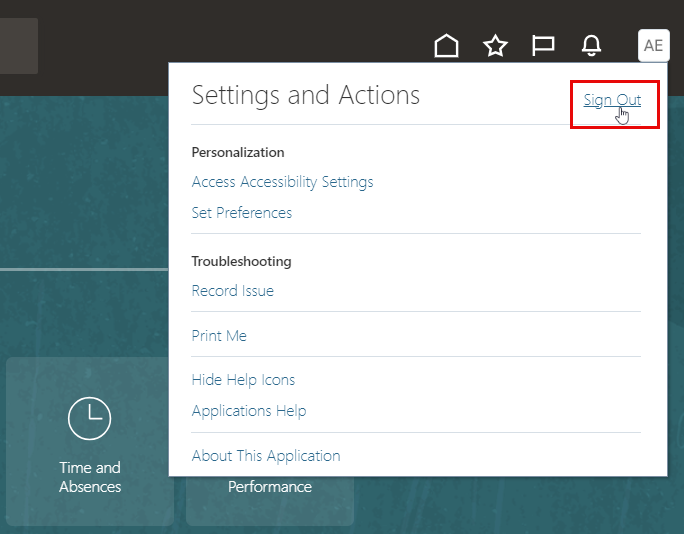
Sign Out
Once you're done working in your application, you can sign out through the Settings and Actions menu.
Simply click your profile image or name to open the menu, then choose "Sign Out."
Note:
If your application is idle for 30 minutes, your session will time out. However, the timeout period may differ on certain pages, such as those that auto-refresh or user interfaces that open in separate browser windows or tabs.
هل كانت هذه المقالة مفيدة؟
مقالات ذات صلة
Oracle HCM
المصدر الأصلي: https://it.ajman.ac.ae/docs/sign-in-and-get-started