


Share Zoom Links Via Email
By Khadija AhmedPublished 3 Nov 2021Updated 3 Nov 20211 min read
Copy the Zoom Link
- Go to Zoom portal (http://ajman-ac-ae.zoom.us/).
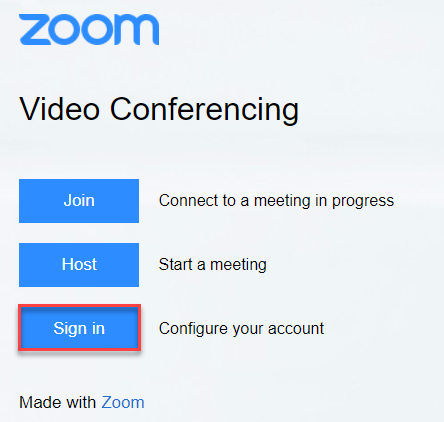
- Log in to your account by clicking on Sign in then sign in with SSO.
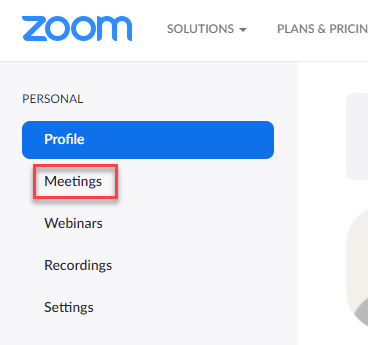
- Once you are signed in, click on Meetings.
- Click on the upcoming online class.

- Highlight the invite link and copy it.
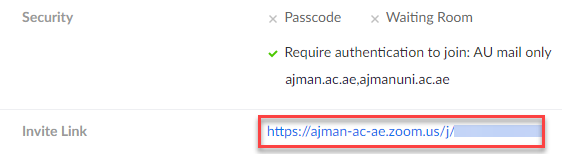
- Share the link with your students. You may do this through Banner SIS by following the below steps.
Share the Zoom link through Banner SIS
- Log in to Banner SIS (https://mysis.ajman.ac.ae/).
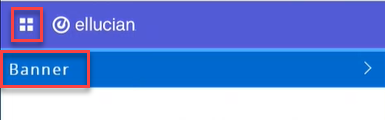
- Click on the menu located on the left, then click on Banner.
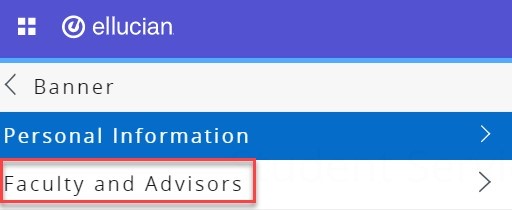
- Click on Faculty and Advisors.
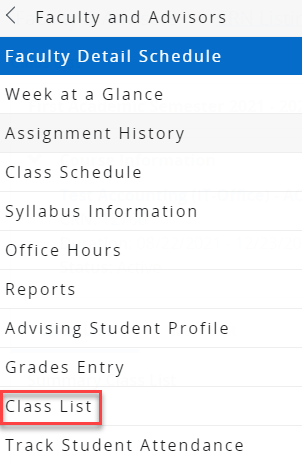
- Click on Class list.
- Click on the section which should be accessing the Zoom link.

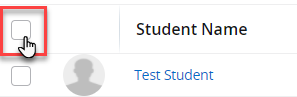
- Select all students.
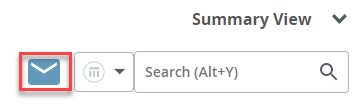
- Click on the email icon.
Note:
If you have more than 60 students per section, you will receive the below message which will divide your CRN into two. In such situation, you should click on Email Message 1 and follow the steps 8 to 9. Then, click on Email Message 2 and repeat the steps.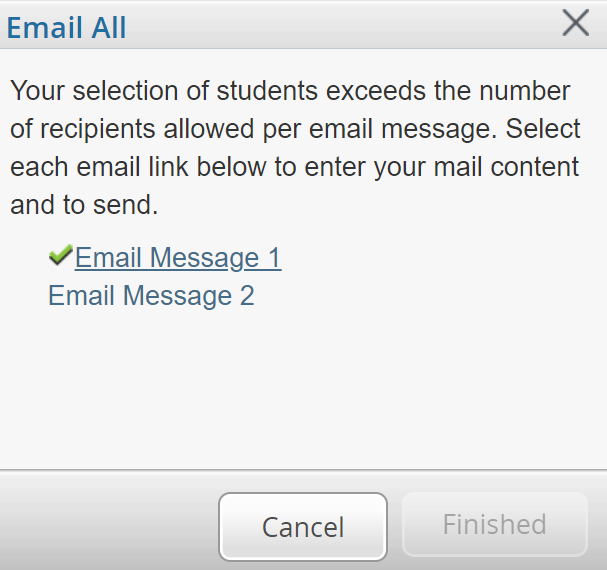
- Draft the email. Please make sure you paste the invitation link and add an appropriate email title for the students (You may follow the below example).
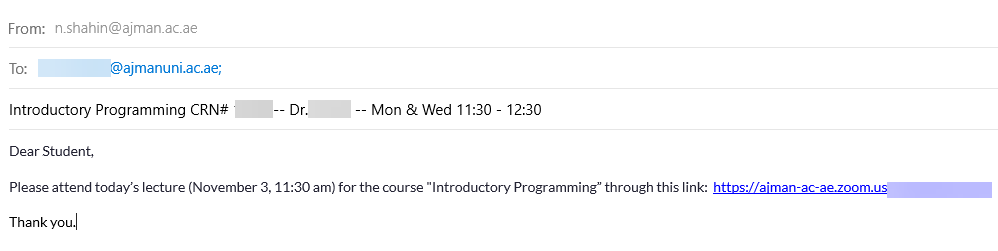
- Send the email to the students.
Was this article helpful?
Related articles
Zoom
Original source: https://it.ajman.ac.ae/docs/share-zoom-links-via-email