

Request Non-Catalog Learning for My Team
هذه المقالة غير متوفرة بالعربية بعد. يتم عرض النسخة الإنجليزية.
Please Note:
This user manual is currently under review. A revised version reflecting the new Redwood user interface will be available soon.
Actions
You can perform the following actions from the "Action" tab located in My Team > Learning.
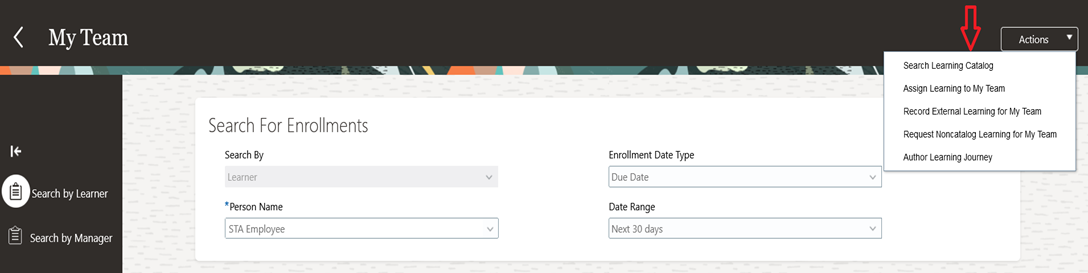
- If you cannot find the desired learning in the "Assigning the Learning Team" option, you can request a Non-Catalog Learning.
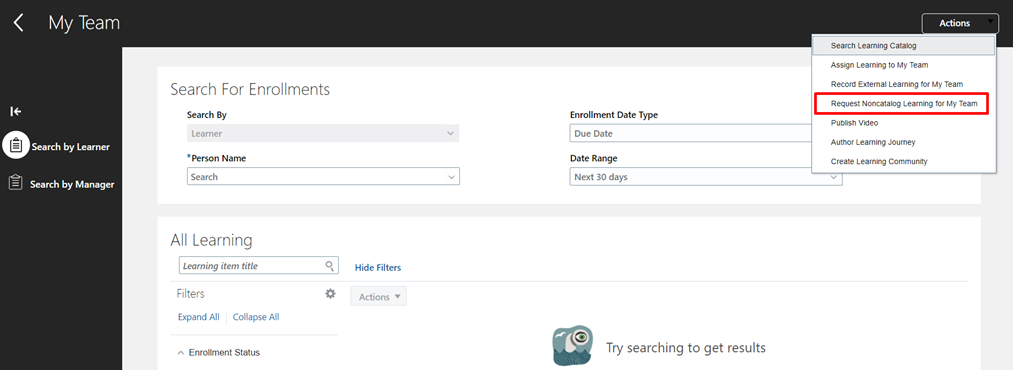
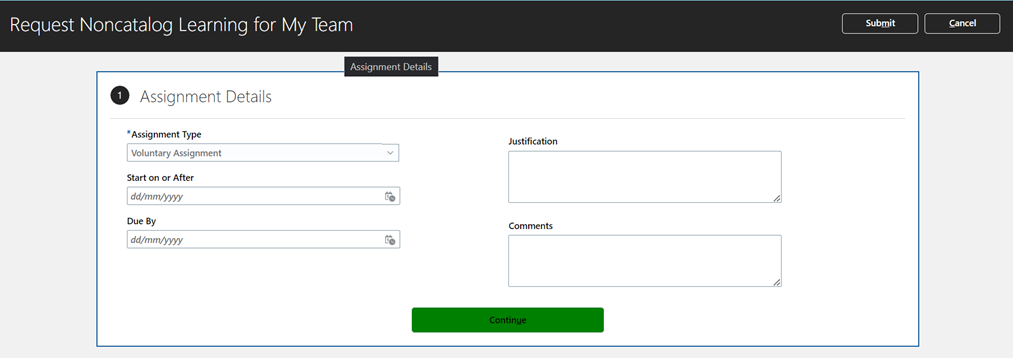
Fill in the required details:
-
1. Assignment Type: Select the assignment type, whether the assignment is required or voluntary. If it's required, provide the due date and input any other applicable details. Then, click on Continue.
-
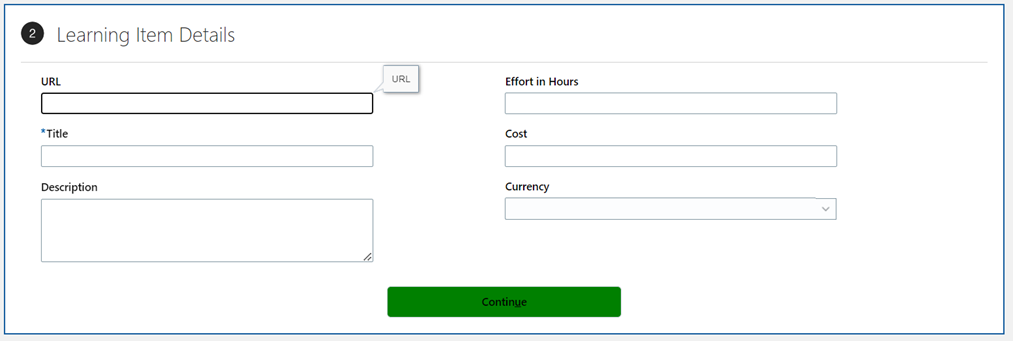
For section 2, "Learning Item Details," enter the applicable details as required.
-
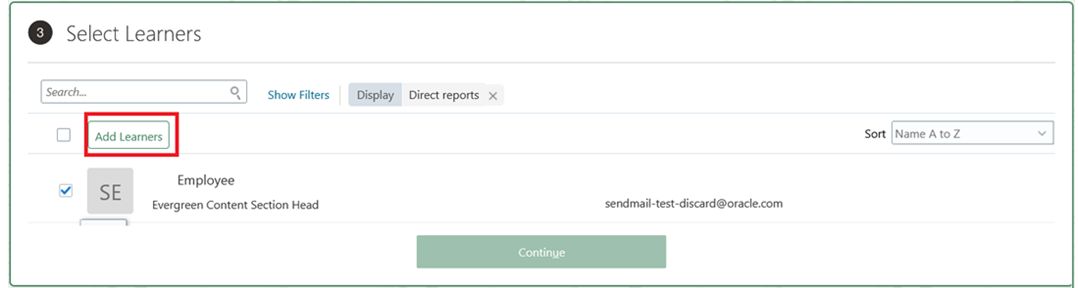
Select the learners for whom you want to request this assignment, and click on the "Add Learner" tab.
-
Upon clicking "Add Learner," you will see the "Added" icon enabled next to the selected learner. Click "Continue."

-
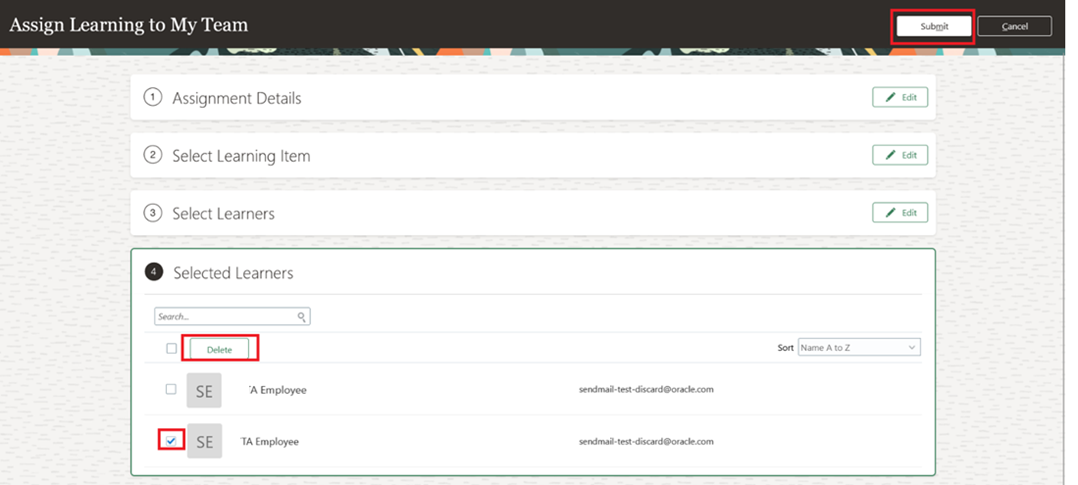
Under the "Selected Learners" section, you can review the final list of added learners. You also have the option to delete any learners if needed. Once finalized, click "Submit", and the request will be submitted for approval.
Note:
The request raised by the manager will be sent to the Learning Admin for approval.
هل كانت هذه المقالة مفيدة؟
مقالات ذات صلة
Learning Management for Managers
المصدر الأصلي: https://it.ajman.ac.ae/docs/request-non-catalog-learning-for-my-team