


Microsoft Teams for Faculty and Staff
Microsoft Teams is the hub and the platform for team collaboration in Office 365 that allows communication and collaboration among workplace teams to be more engaged and effective through chatting, video meetings, storing files and collaborating in files.
Accessing Microsoft Teams
You can access Microsoft Teams from the following channels:
- Using Internet browser through this link.
- Signing in to your Ajman University’s email and click on the Teams icon.
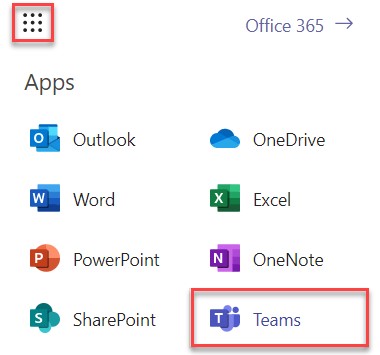
- Though the desktop client, by searching for “Teams".
Note:
You should be using your Ajman University’s email and password to use this service.Create and Join Online Meetings Using Outlook
You can create an online meeting, with people at AU or any other entity, through your Microsoft Outlook by following the below steps:
- Go to the Calendar in Microsoft Outlook and click on New Teams Meeting.
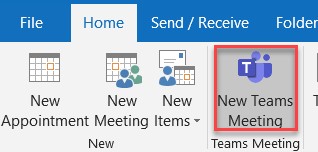
- Similar to other meetings, enter the meeting details and send the invitation.
Note:
- Creating meetings with external entity should be through Outlook
- The invitees will receive the meeting details with a link to join virtually, using Microsoft Teams.
Get your Team up and Running
You can create and manage teams in Microsoft Teams. The team can be either public or private. For private teams, team owners manage team membership.
Create your Team and Add Team Members
You can create a team through the following steps:
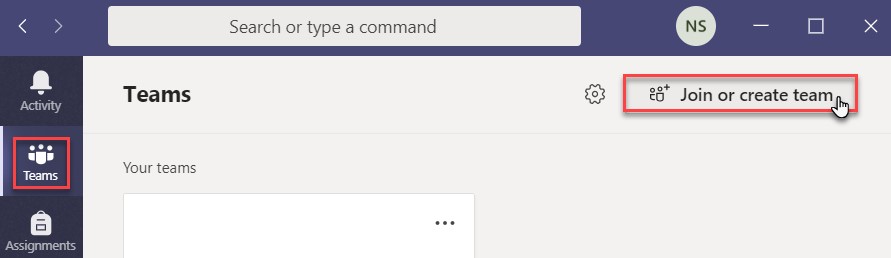
- Through the Teams section, click on Join or Create Team.
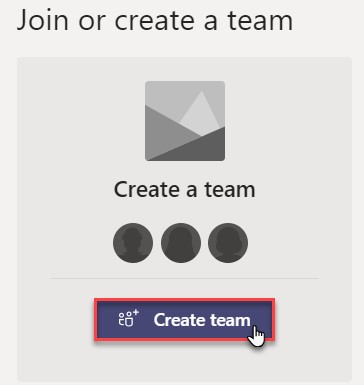
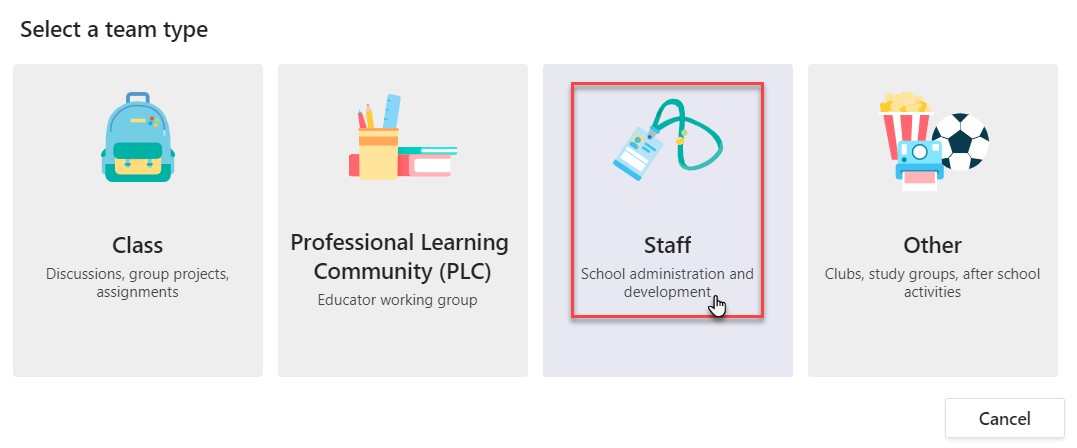
- Click on Create Team and choose the Staff type.
- Enter the Team details.
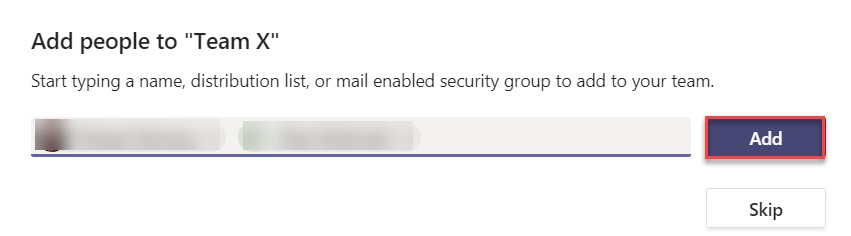
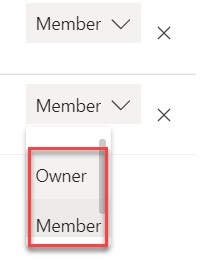
- Add your team members and assign their roles.
Share Documents with your team
You can share documents with your team by adding attachments.
You can even create, upload, share and download files through the File option inside the team/channel.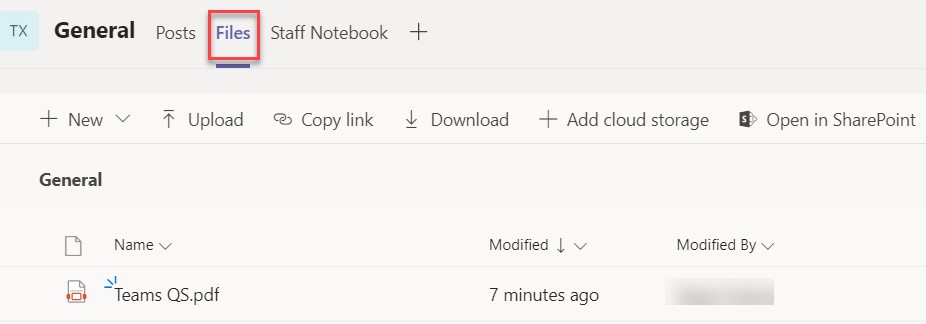
The team can reply and react to the documents you share.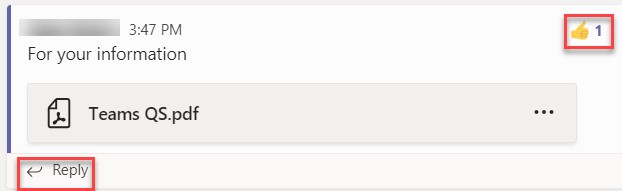
Create Meetings with your Team
You can create a meeting, by clicking on the meeting icon inside your team.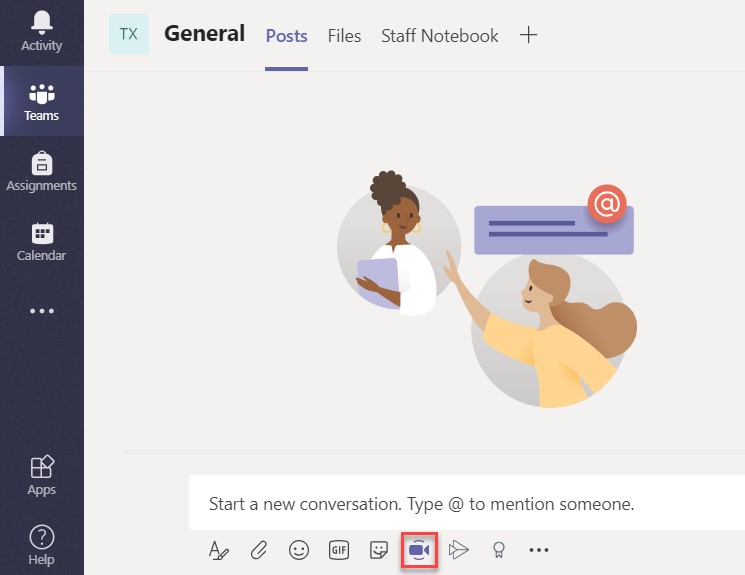
You can choose either to meet now or schedule a meeting.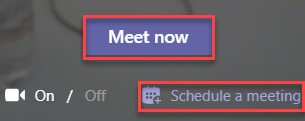
Note:
You can enter all details while scheduling a meeting, including a reoccurrence, location, description, and inviting attendees (optional and mandatory attendance).Once you start the meeting, you will be presented by a video call layout, where you can share your audio, video and screen, and you can type in a chat with the attendees.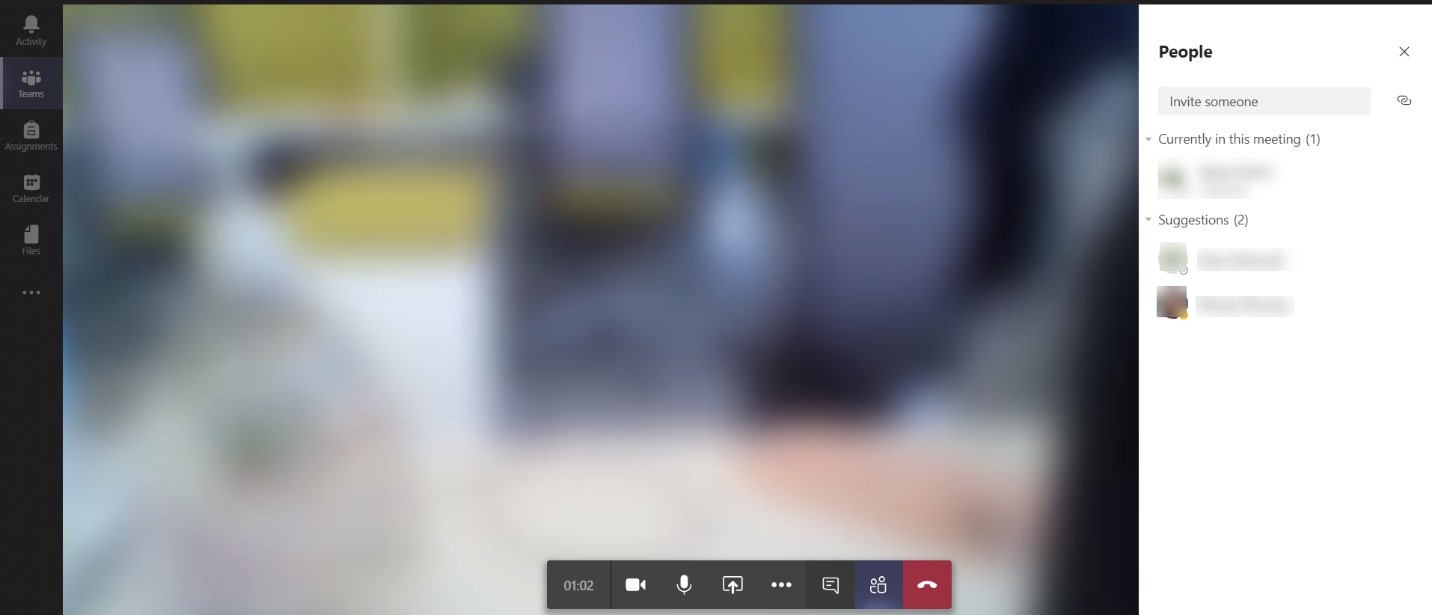
Join a Meeting with your Team
If a meeting was initiated by a team member or the team owner, go to Microsoft Teams and at the time of the meeting, you will be able to view the following to join a meeting: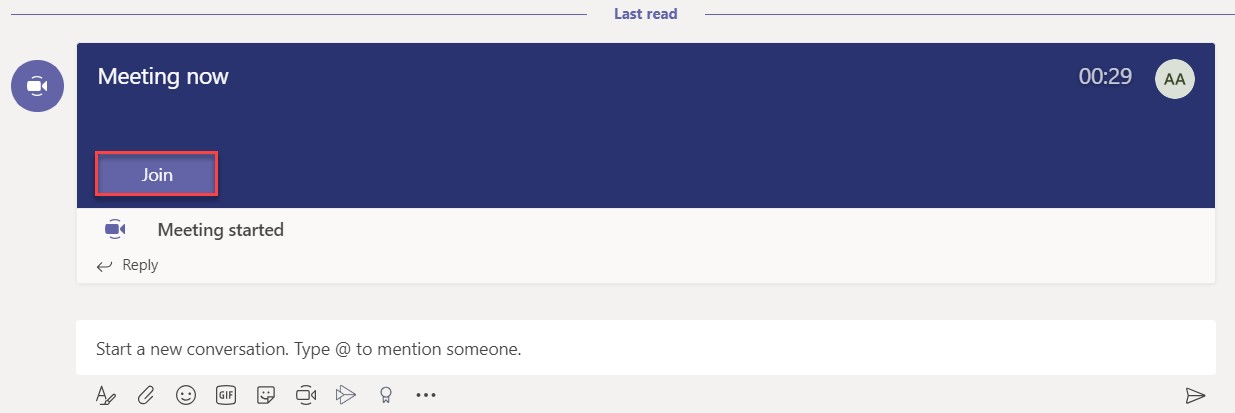
Once you click on Join, as illustrated above, adjust your settings and then click on Join now.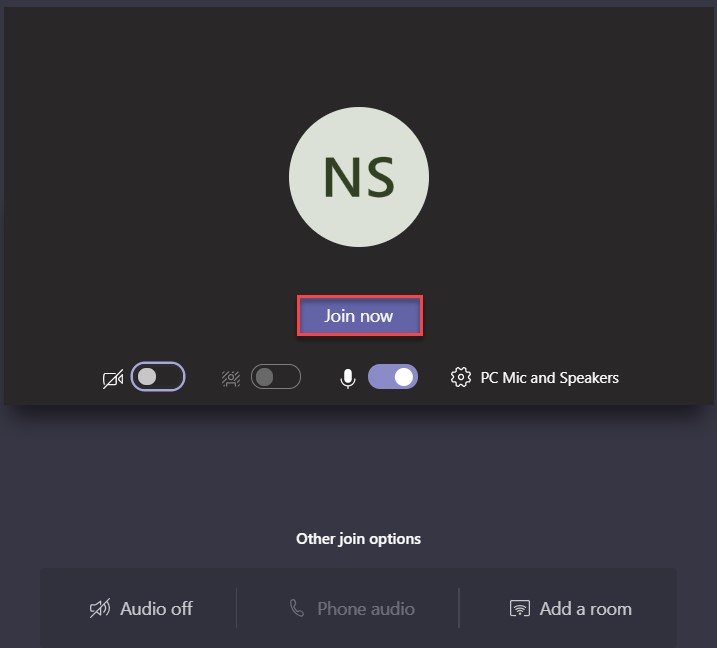
Download the Mobile Application
You can download Microsoft Teams to your mobile through Google Play and App Store.
Was this article helpful?
Related articles
Microsoft Office
Original source: https://it.ajman.ac.ae/docs/microsoft-teams-for-faculty-and-staff