


Install & Manage Office 365
Introduction
Microsoft Office 365 is a cloud-based secure office. With Office 365, you can access files anywhere, use 1TB of file storage for each user, and work with the rich features of the web version of Microsoft Office. Office 365 applications include Outlook, online storage with OneDrive, and the ability to install the desktop version of the latest Office suite (Word, Excel, Outlook, etc.)
You can access your Office 365 through this link, or by navigating to:
AU’s Website -> MyAU -> Faculty / Staff -> Email
Keep in mind that you need to log in using your username including the domain (i.e. x.lastname@ajman.ac.ae) and your password, which is the same as the one you use for the other services at AU.
Microsoft Office can be installed as an Office 365 user at Ajman University, this means that you have access to install Microsoft Office to your local computer at no charge. Office 365 can be installed using your AU account on up to 5 personal machines.
The local installation includes the following programs:
- Windows: Word, Excel, PowerPoint, OneNote, Access, Publisher, Outlook, Skype for Business, and OneDrive for Business.
- Mac OSX: Word, Excel, PowerPoint, Outlook, OneNote, Skype for Business, and OneDrive for Business.
- Note: Skype for Business formally Lync, and OneDrive, are both separate installs for OSX.
Note:
This Microsoft Office installation is only valid as long as you have an active Ajman University email account. Once you are no longer staff member at AU, you will need to purchase your own Office 365 package from Microsoft.
Microsoft Office installation is not available for part-time members; however, you can still access and use the Office applications on the web.
Install Microsoft Office 365
To install Office 365, Follow the below steps:
- Click on the link below to download the office installer.
https://live.ajman.ac.ae/office/OfficeSetup.exeNote:
- This will automatically download a Setup file for Office 365.
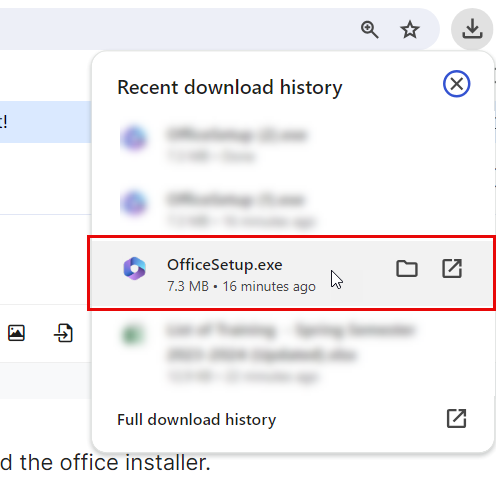
- The provided Office installer link is exclusively for Windows operating systems. For MacBook users, Microsoft Office 365 can be directly downloaded from the App Store. - Open the office installer file that has been downloaded to your device, as illustrated below:
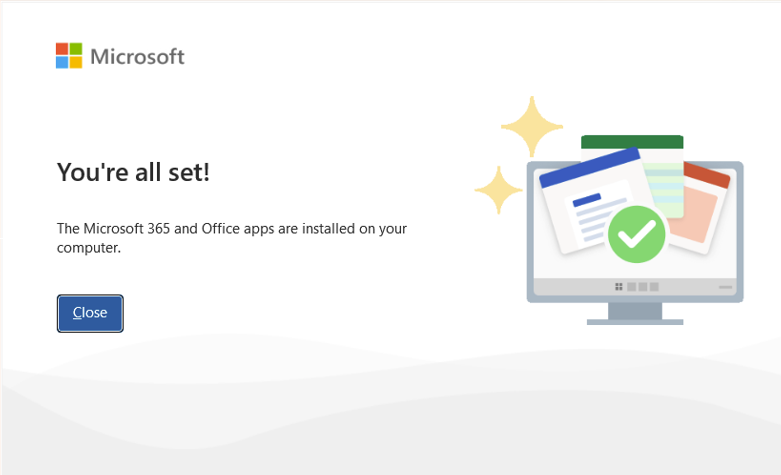
- Once the installation is complete, the below window will appear. The Microsoft 365 and Office Apps are now installed on your computer, click on "Close".
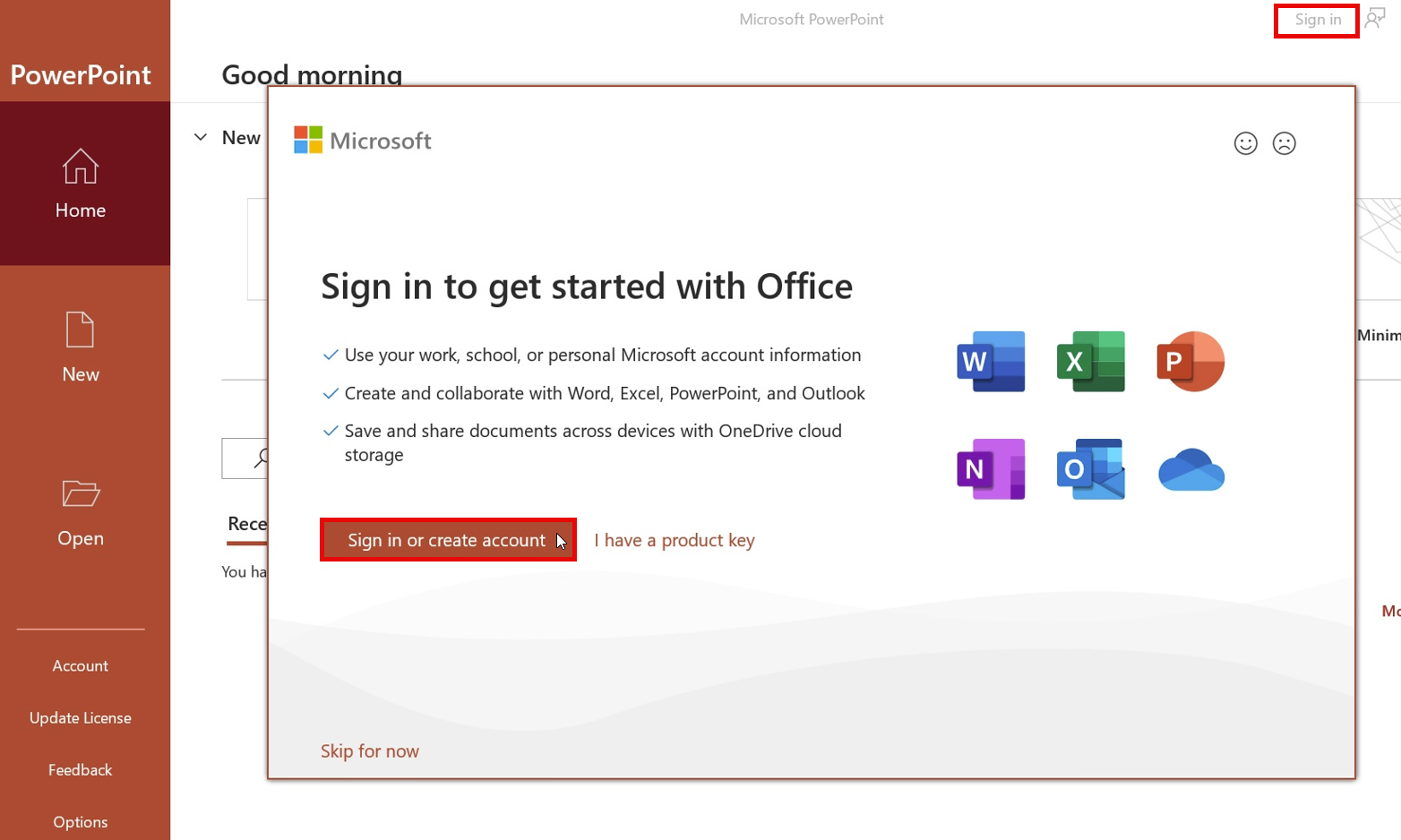
- Open any app such as Microsoft Word, then click on "Sign in", then click on "Sign in or create account".
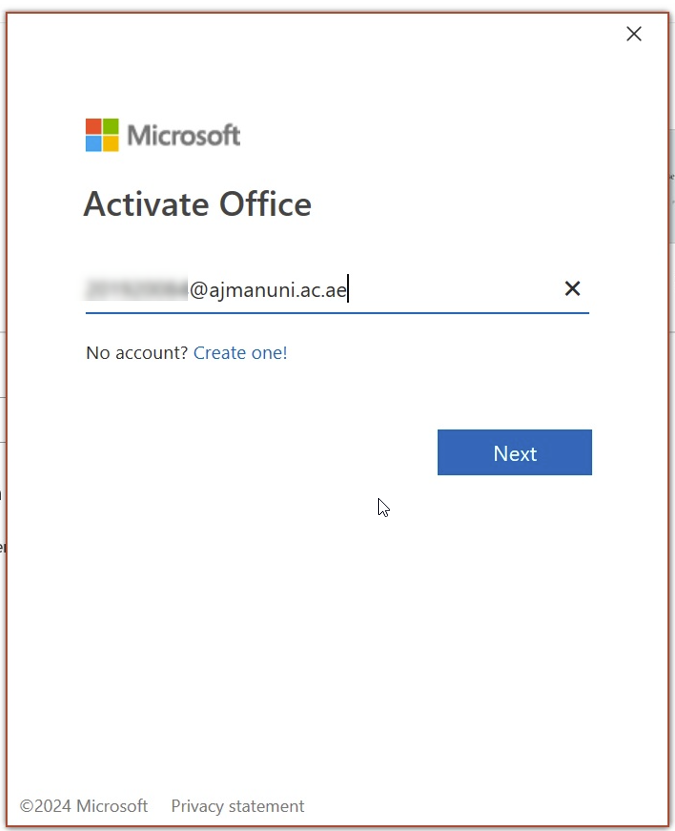
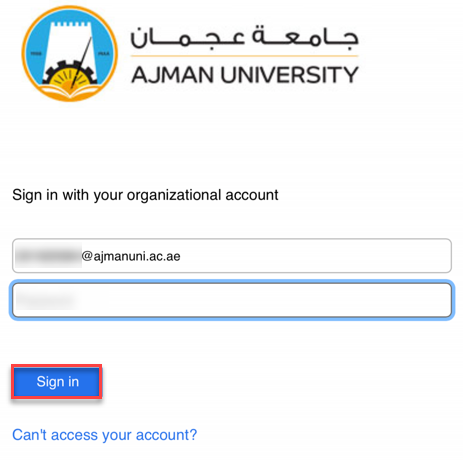
- Enter your AU E-mail, and then click on "Next".
- Enter your Password, and then click on "Sign in".
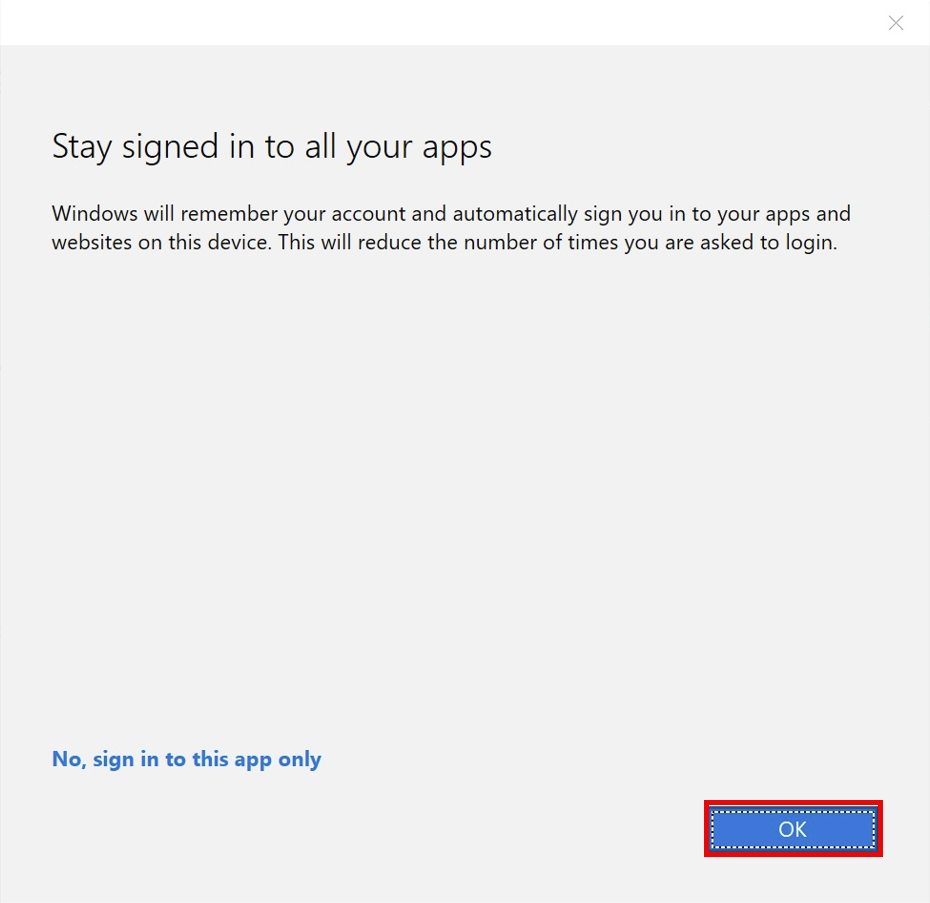
- Click on "OK", so Windows will remember your account and automatically sign you into all the Apps and websites on this device.
Was this article helpful?
Related articles
Microsoft Office
Original source: https://it.ajman.ac.ae/docs/staff-install-manage-office-365