


Set up your AU Email
This article will help you link your AU email with an alternative personal email, mobile number, Microsoft Authenticator Application, and/or change your personal information and reset your password, even if you’re off-campus.
Log in and set up your personal information
In this section, you will be directed to log in as a new user or an existing user. You will be able to add your personal information, such as your personal email, mobile number, and the Authenticator Application. By adding this information, you will be allowed to sign in to your account, and/or reset your password using one of these details, as a log-in method.
New User Login
- If you are a new user, follow this link and login using your AU email and password.
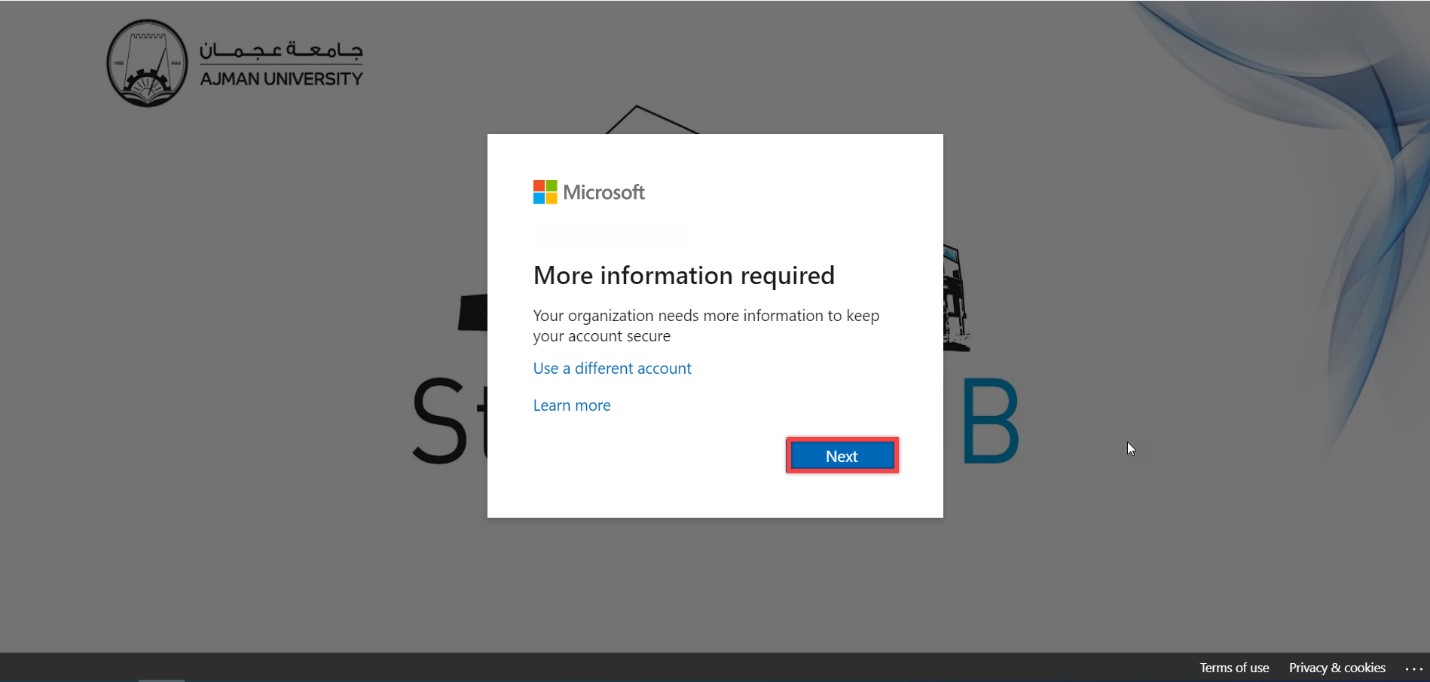
- Once you are logged in, you will receive the below message to edit your information, click on next.
Existing User Login
- If you are an existing user, follow this link and login using your AU email and password.
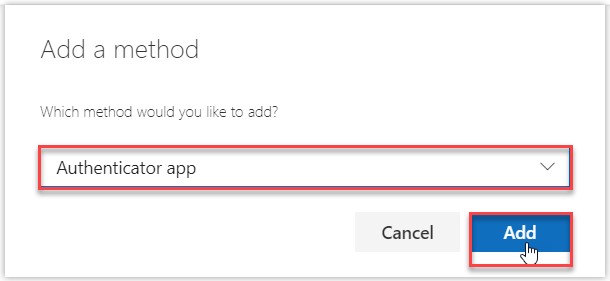
- Click on Add Method in the Security Info section.

- By default, the Authentication App is chosen, click on Add.
Set up Microsoft Authenticator Application
You will be directed to set up the Microsoft Authenticator Application, as illustrated below. To set the application as a security method, follow the below steps: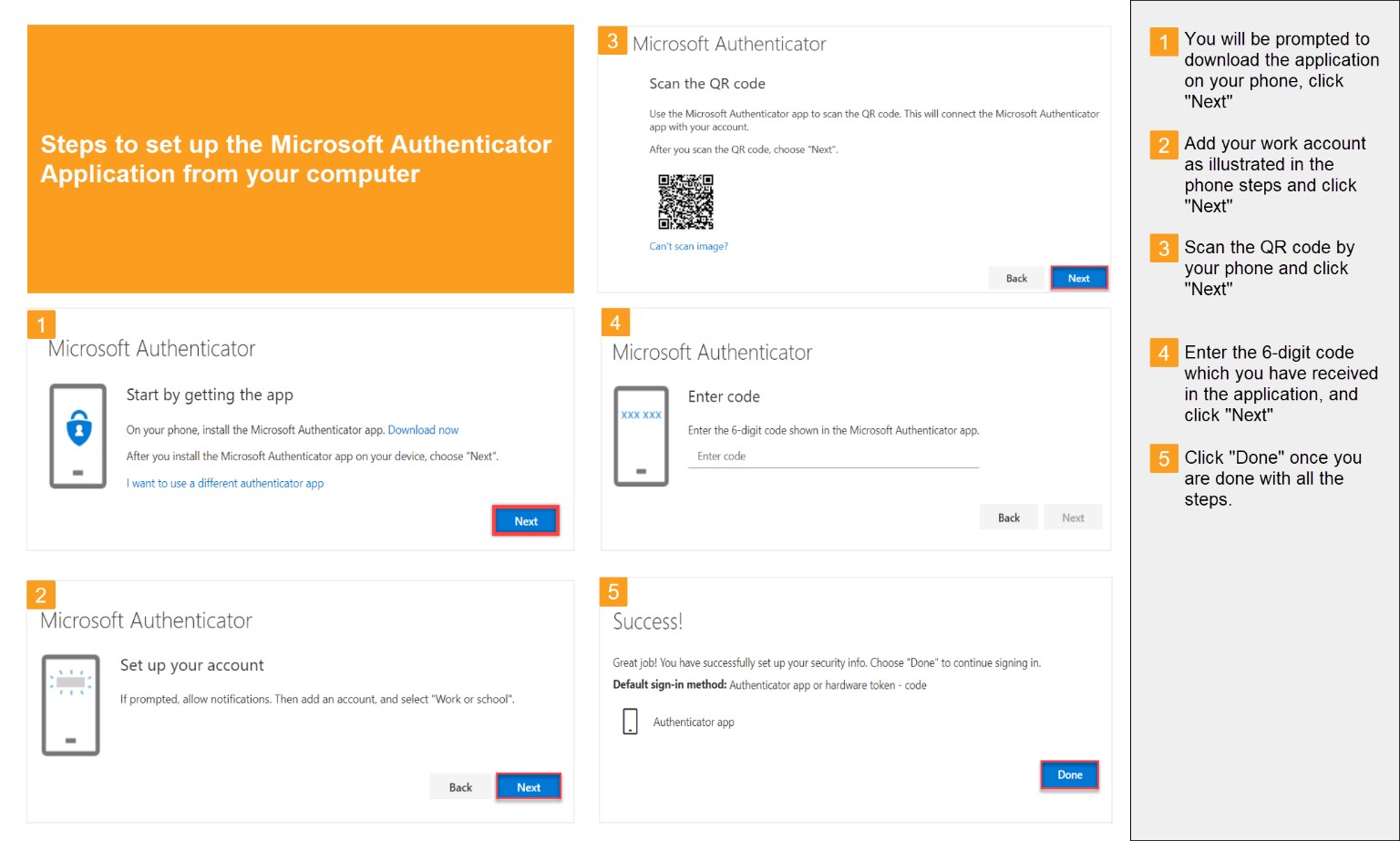
Once you install the Microsoft Authenticator Application on your phone, follow the steps as illustrated below: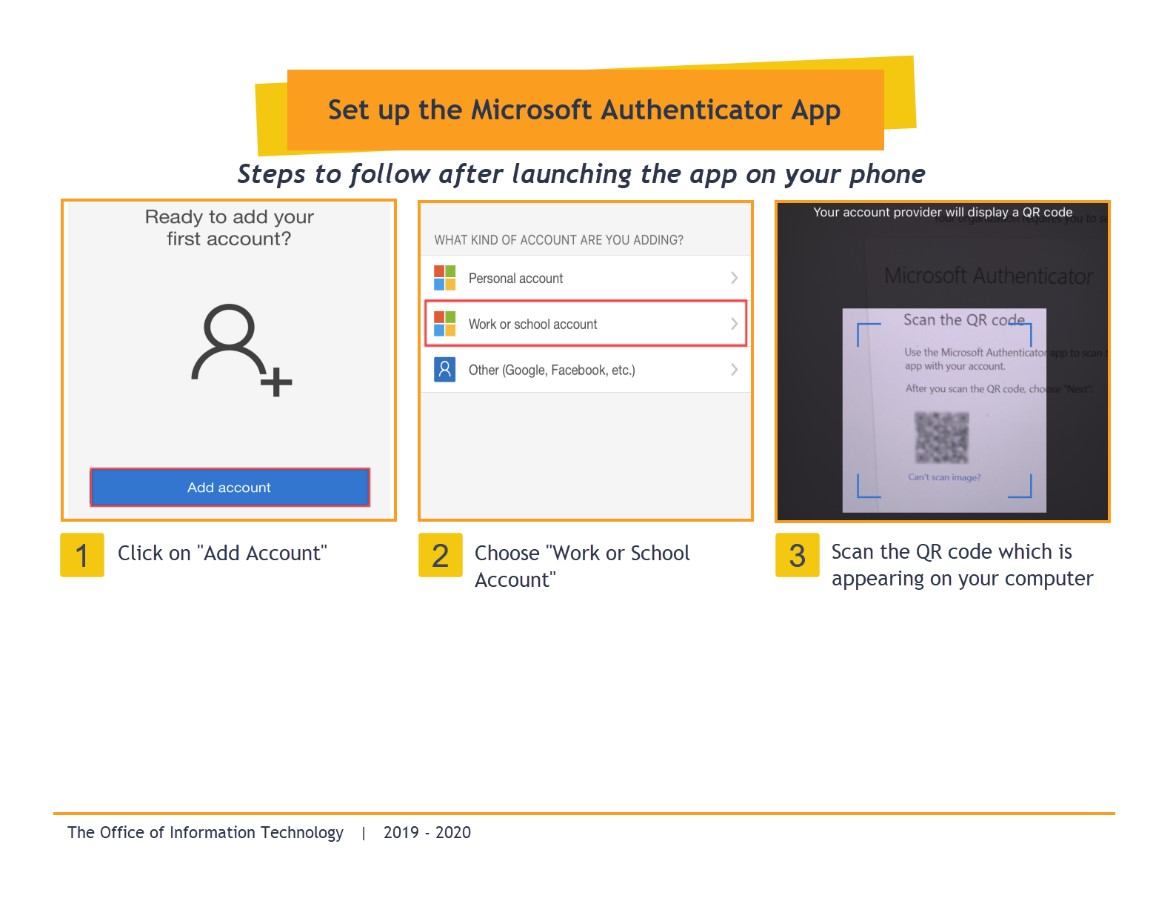
Set up your phone number
- If you are a new user, follow this link to be able to set up your phone number and other information, otherwise, please proceed to the below step.
- Click on Add Method in the Security Info section.
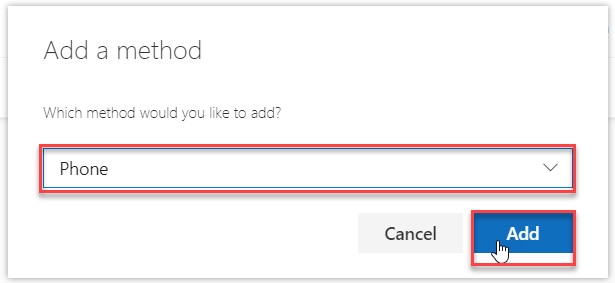
- Choose Phone and click on Add.
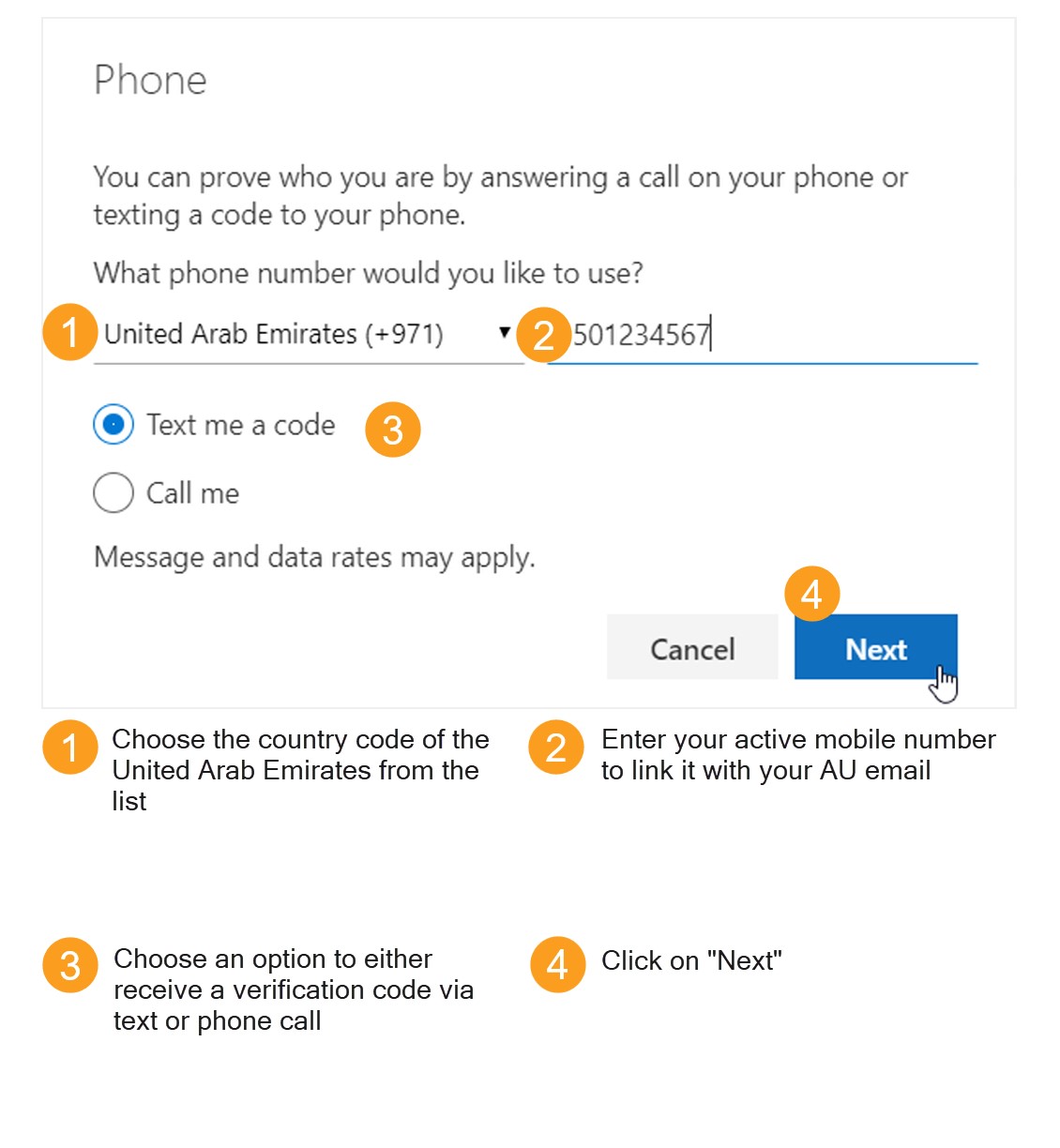
- Follow the below steps to have receive a verification code:
- Enter the verification code you have received on your phone, whether through a text or a call, and click Next.
- Once you complete the above steps successfully, you will receive a confirmation.
Note:
If you enter an incorrect code, you will receive the below warning, and you would have to re-enter the code.
Note:
You may add an alternative phone number in the same way.Set up your email
- Click on Add Method in the Security Info section.
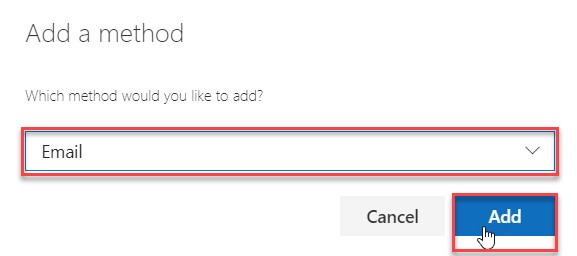
- Choose Email and click on Add.
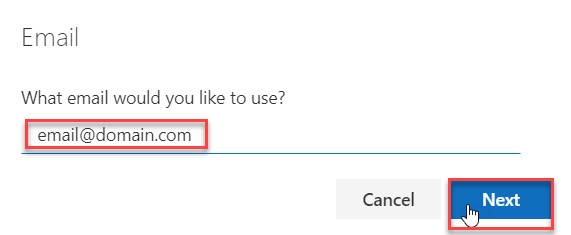
- Enter your personal email and click on Next. Noting that you are not allowed to enter an email from your organization.
- You should receive an email from Microsoft.
- Enter the code provided in the email and click on Next.
Note:
If the code you entered does not match the oone you have received in the email, the below error message will appear.
Note
If you’d like to change your phone number or email at any time, follow this link and click on the Change button corresponding to the method you want.Change your expired password
As per the policy of Ajman University, your password expires every 90 days and you would have to change it in order to access the university’s Wi-Fi, your computer, email, and other services by the University. A few days before the expiry date, you will receive a notification on your computer as illustrated below:

Note:
You can change your password before it gets expired without the need to be connected to the University’s domain; however, if your password expires before you change it, you need to connect your computer to the network cable at the University or visit any IT lab or the Office of Information Technology to reset your password.To change your password before it gets expired, please follow the below steps:
- Click on “Ctrl + Alt + Delete”.
- Click on “Change Password”.
- Enter your old password, and then enter your new password and confirm it. Noting that you will not be able to enter a new password which have been used before.
To change your password after it gets expired, please connect your laptop to the network cable and you will be able to follow the three steps mentioned above; or reach out to one of the IT lab supervisors or the Office of Information Technology for further assistance.
Set a new password, if you forget your password
Once you set the personal information mentioned in the first part of the manual, you will be able to use any of them to change your password, if you forget it, following the below steps:
- Open AU email web portal through this link.
- Click on Can’t access your account?.
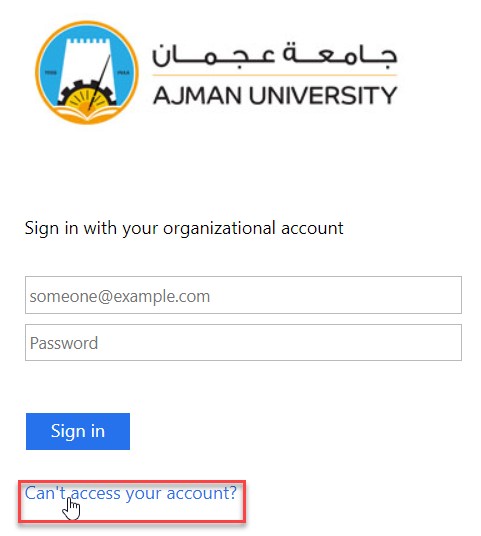
- Enter the details illustrated below.
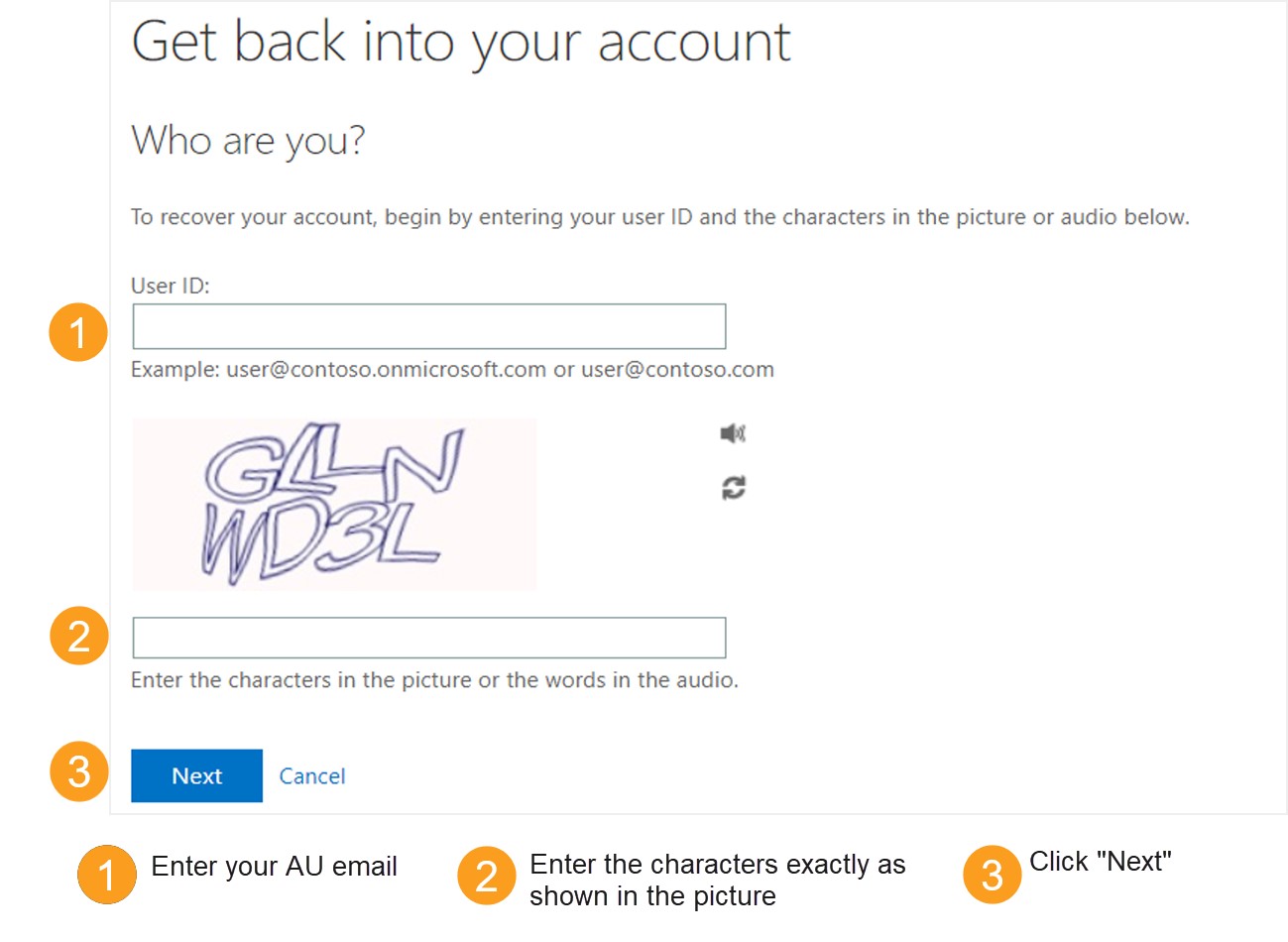
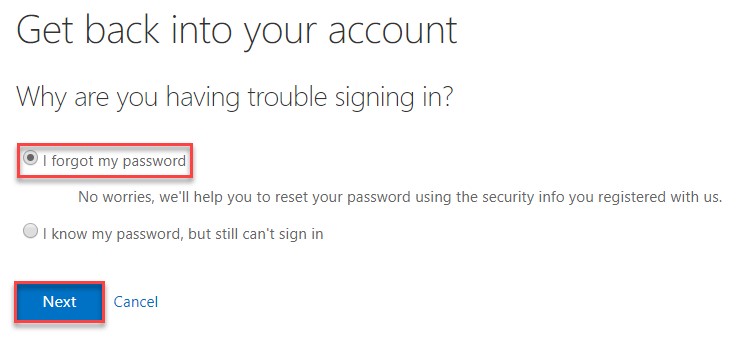
- Select the I forgot my password option, and then click on Next.
- Choose a method to receive a verification code, it could be through either email, text, phone call, or the authenticator application, as illustrated below. Noting that if you choose to receive the code via text or phone call, you need to enter your complete phone number which you have saved previously.
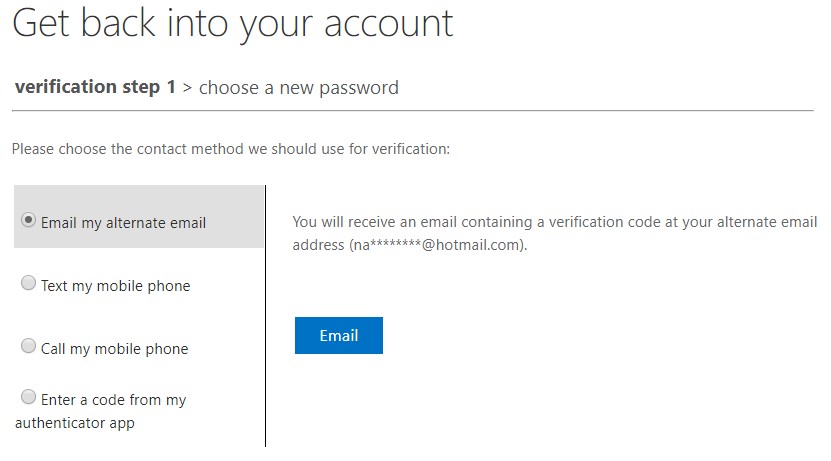
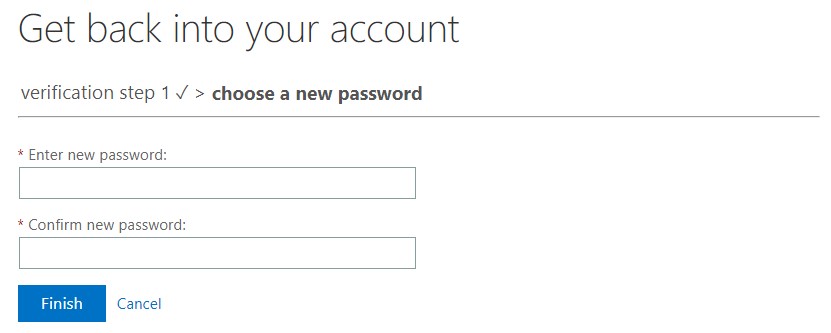
- Enter the code you have received on the method you chose in the previous step, and then enter the new password in both fields appearing on your screen.
- You will receive a notification and email on your AU and personal emails to confirm your password reset.
Was this article helpful?
Related articles
Microsoft Office
Original source: https://it.ajman.ac.ae/docs/faculty-staff-set-up-au-email