


Create new Admission Application
You can create and submit new admission application by following the below steps:
-
Go to Admission system Portal via link:
(https://ajmanacae.elluciancrmrecruit.com/Apply/Account/Login) -
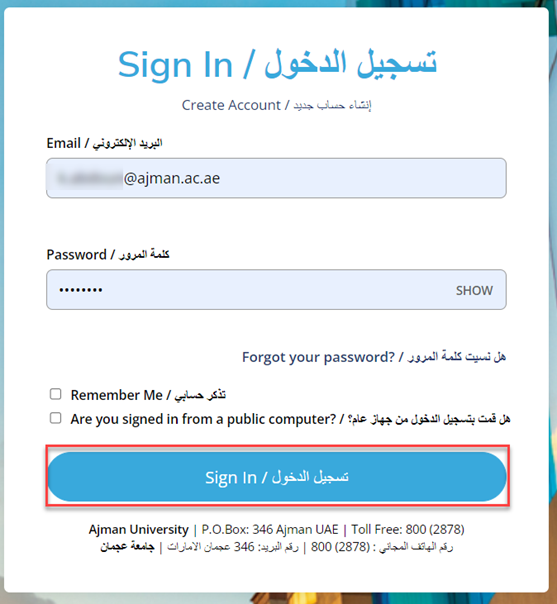
Sign in using your registered E-mail address and password, then click on “Sign In”.
-
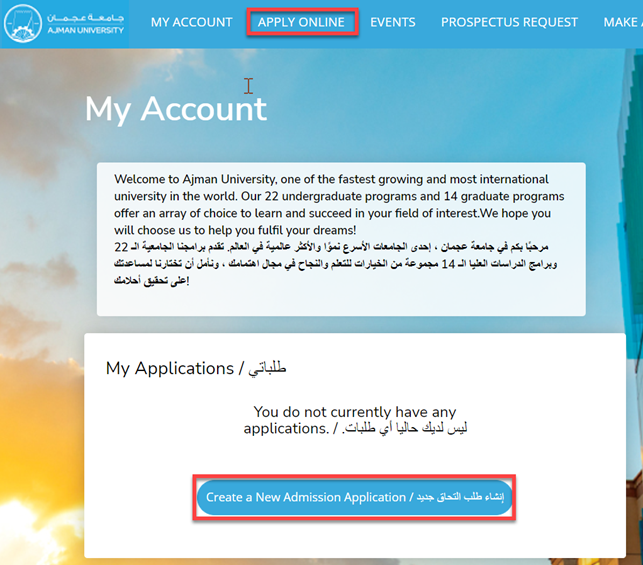
Click on “Apply online”, or by clicking “Create a new admission application”.
-
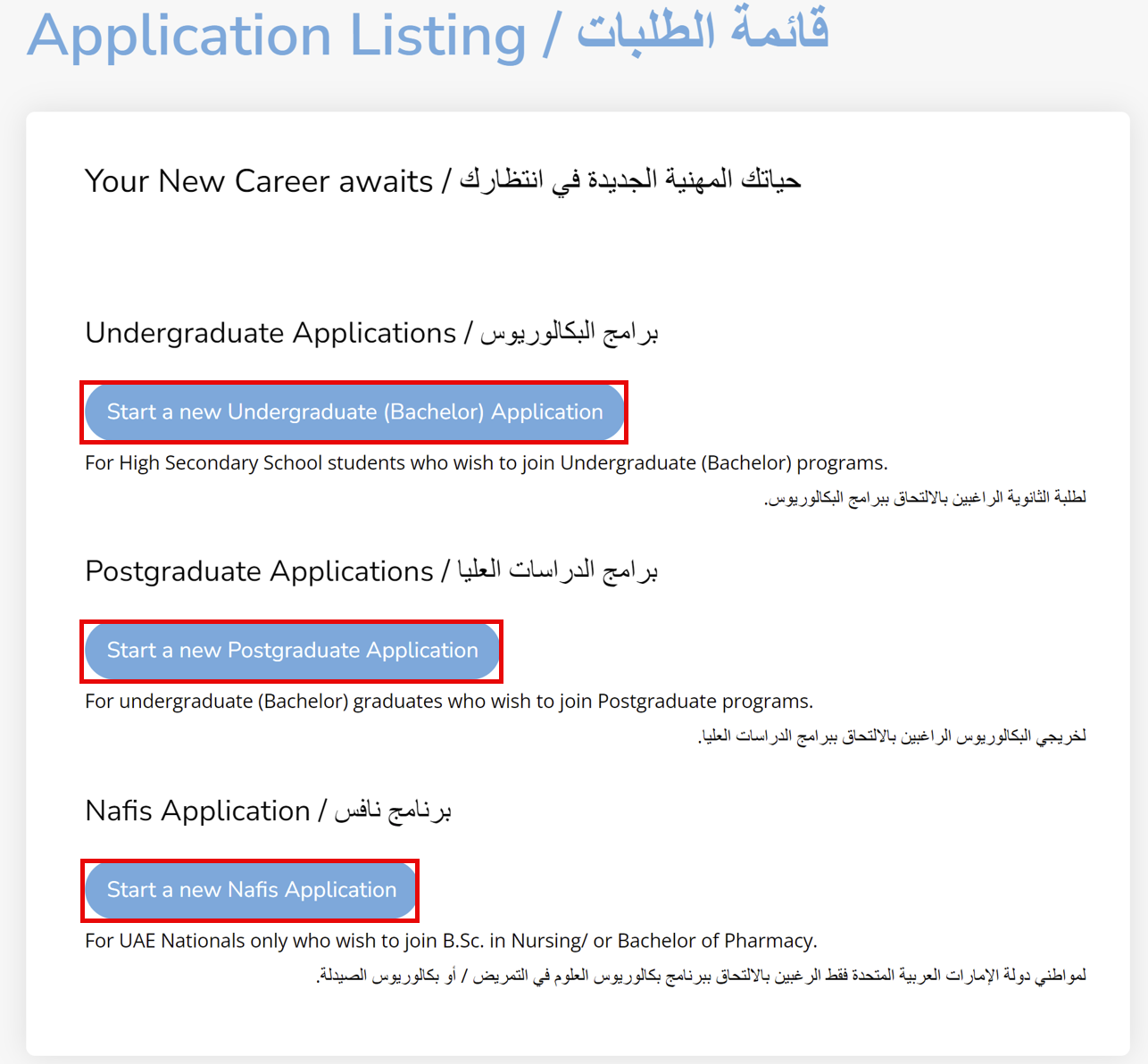
Select your Application type.
-
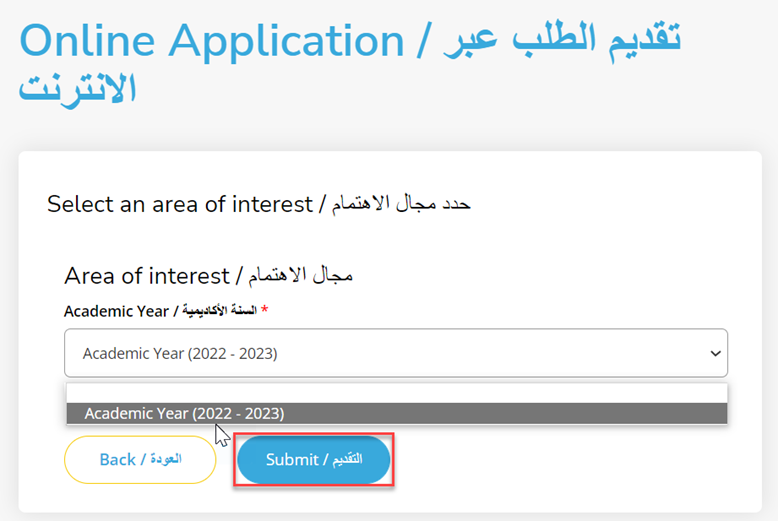
Select the Academic year under the area of interest, then click on Submit.
- The form becomes available. And your application number is displayed at the top of the form. Enter the required personal information.
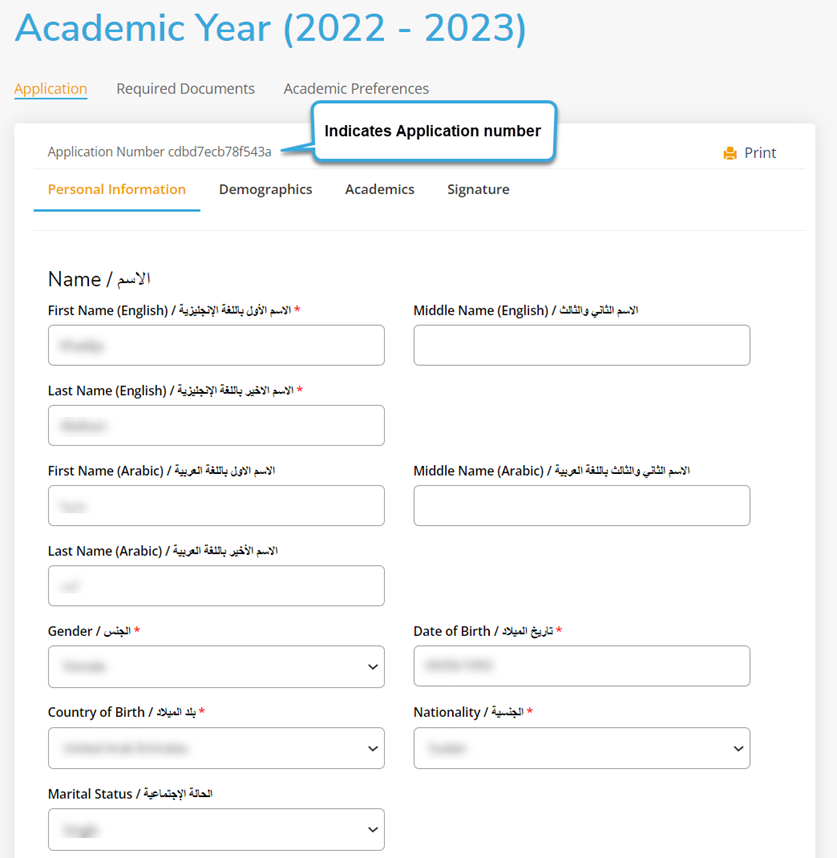
Note: (*) indicates details must be filled up.
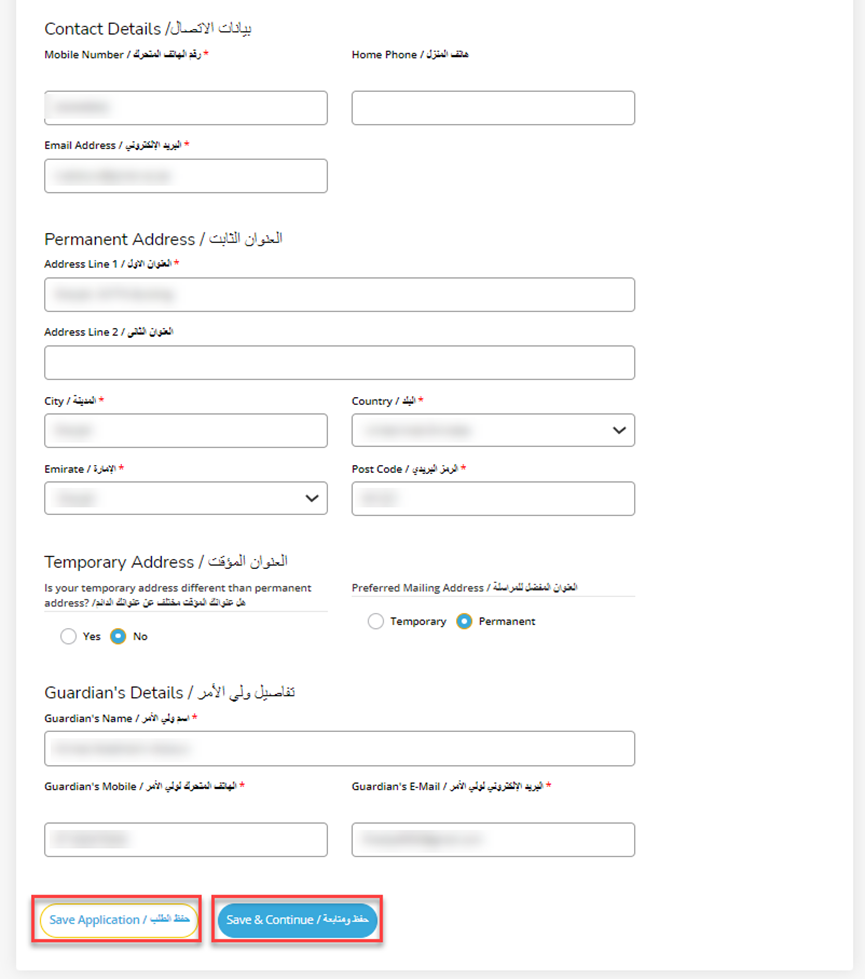
- Fill up the required details, then click on “Save & Continue” to continue with your application or Save application which will save the application while keeping you on the same page.
-
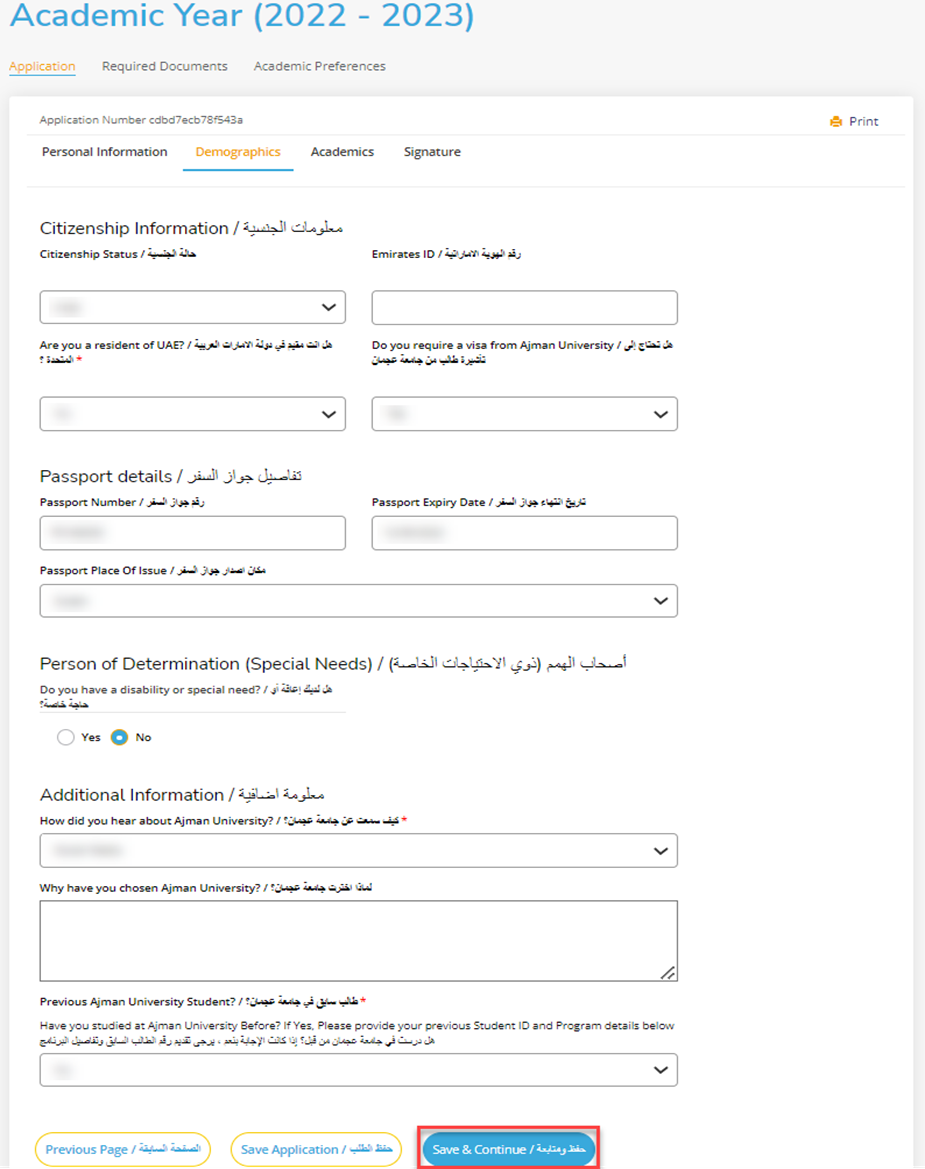
Fill up required details, then click on “Save & Continue” to continue with your application or “Save application” which will save the application while keeping you in the same page, else you can go to previous page.
-
Select the Academic preferences from the drop-down list.
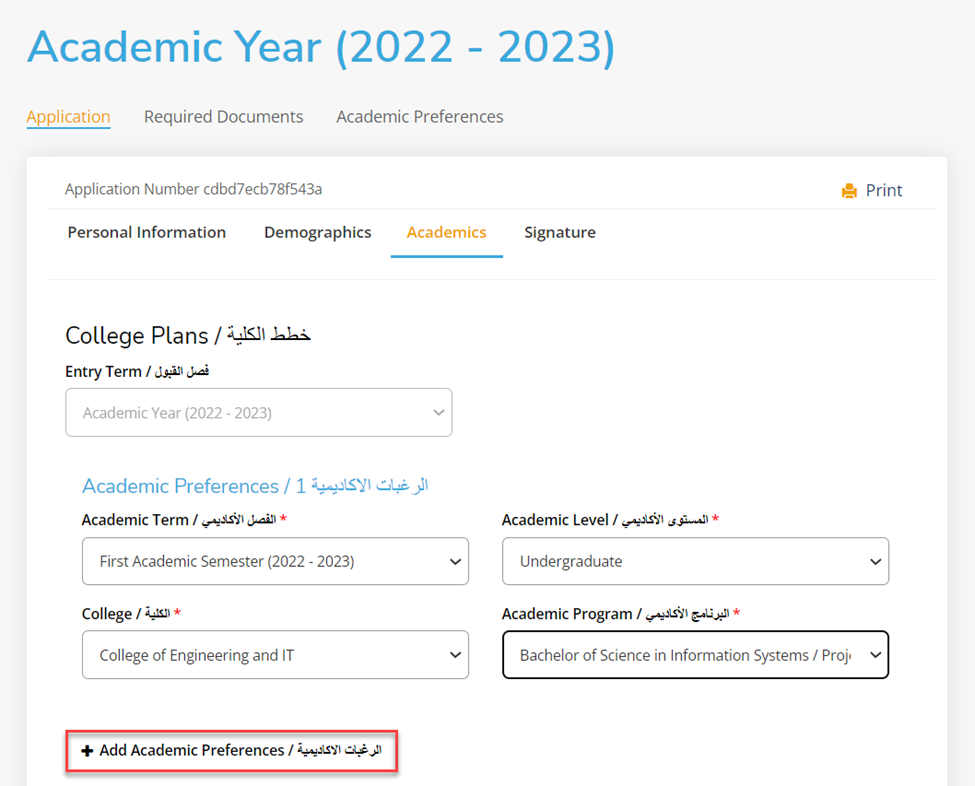
Note: In case you want to add more than one academic preferences, you can add up to 3 academic preferences in the application, by clicking on 
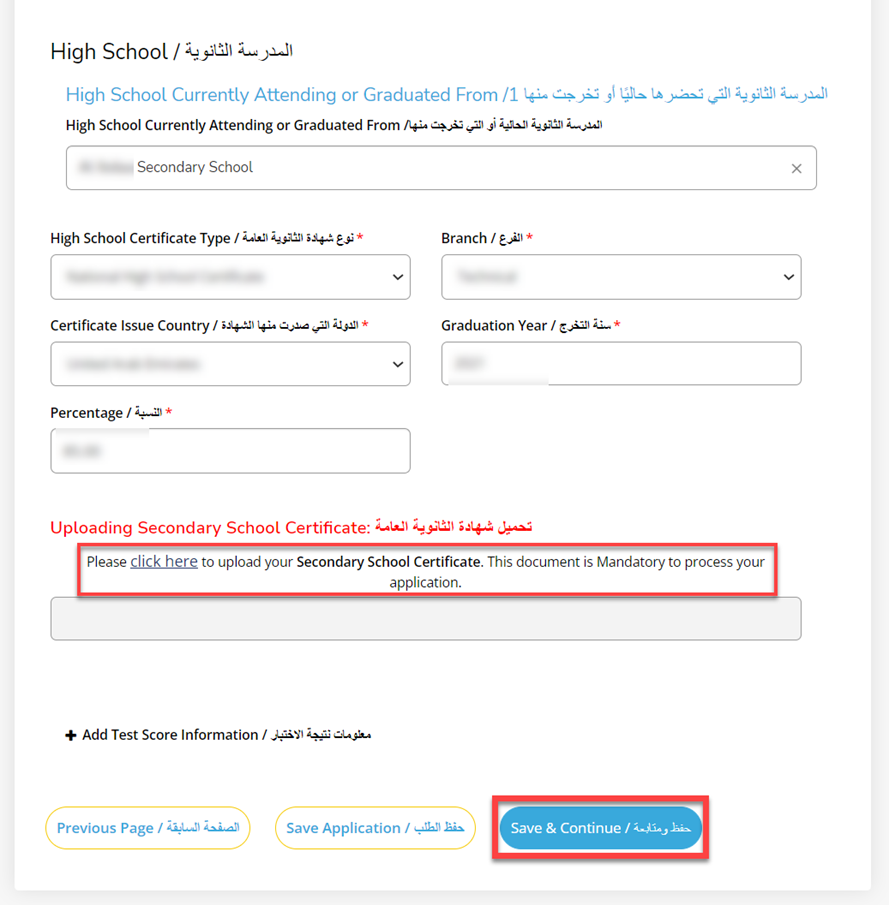
- Fill up High School details & upload your Secondary School certificate, then click on “Save & Continue” to continue with your application or “Save application” which will save the application while keeping you in the same page, else you can go to previous page.
Note:
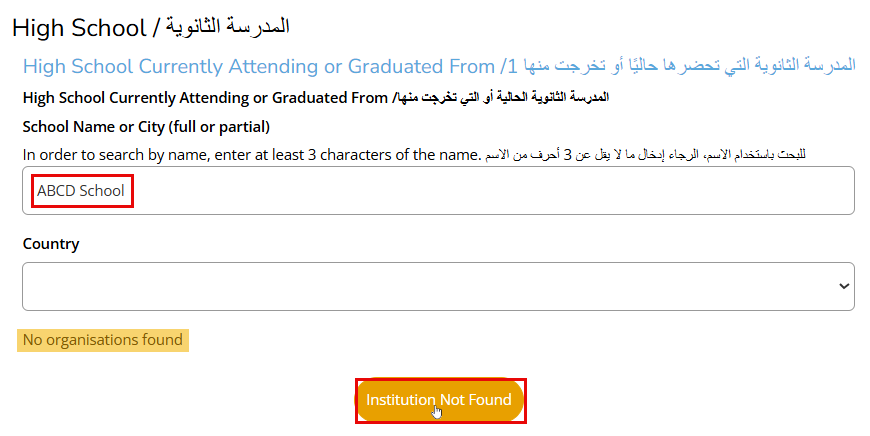
If you enter a school that is not listed and no search results appear, a button labeled "Institution not found" will be displayed. Click it, and an additional field named "Unlisted School Name and Address" will appear. Enter your school's full name and address in the provided field and complete all required fields.
- Certify the information by clicking on Yes, Read the admission policy and agree once done, then sign by writing your name, once done click on “Preview before submission” to preview your application or “Save application” which will save the application while keeping you in the same page, else you can go to previous page.
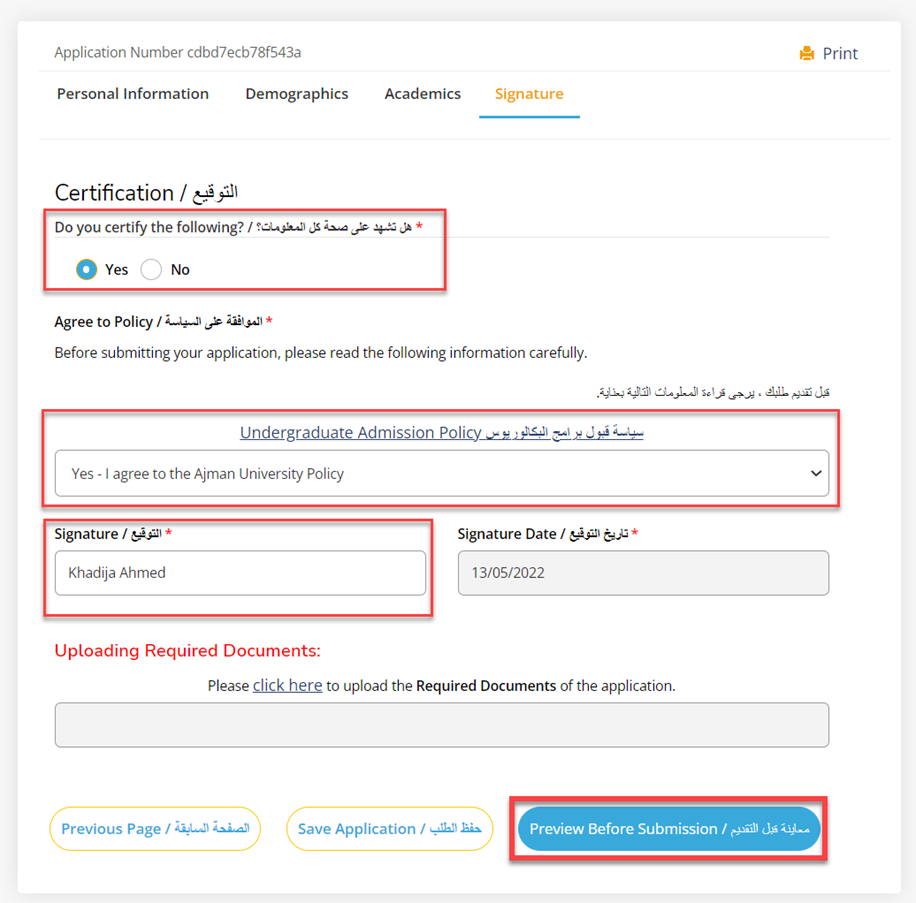
Note: You can read the policy before you agree by clicking on Admission policy link.
After submitting the application, you will also be receiving the admission policy to the registered email address in the application.
Once you click on "Preview before Submission" you will be directed to Order summary page where you can pay and submit your application.
Refer to article (Submit Admission Application) for more details.
Was this article helpful?
Related articles
Admission System (Apply Online)
Original source: https://it.ajman.ac.ae/docs/create-submit-new-admission-application-upload-documents