


Access an Online Class
By Khadija AhmedPublished 8 Jul 2021Updated 26 Aug 20241 min read
On the exact date and time of the online class, you will be able to access Zoom by following the below steps:
- Log in to Moodle, go to the course, and click on Zoom.
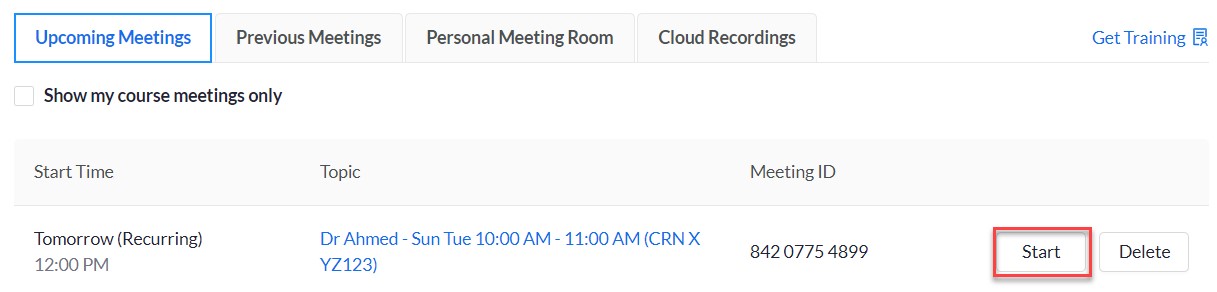
- In the Upcoming Meetings section, click on Start.
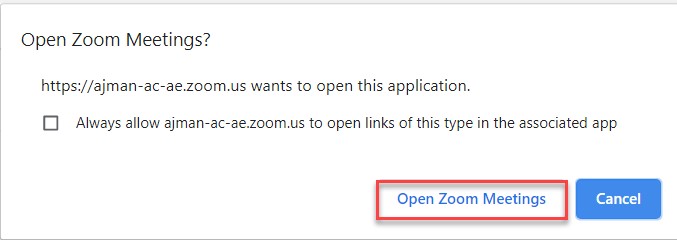
- Click on Open Zoom Meetings.
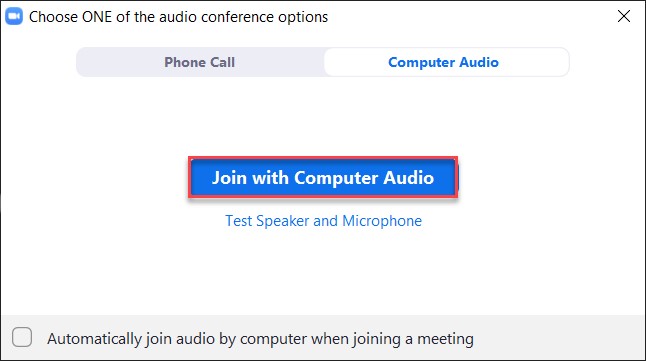
- Click on Join with Computer Audio.
- You may interact with the students through the following:

- Mute/Unmute your mic.
- Start/Stop your video.
- View your participants/students.
- Chat with them.
- Share your screen.
- Pause/resume or stop recording.
- End meeting
Note:
When the class is over, click on End (in the red box) and then click on End meeting for all to the meeting for the students too.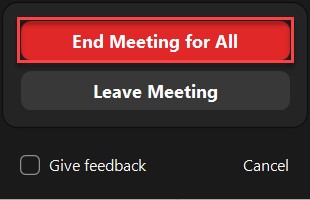
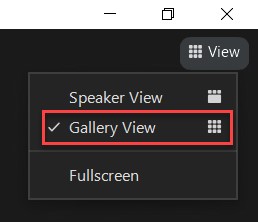
- You may display the students through a gallery view:
Was this article helpful?
Related articles
Zoom
Original source: https://it.ajman.ac.ae/docs/access-an-online-class