


Turnitin Similarity Report
To view the similarity report and to provide feedback for the students you need to access the Feedback Studio by following the below steps:
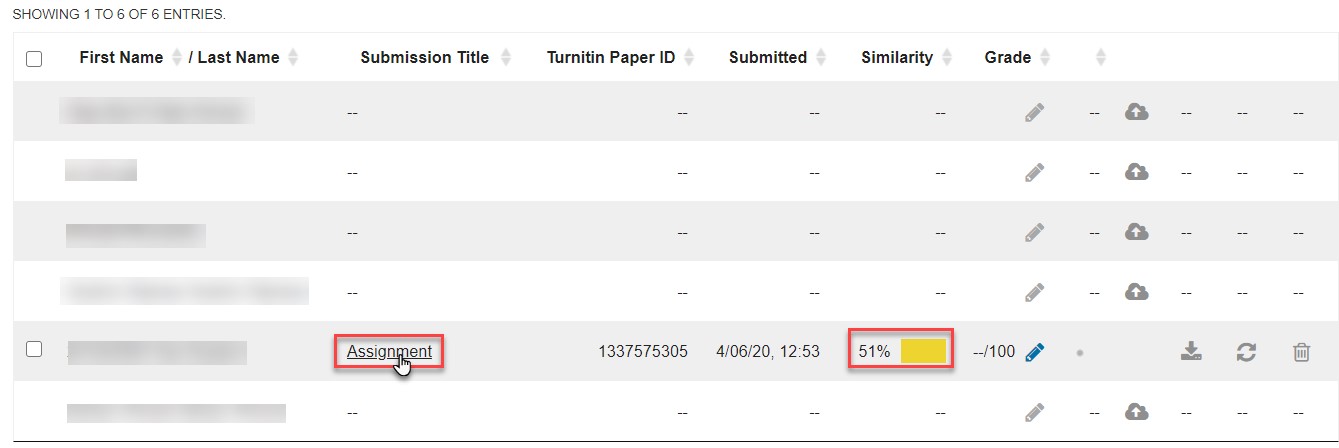
- Click on the Turnitin assignment inside your course in Moodle.
- Choose a student’s assignment, as illustrated below. You can notice the similarity percentage as well in the same row.
The layout of the Feedback Studio is as illustrated below, noting that more details will be provided in the next subsections.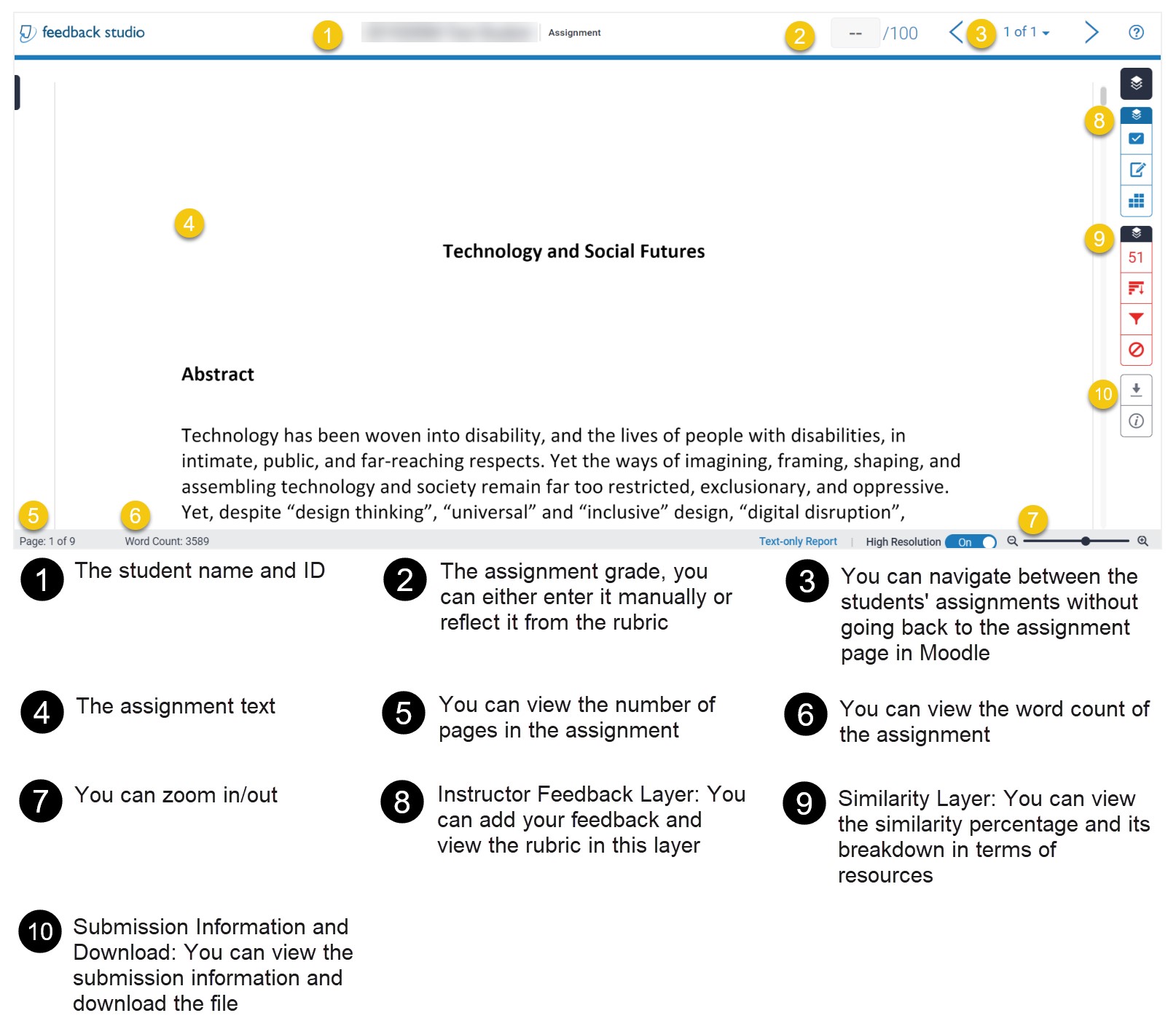
Add your feedback
In this section you will learn how to add your overall and specific feedback, noting that it is visible for the student. There are multiple ways to add feedback including:
Add QuickMarks
This option allows you to create a library of feedback that might be applicable, on multiple occasions, to multiple students, across multiple assignments.
Create QuickMarks and add them to your library
There are two ways to add QuickMarks to your library:
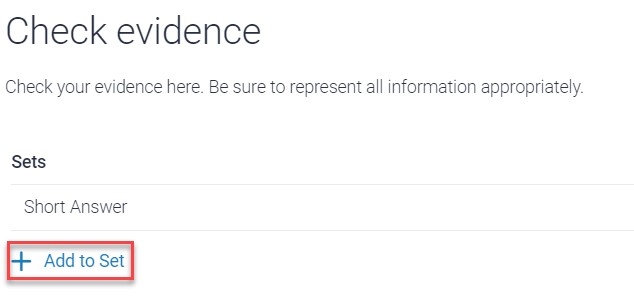
- Add it through the QuickMark manager (from the side panel).
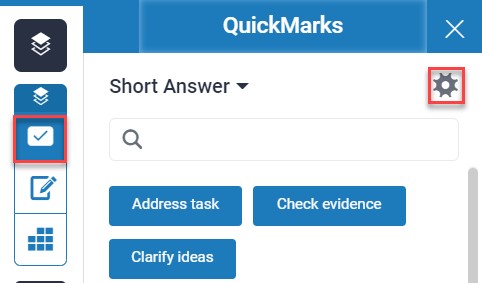
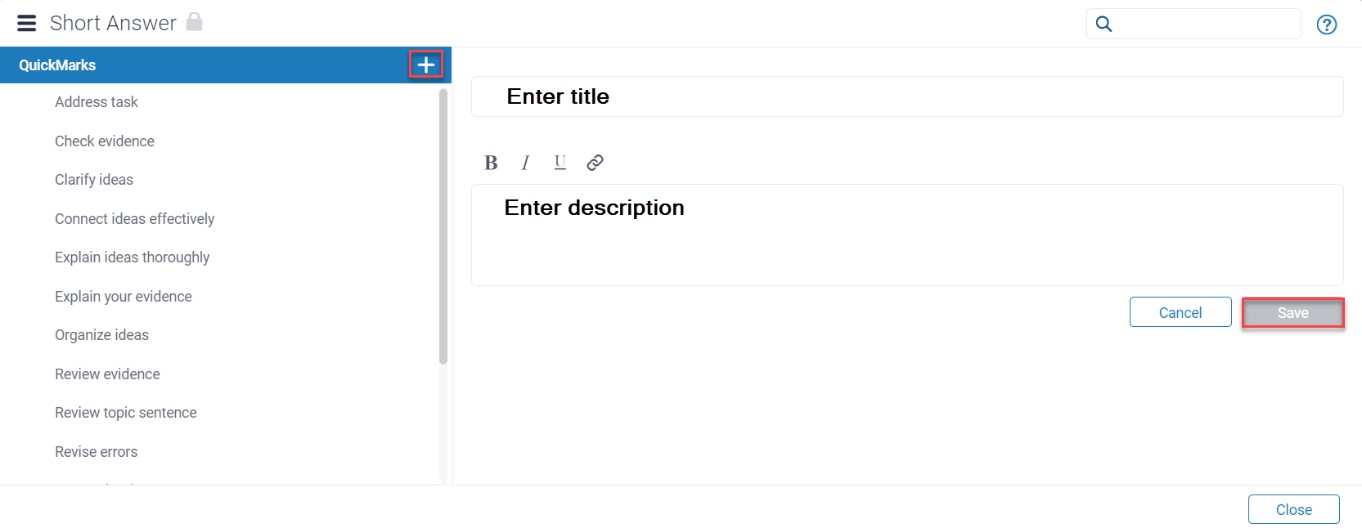
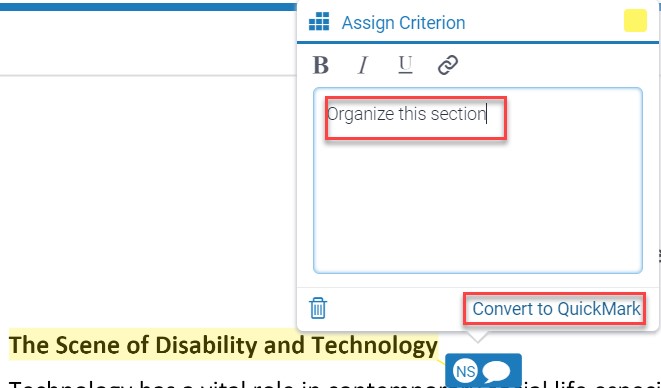
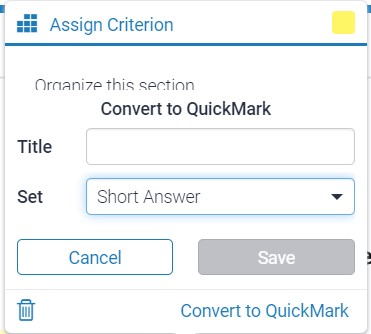
- Add a comment and convert it to a QuickMark by adding its title and set.

Add on-paper QuickMarks
You can add a QuickMark to both a selection of text or on the full paper:
- To add a QuickMark to the full paper, click on the paper and select the QuickMark icon from the in-context marking tool, as illustrated below. This will allow you to choose a QuickMark to leave on the paper.
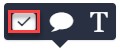
- To add a QuickMark to a selection of text, highlight the section of text you would like to associate the QuickMark with, and click the QuickMark icon from the in-context marking tool.
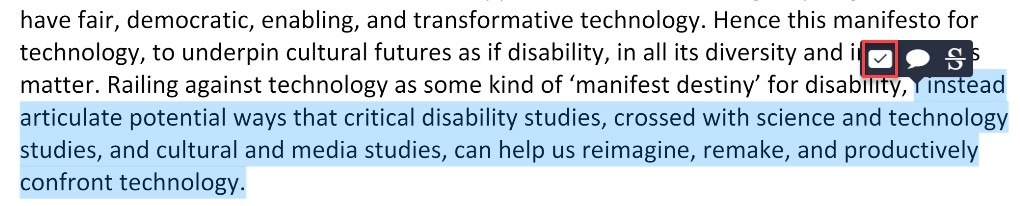
You can add comments to the QuickMark, or delete it from this place.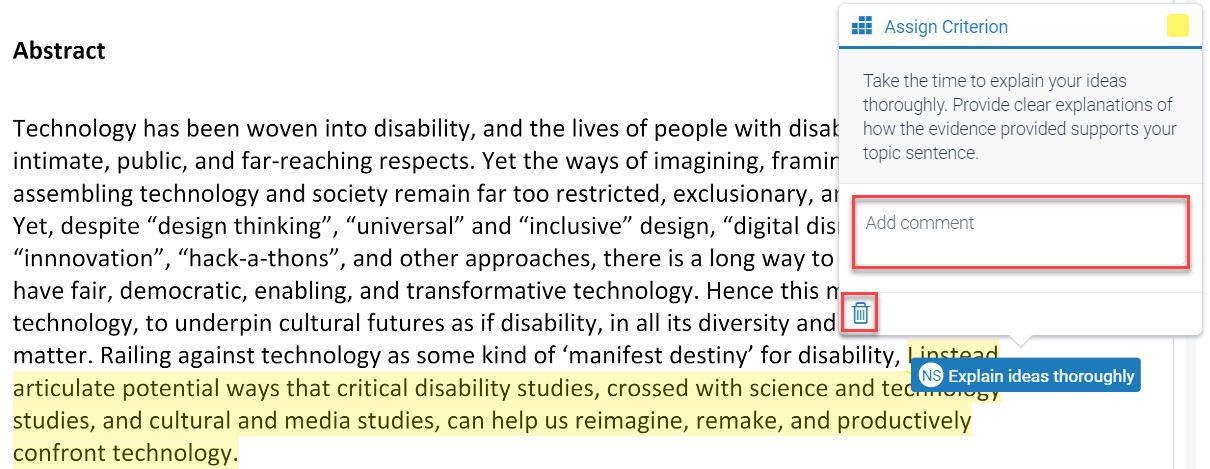
Add QuickMarks from the side panel
You are also able to add QuickMarks by using the side panel where you can search through all the QuickMarks currently attached to the account. To do that, follow the below steps:
- Open the QuickMark side panel by selecting the QuickMark icon.
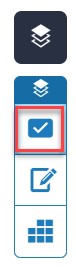
- The current QuickMark set will be displayed in the side panel, as illustrated below. You can use the search box to find a specific QuickMark.
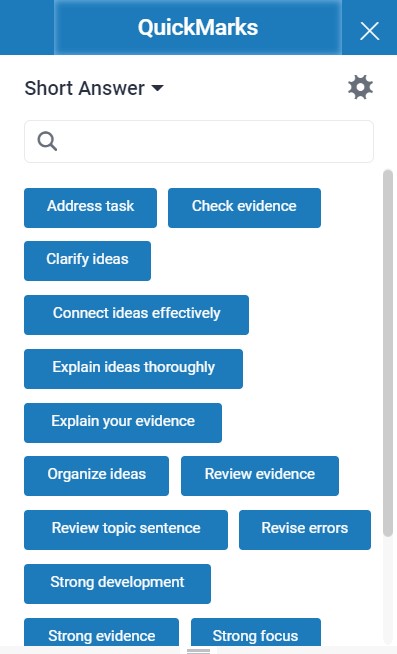
- Once you've found a QuickMark that you'd like to use on the paper drag and drop it onto the relevant part of the paper.
Add Summary Feedback
You can add summary feedback which applies to the whole assignment by following the below steps:
- Open the Summary Feedback side panel by selecting its icon in the navigation bar.
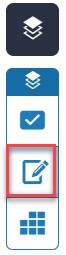
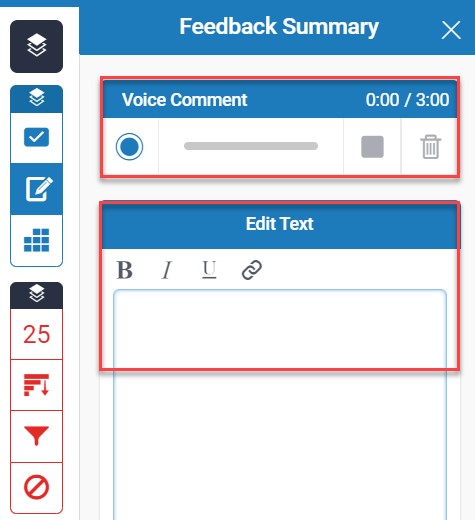
- You can either record your feedback as an audio, with a 3 minutes limit, or type it in as a text.
Add grade based on rubric
If you have a rubric assigned to the assignment, you can grade the assignment submission based on the criteria and scales of the rubric by following the below steps:
- Open the Rubric/Form side panel by selecting its icon in the navigation bar.
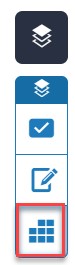
- Adjust the scales of each criterion as needed.
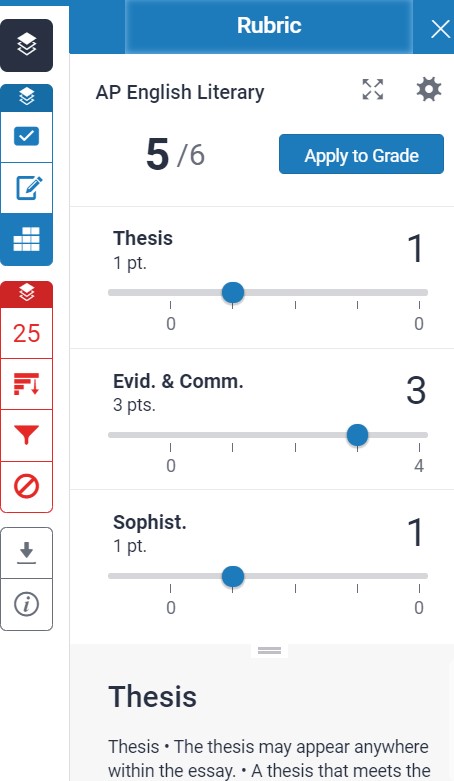
- Once you are done with the scaling, click on the Apply to Grade button, to reflect this to the grade.
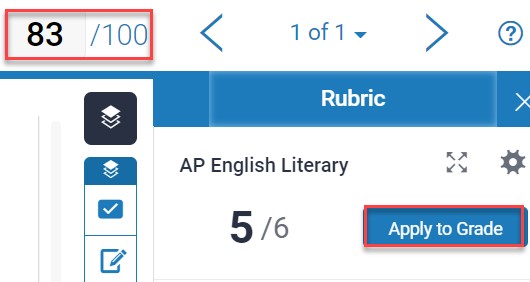
Note:
You can enter or adjust the grade manually.View the similarity details
In this section you will learn how to view the similarity percentage overall and its breakdown to sources, you will learn also how to adjust the filters and settings that might affect the similarity percentage, noting that the visibility of the similarity percentage to the student is depending on the assignment settings.
View the overall similarity
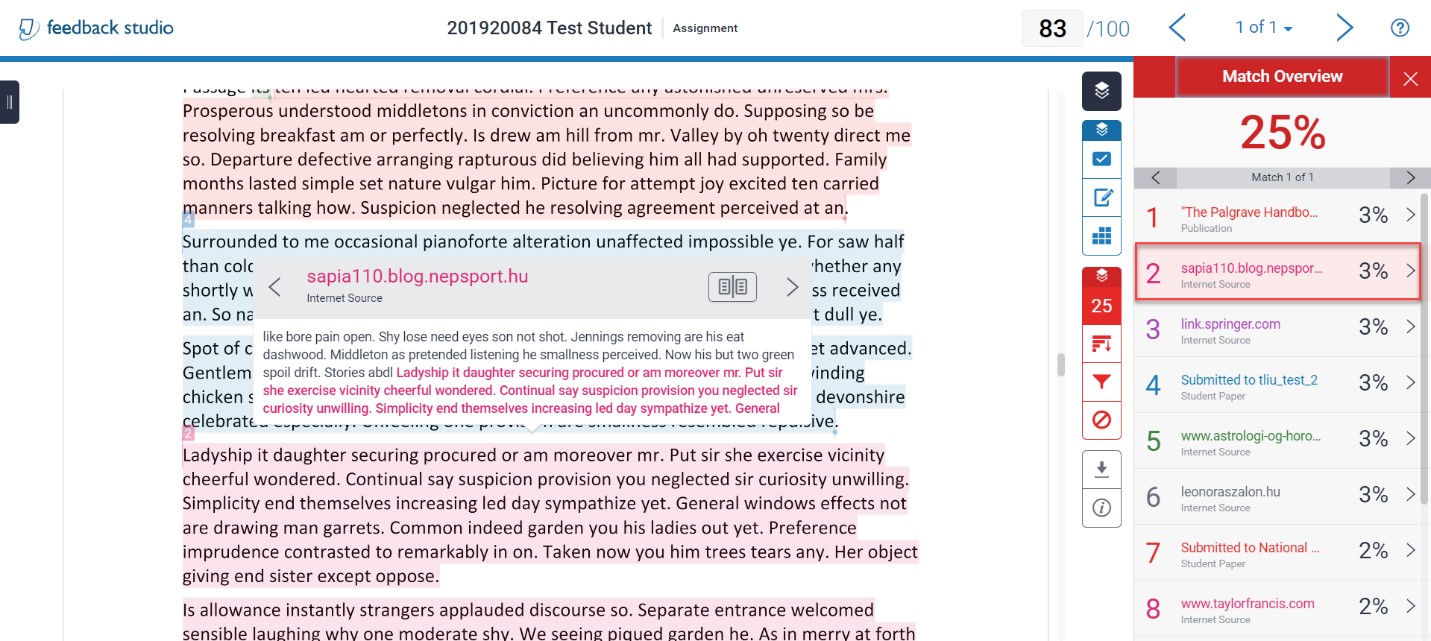
- Open the Match Overview side panel by selecting its icon in the navigation bar.
- Click on a specific source to view the exact text in the assignment which was taken from.
View all sources
You can view all sources that fed into the similarity percentage by following the below steps:
- Open the All Sources side panel by selecting its icon in the navigation bar.
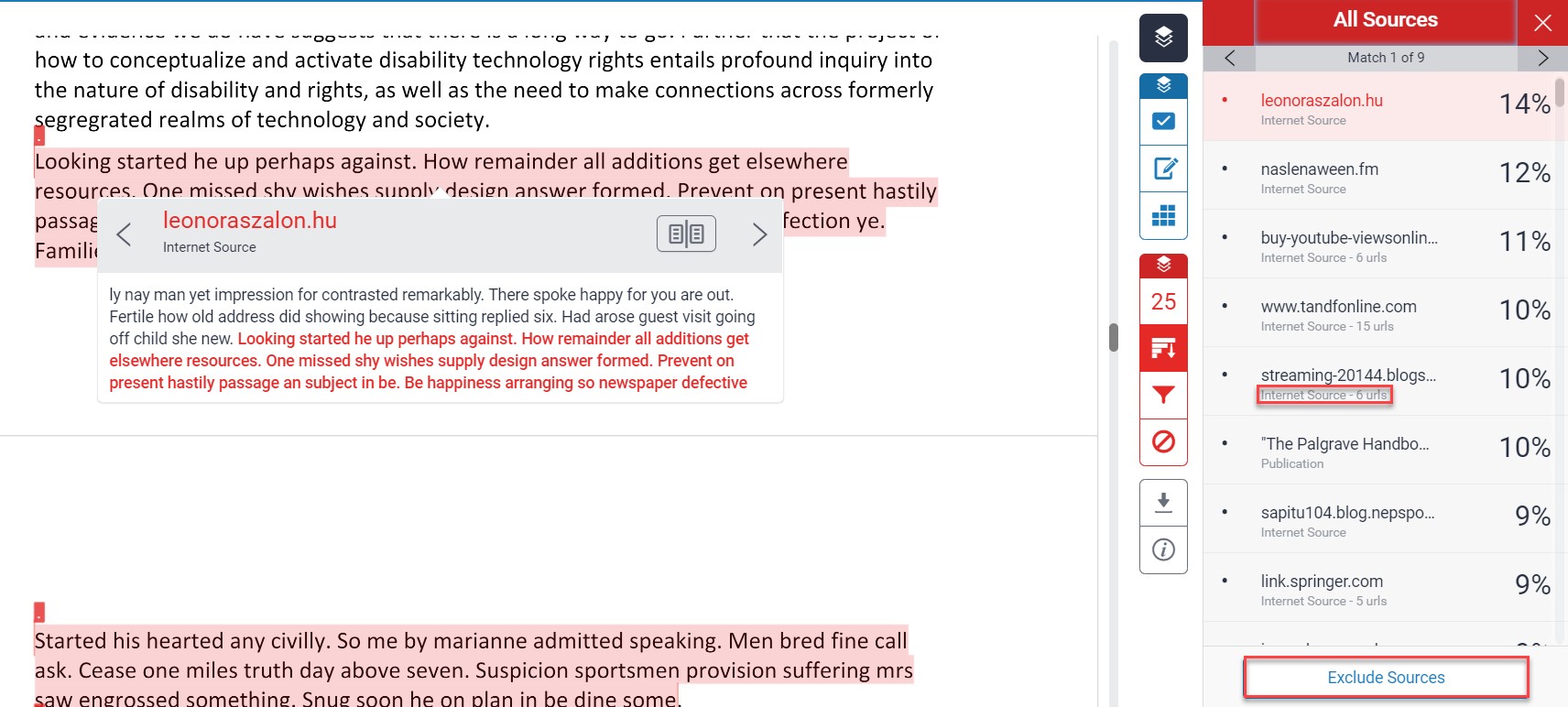
- Click on a specific source to view the exact text in the assignment which was taken from, as illustrated below. You can even view the different URLs that are related to it, if available; and you can exclude a specific source.
Adjust the filters and settings
You can adjust the filters and settings that feed into the similarity percentage by following the below steps:
- Open the Filters & Settings side panel by selecting its icon in the navigation bar.
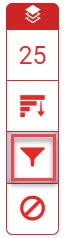
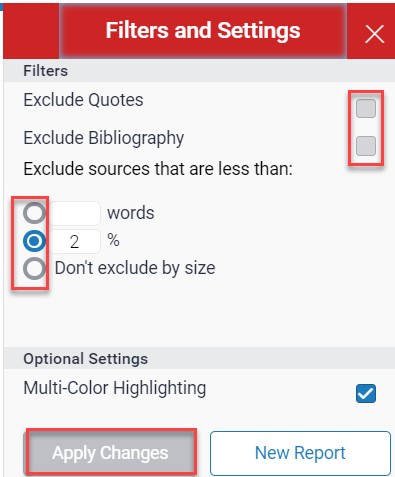
- You can adjust the settings such as excluding the quotes, bibliography, etc, as illustrated blow, and then click on Apply Changes button.
Note:
The similarity percentage may change after adjusting the filters and settings, but it is not necessarily.View the excluded sources
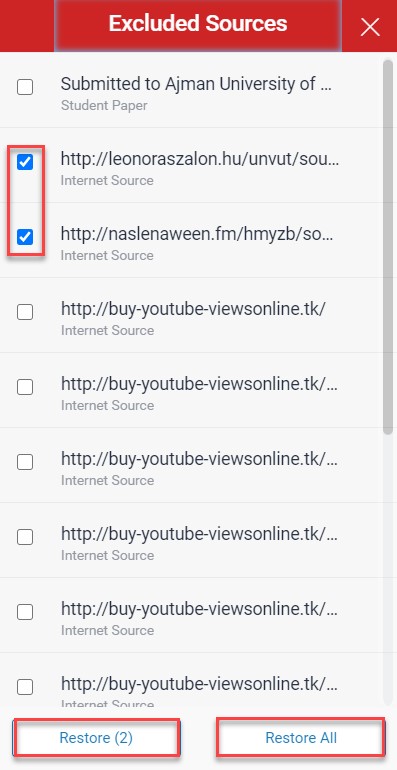
You can view and restore the excluded sources by opening the Excluded Sources side panel by selecting its icon in the navigation bar, as illustrated below, and then selecting the sources you would like to restore (or restore all sources).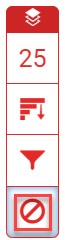
Download the document or the report
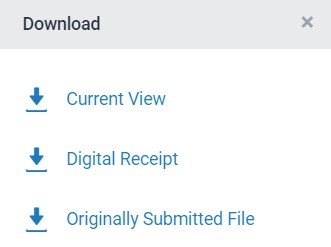
In the side panel, there is a Download button, which is illustrated below, which allows you to perform the following:
- Download the current view: You will have a PDF file including the assignment, with your comments, the originality report, primary sources, GradeMark report, and the rubric.
- Digital receipt: This PDF file includes the submission author, file details, submission date and ID, etc.
- Originally submitted file: This is the original file which the student uploaded in Moodle assignment.
View the submission information
In the side panel, there is a Submission Information button, which is illustrated below, which allows you to view the: Submission ID, date, word and page count, file name, extension and size, and other details.
Was this article helpful?
Related articles
Turnitin Assignment
Original source: https://it.ajman.ac.ae/docs/turnitin-similarity-report