


Submit a Turnitin Assignment
In Turnitin assignment, you can upload a file that contains your response and have the possibility to view the similarity report, if the lecturer enabled this setting. The icon of the assignment is as illustrated below:

What is the difference between a standard assignment and a Turnitin assignment in Moodle?
Unlike standard assignments, Turnitin assignments check for plagiarism and similarity between your file and all other resources available online, including other students' work, books, websites, articles, etc. In addition, Turnitin assignment allows the lecturer to provide feedback for the student through the Feedback Studio.
To submit a Turnitin assignment, click on the assignment and then follow the below steps:
Note:
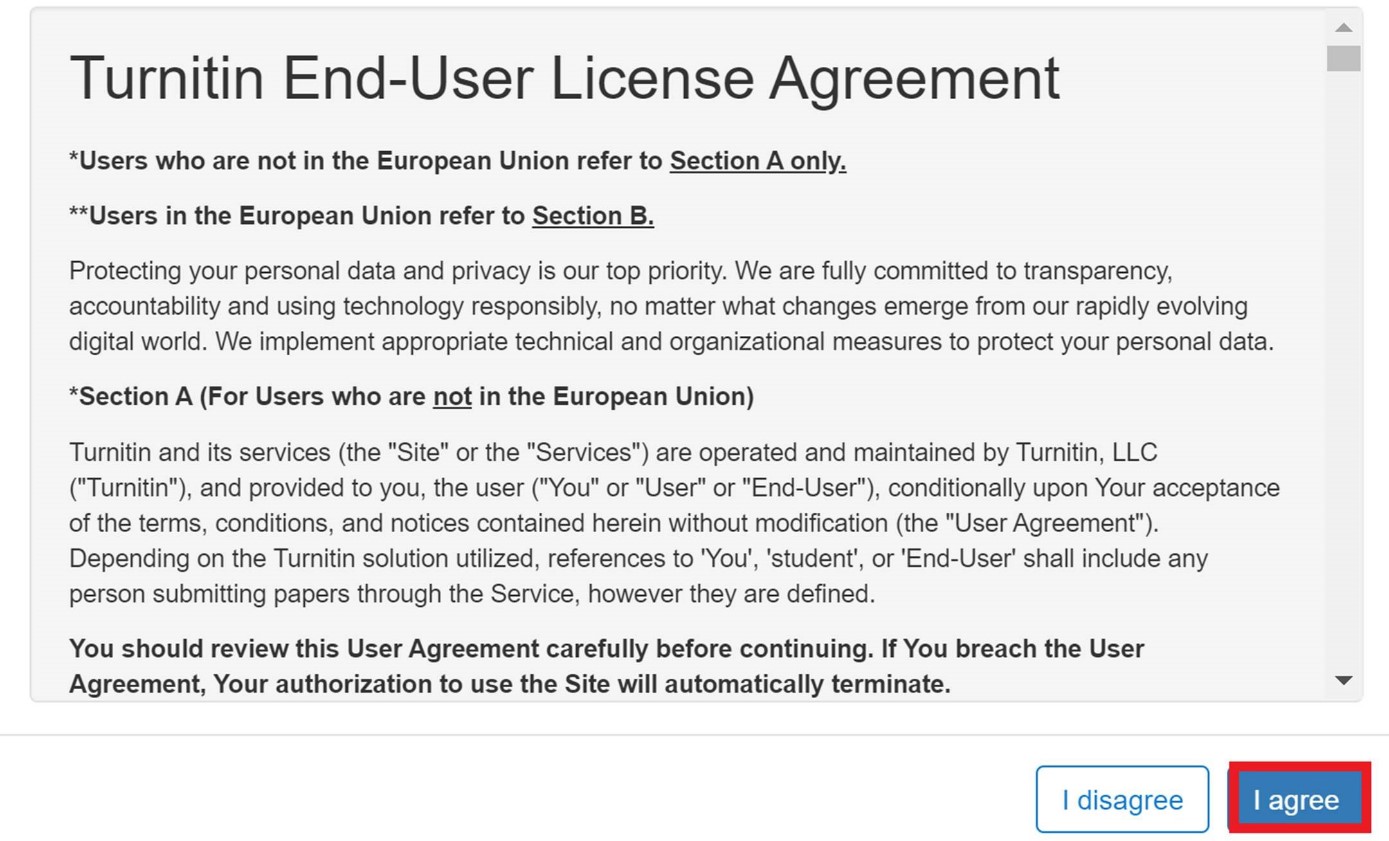
In case of submitting a Turnitin assignment for the first time, you need to agree on the User Agreement, as illustrated below:
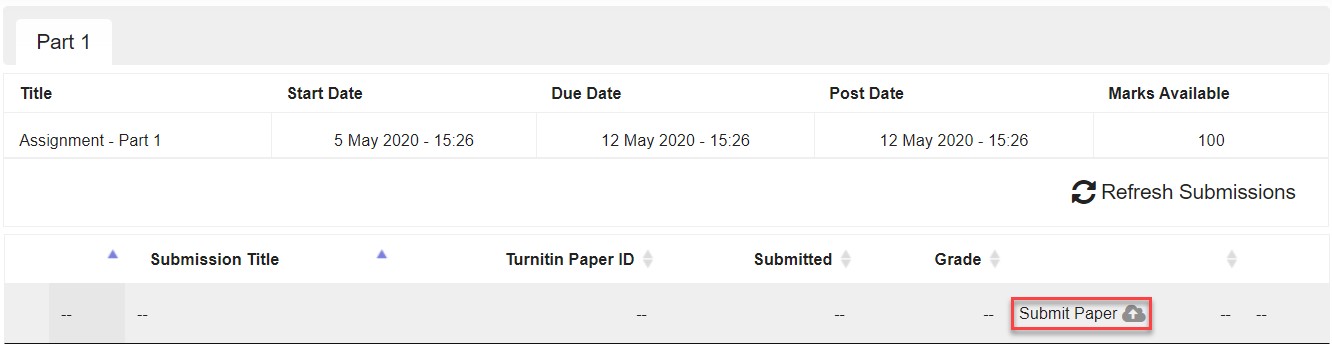
- Click on Submit paper, as illustrated below:
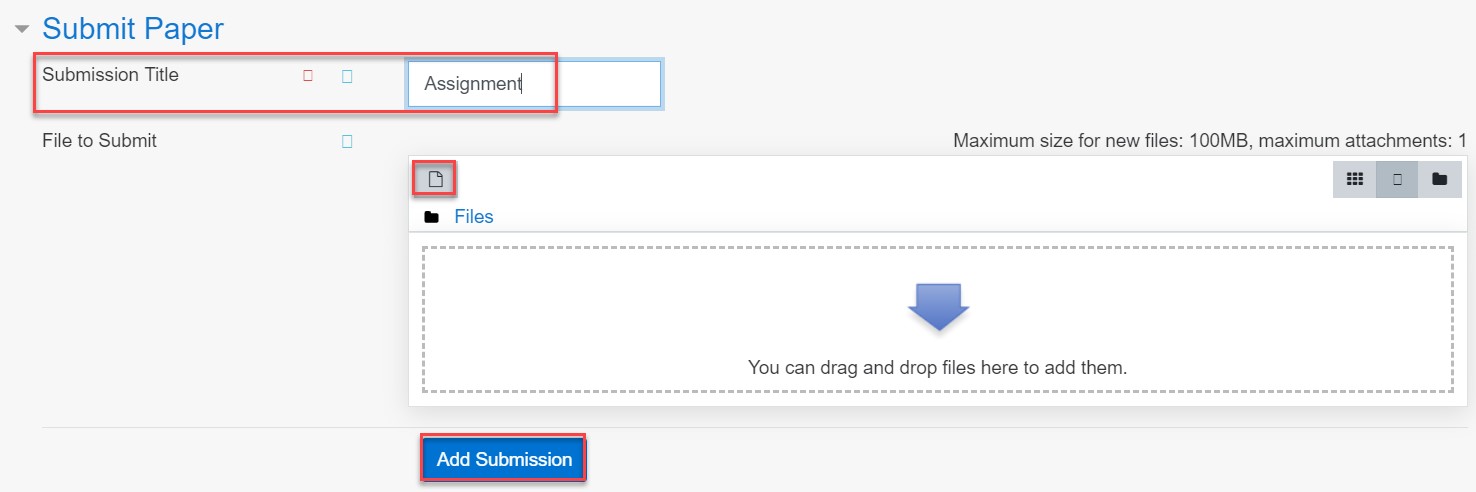
- Enter the assignment title, drag and drop the file or click on the Upload file icon, and then click on Add Submission button, as illustrated below:
Important:
Submissions must be uploaded in PDF format only.
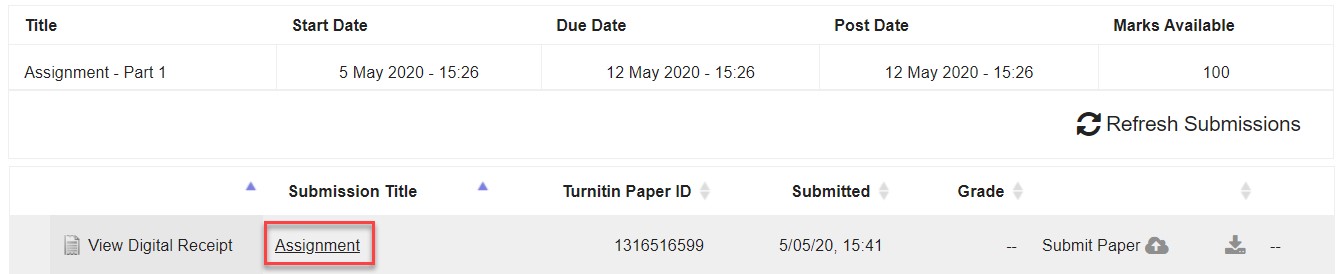
- To view the similarity and the feedback from the lecturer, you have to access the feedback studio by clicking on the submission, as illustrated below:
Was this article helpful?
Related articles
Moodle
Original source: https://it.ajman.ac.ae/docs/submit-a-turnitin-assignment-1