

Send Message to Team
By Khadija AhmedPublished 20 Jan 2025Updated 23 Jan 20261 min read
Please Note:
This user manual is currently under review. A revised version reflecting the new Redwood user interface will be available soon.
To send a message to the hiring team, follow the steps below:
-
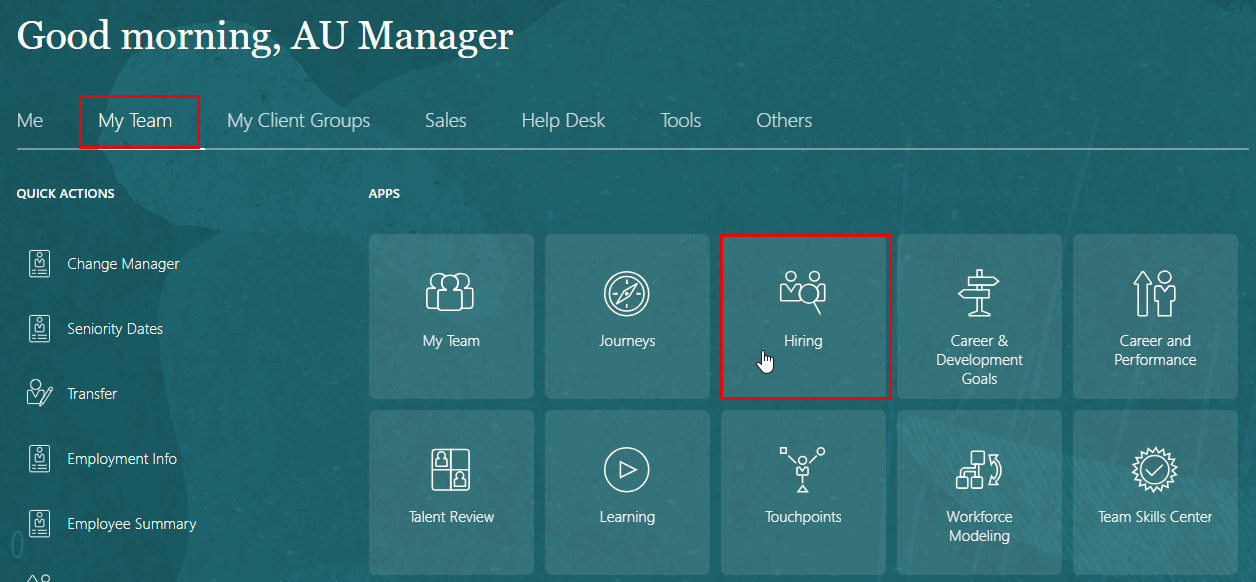
Go to My Team
-
Select Hiring
-
Click on Job Requisition
-
Click on Requisition Name
-
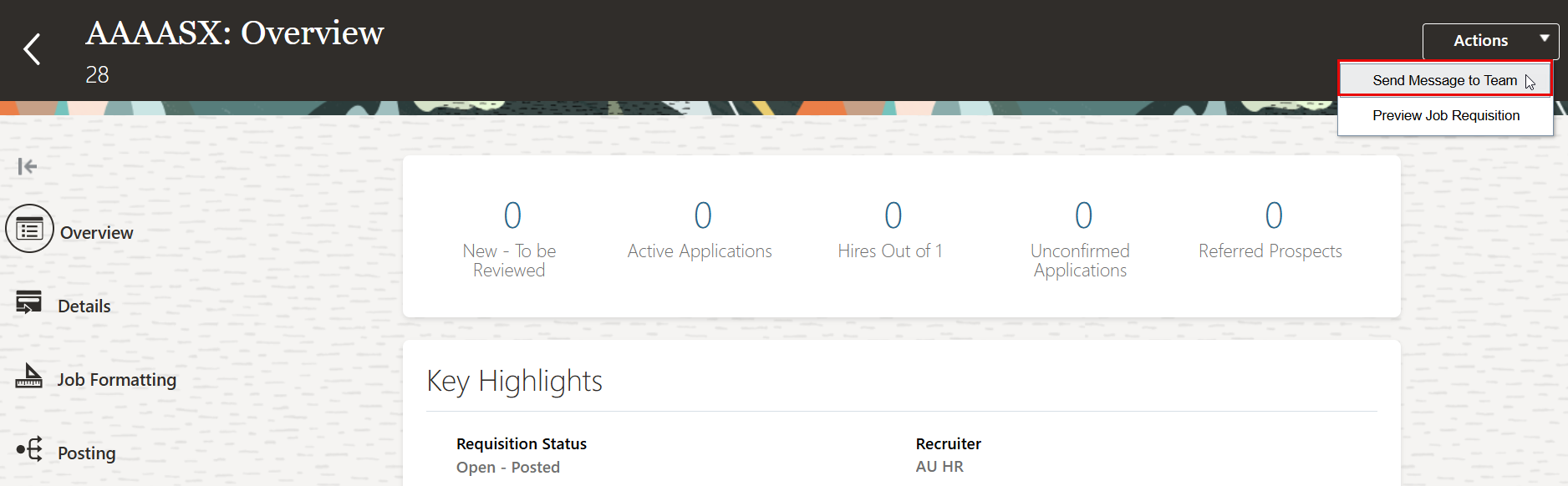
In the Action dorp-down menu, click on "Send Message to Team"
-
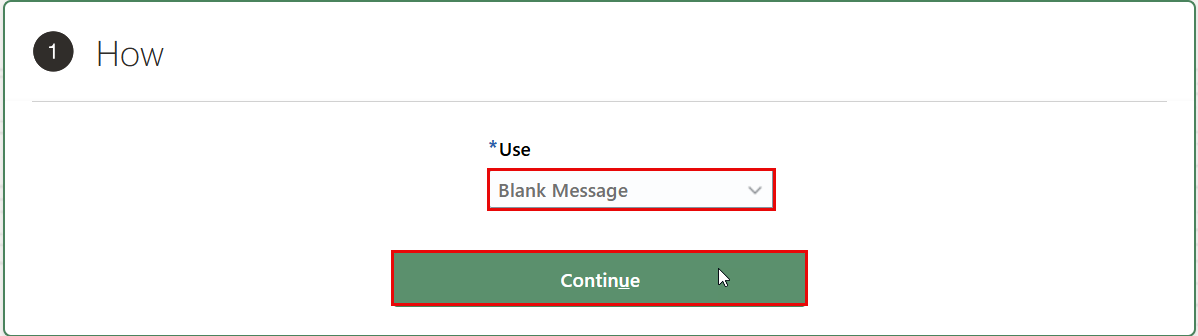
Select Use: Blank Message, and click Continue.
-
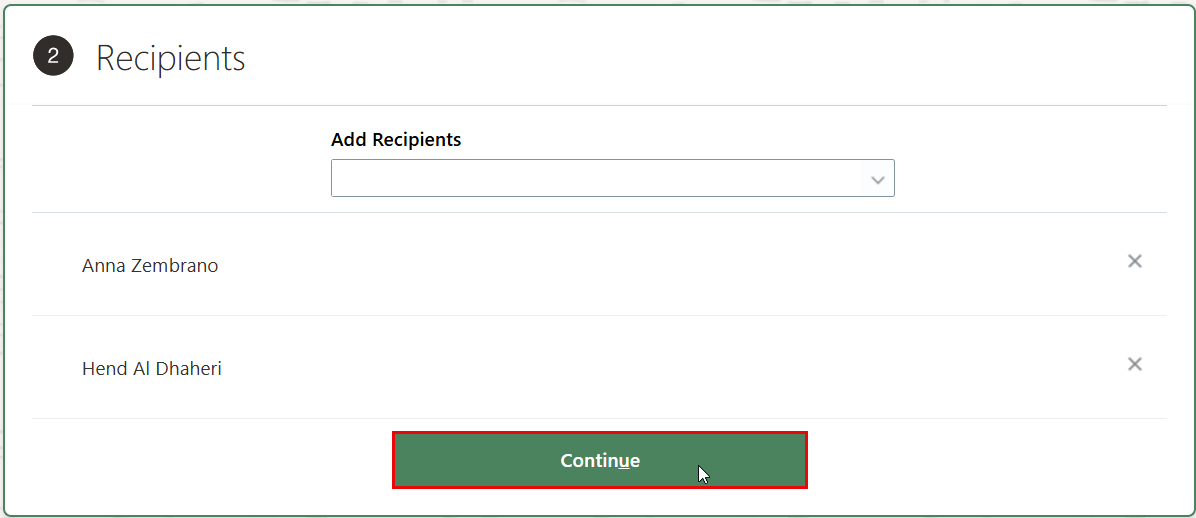
Add Recipients, and click Continue.
-
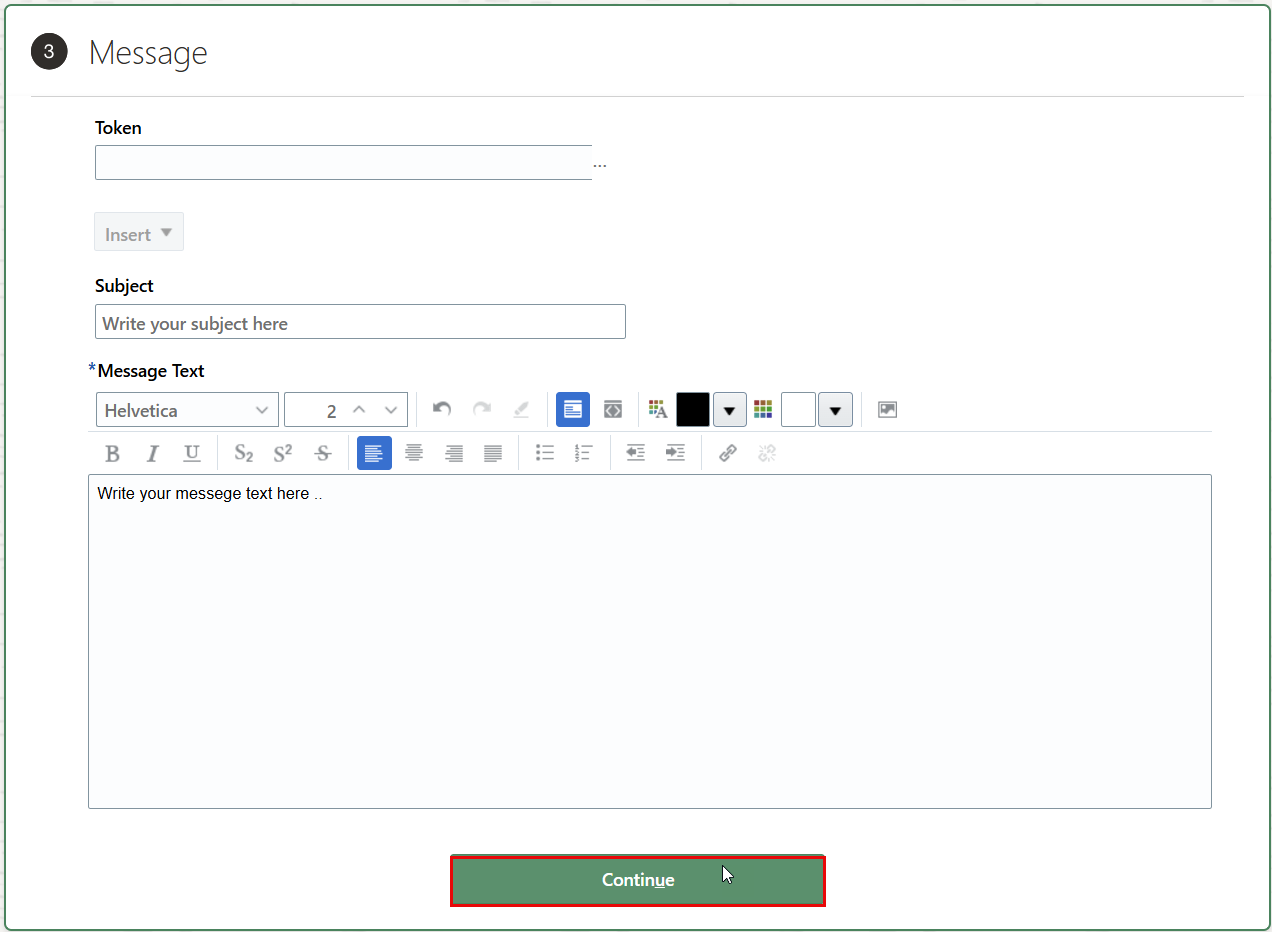
Write the subject and the meesege text.
-
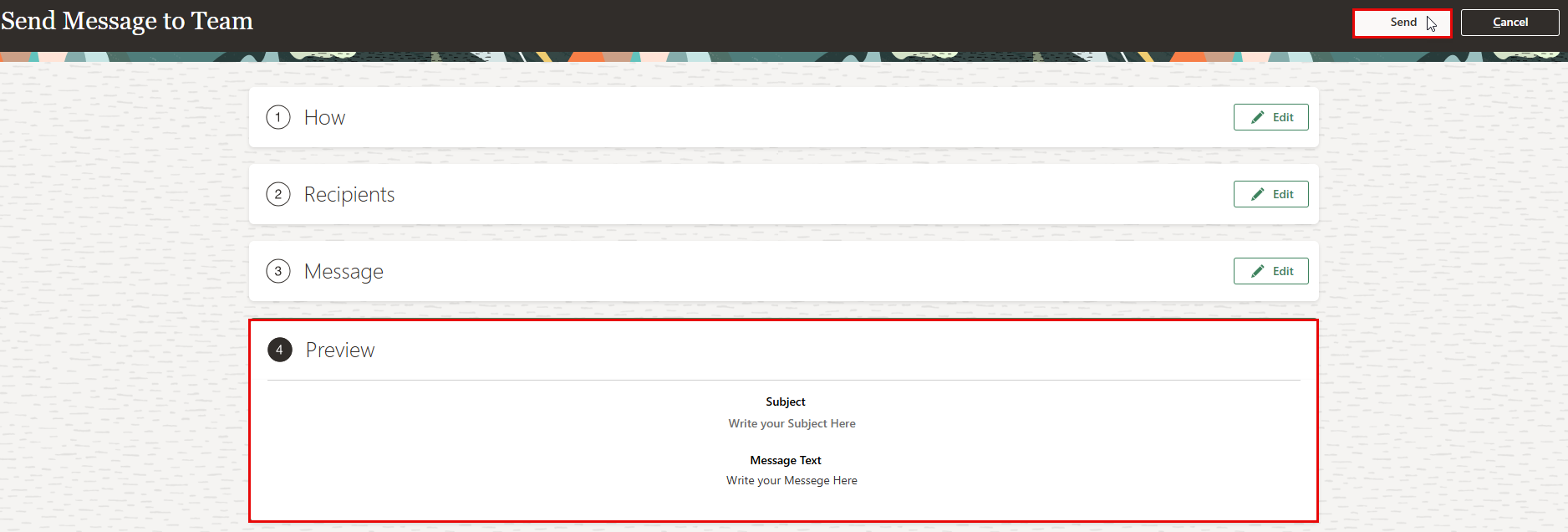
Preview your message, and click on Send once done.
-
You will receive a confirmation indicating that your message has been successfully sent to the hiring team.
Was this article helpful?
Related articles
Recruitment
Original source: https://it.ajman.ac.ae/docs/send-message-to-team