


Mark Your Physical Attendance Through AU Connect App
To mark your physical attendance through the app, please follow the below steps:
- Click on Login with AU account.

2. Enter your AU email address, then click on Next.
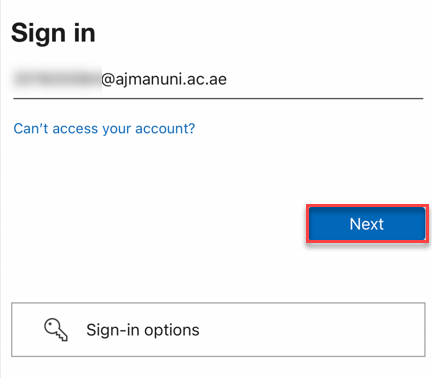
3. Enter your Password, then click on Sign in.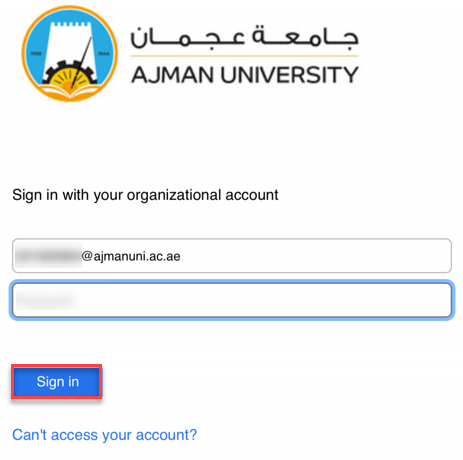
4. Click on Schedule. 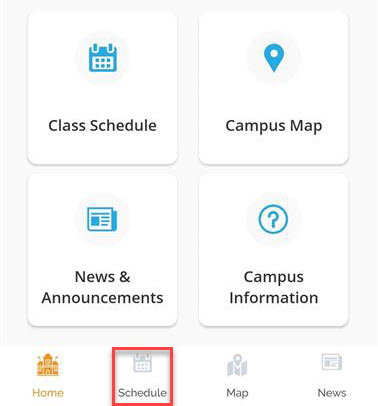
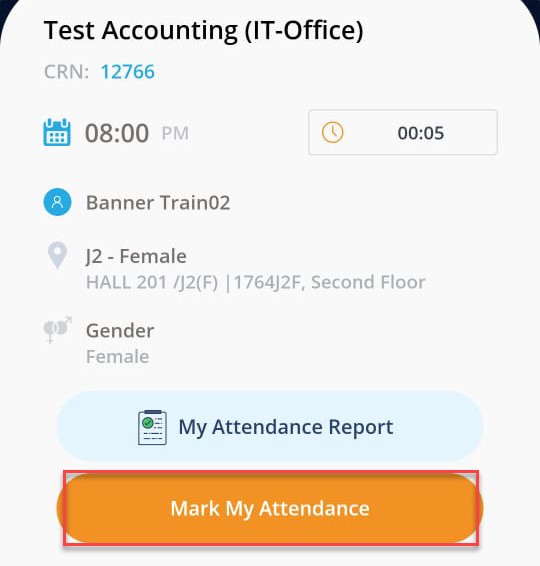
5. Select the date then chose the class you’d like to track the attendance for.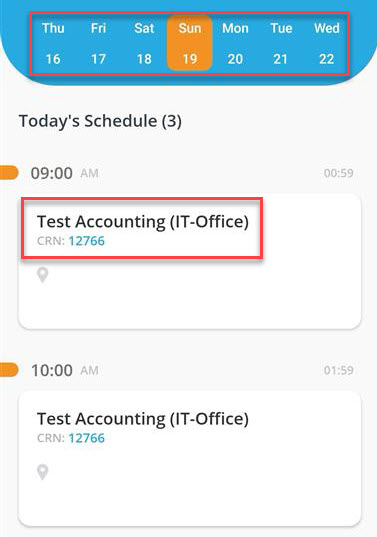 6. Click on Mark My Attendance in order for the sensor to capture your location.
Note:
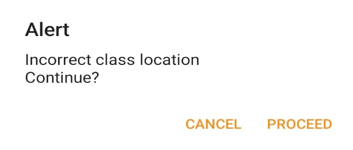
To mark your attendance, you need to be physically present in the classroom and your device’s GPS and Bluetooth features should be enabled.
If your device’s GPS and Bluetooth features are disabled, the below error will appear for you.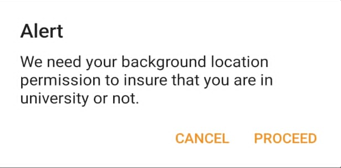
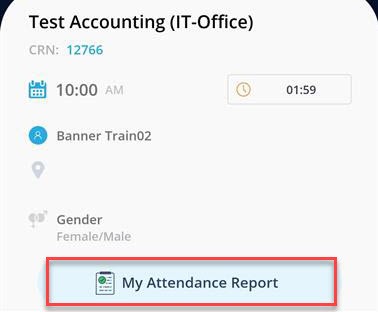
7. Click on Confirm.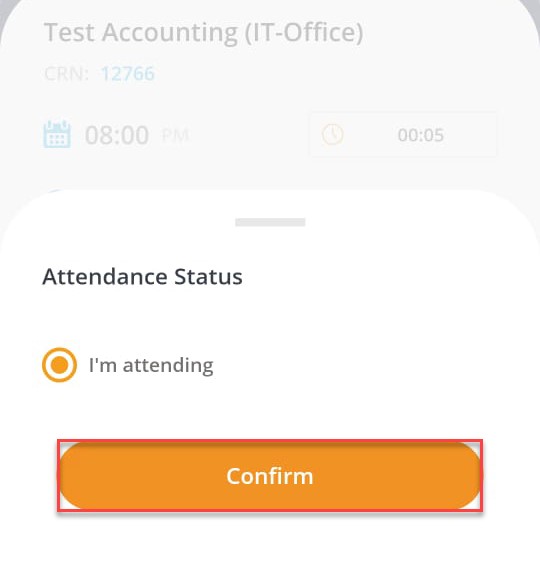 To view your attendance report, click on My Attendance Report for a specific course.
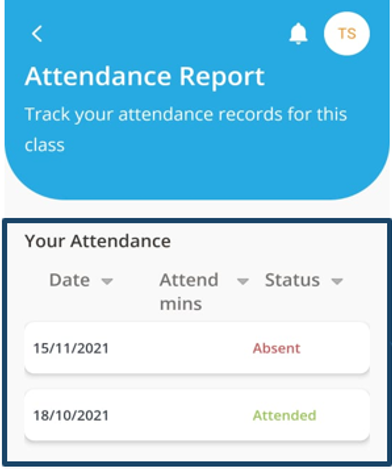
 Your attendance status for each session will appear as illustrated below:
Was this article helpful?
Related articles
AU Connect Mobile App
Original source: https://it.ajman.ac.ae/docs/mark-your-physical-attendance-through-au-connect-app