


Connect to AU Wi-Fi from PC/Laptop
You can connect to AU wireless network from your PC or Laptop by following the below steps:
For Windows 10 users:
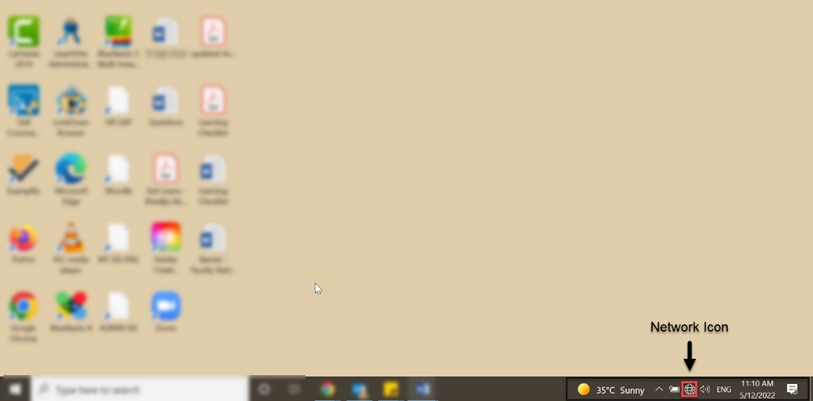
- Go to your Notification area in the taskbar, then click on Network icon.
-
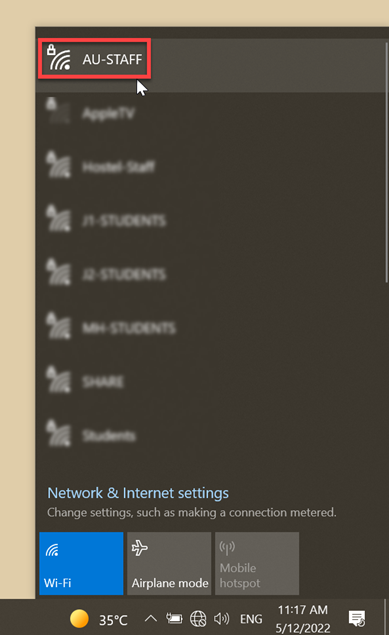
Select AU-STAFF network.
-
Enter your user name and password, then click on OK.
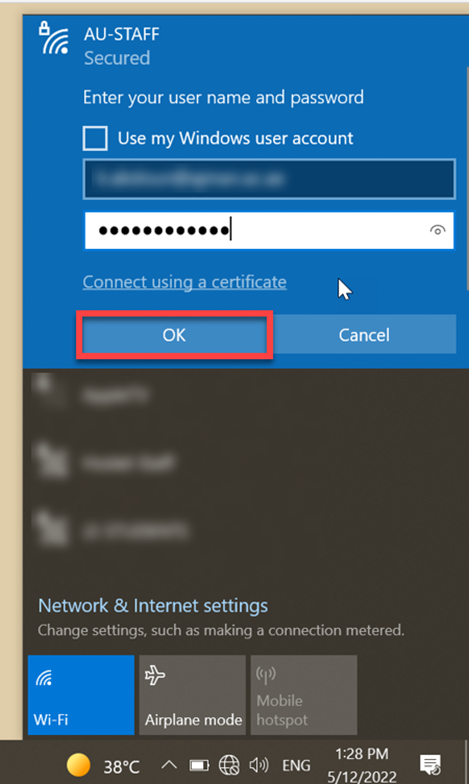
Note: You have to enter AU user Id to connect, as an example: a.someone then enter the password accordingly.
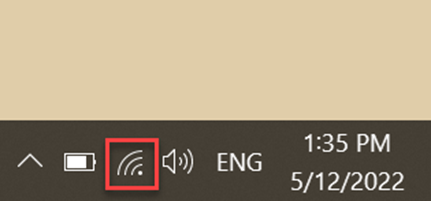
After you join the Wi-Fi network, a Wi-Fi icon will appear in the notification area.
For MAC users:
-
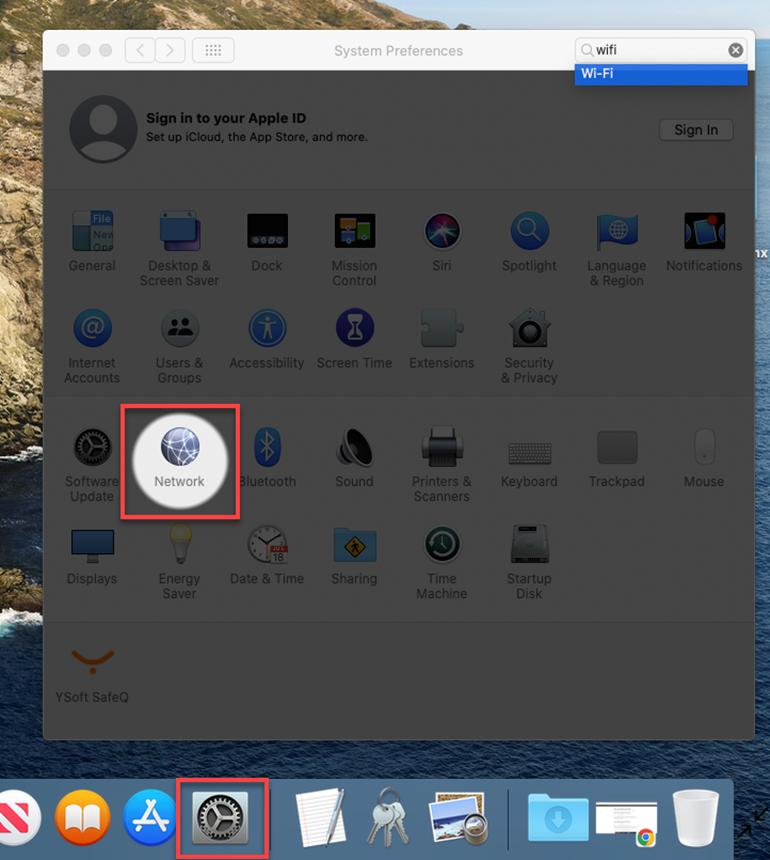
Go to your Settings in the taskbar, then click on the Network icon.
-
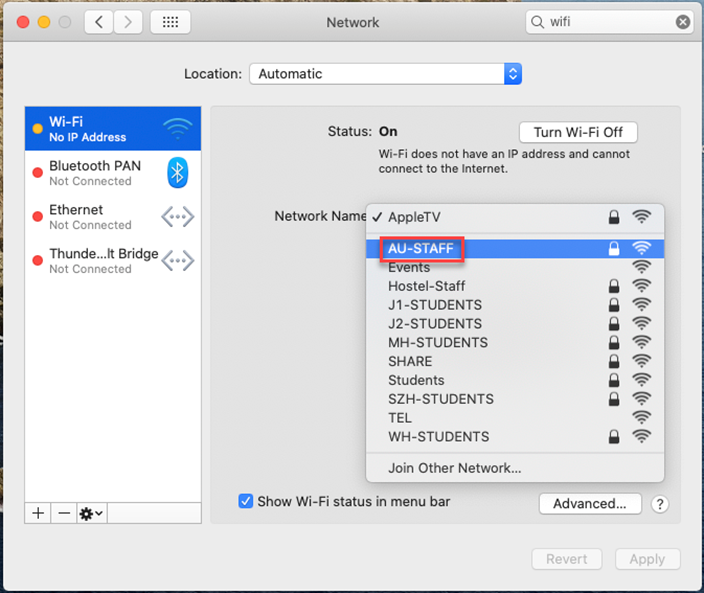
Select AU-STAFF network.
- Enter your user name and password, then click on OK.
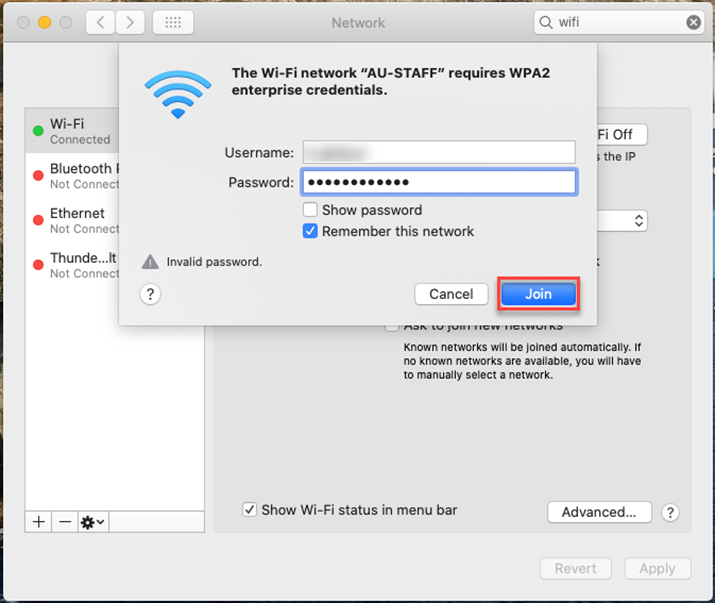
Note: You have to enter AU user Id to connect, as an example: a.someone then enter the password accordingly.
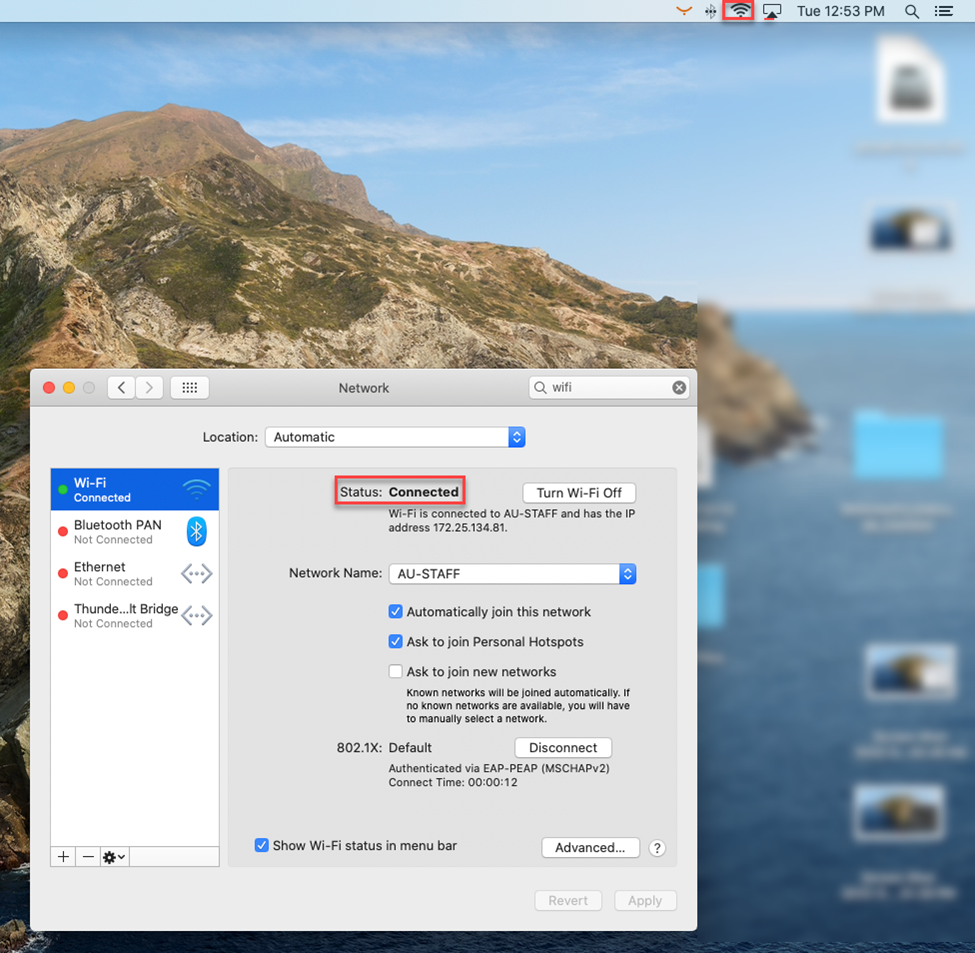
After you join the Wi-Fi network, a Wi-Fi icon will appear in the menu bar and the status will be changed to “Connected”.
Was this article helpful?
Related articles
Faculty and Staff IT Orientation
Original source: https://it.ajman.ac.ae/docs/connect-to-au-wi-fi-from-pclaptop