


Book a Peer Tutor Session
To book a session with a peer tutor, please follow the steps below:
-
Go to ORS via the Link: https://ors.ajman.ac.ae/
or through: Current Students > Student Request System (ORS) > Peer Tutor. -
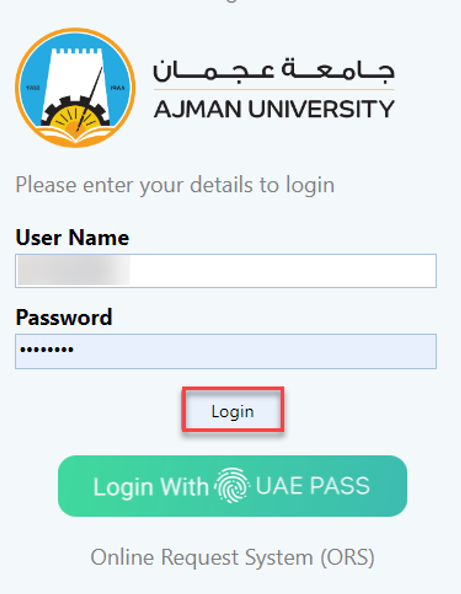
Enter your username (Student ID) and password, then click on Login.
-
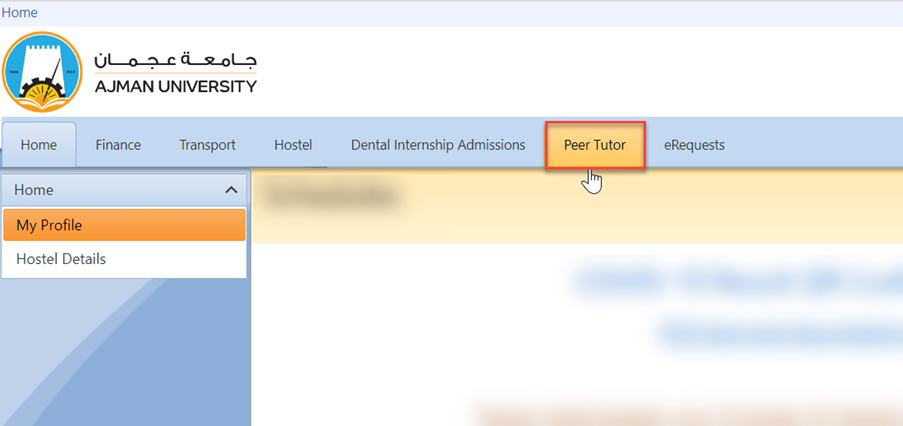
Click on Peer Tutor.
-
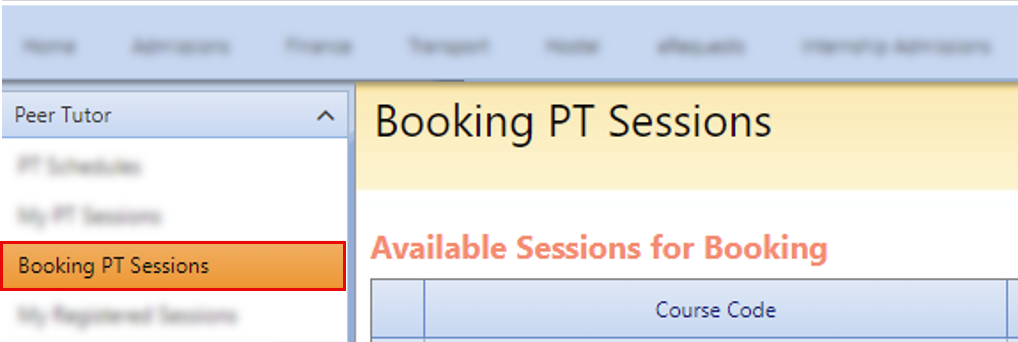
Click on Booking PT Sessions.
-
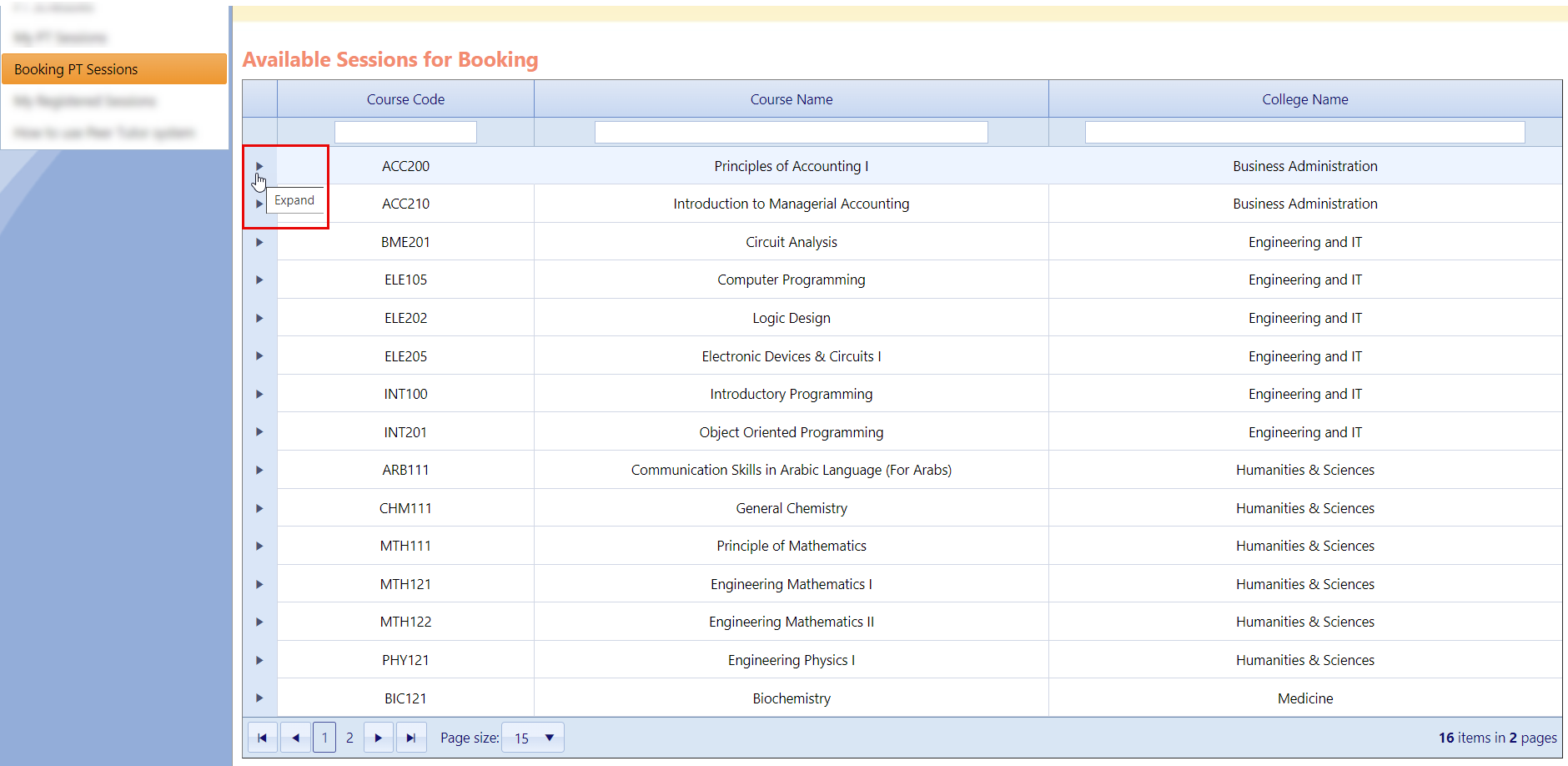
By default, all available courses are displayed along with their respective course codes and college names. To view the details of each course, simply click on the "Expand" icon.
-
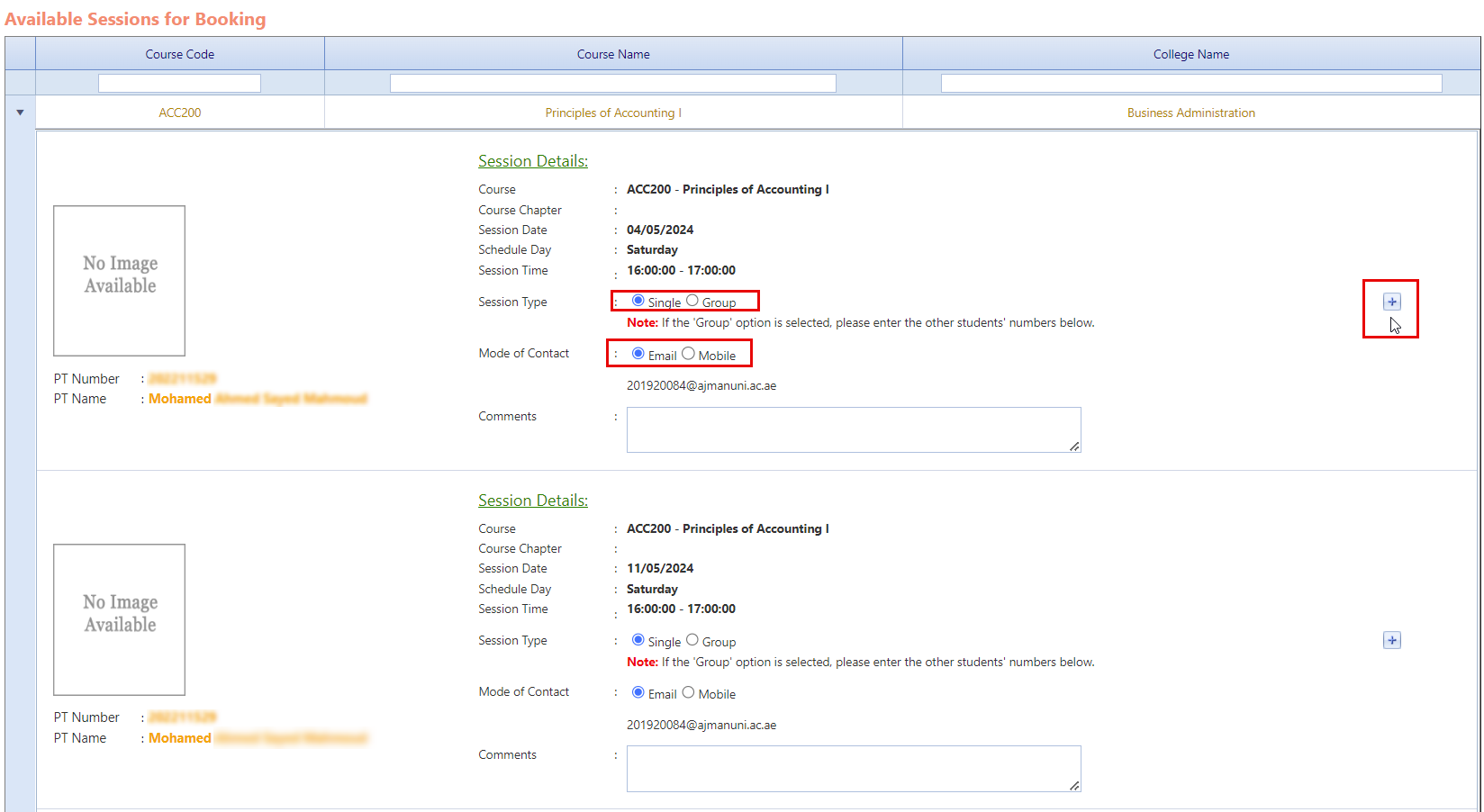
View the available sessions and their details, click on the "+" icon next to the session you wish to book. The session will be added to the final list for your review and confirmation.
Note:
- The course can be booked for one student (single) or for multiple students (group).
- Multiple sessions can be selected and booked at once.
- You can book a group session by selecting "Group" as a session type, then entering the student ID who wish to attend the session.
- A valid student ID must be entered during registration.
- Once the session is booked, students will receive a confirmation email.
- A preferred mode of contact should be specified: either a mobile number or an email address.
-
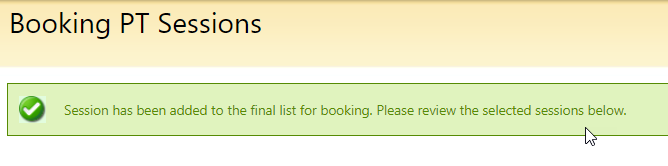
The notification message displayed in the screenshot below is the confirmation you will receive after adding a session to the final list.
-
Review the selected sessions, then click on "Book Sessions" to confirm your booking.

Was this article helpful?
Related articles
Peer Tutor
Original source: https://it.ajman.ac.ae/docs/book-a-peer-tutor-session