


Attempt an Online Exam
If you have any online quizzes, you can attempt them through Moodle and the settings of the quiz (e.g. the date and time, time limit, grade visibility, etc.) will be decided by the lecturer. The icon of the online quiz is as illustrated below:

To attempt the quiz, follow the below steps:
Click on the quiz.
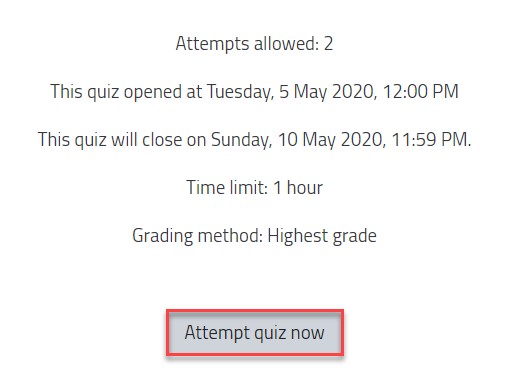
On the quiz page, you can view the quiz timing, time limit, allowed attempts, grading method, and any other restrictions. Plus, you can start the quiz by clicking on the "Attempt quiz now" button, as illustrated below:
A popup screen will appear where you will be able to view the time limit again. Click on the Start attempt button.
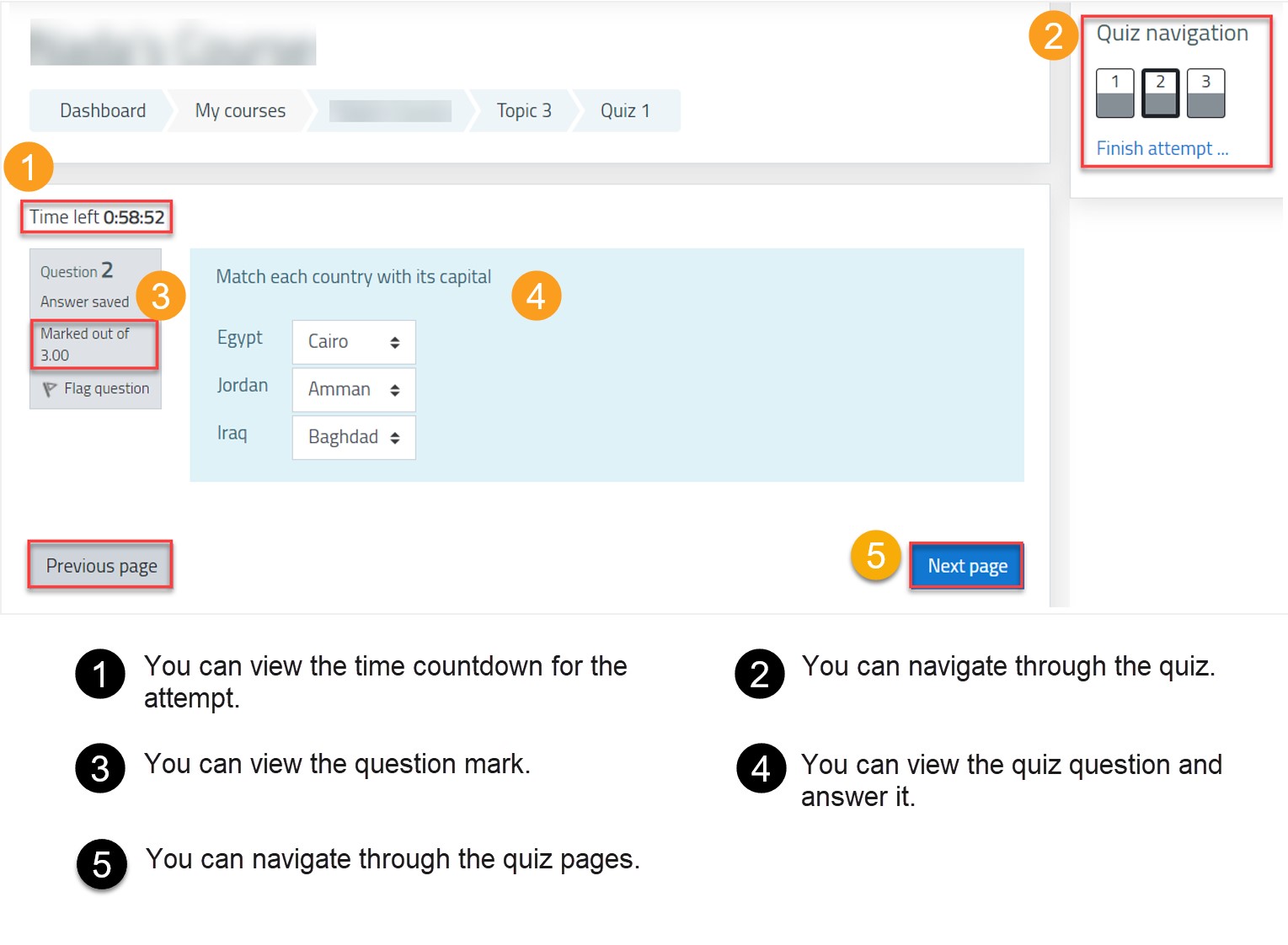
Answer the quiz questions. The below illustrates the quiz question page setup.
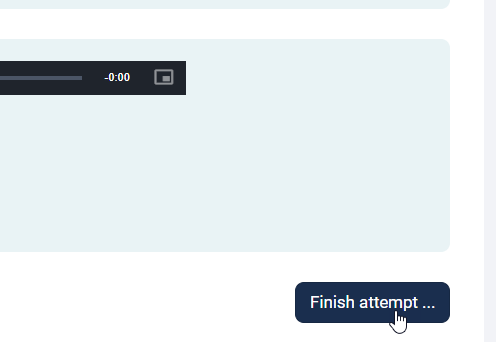
Once you answer all questions, click on Finish attempt.
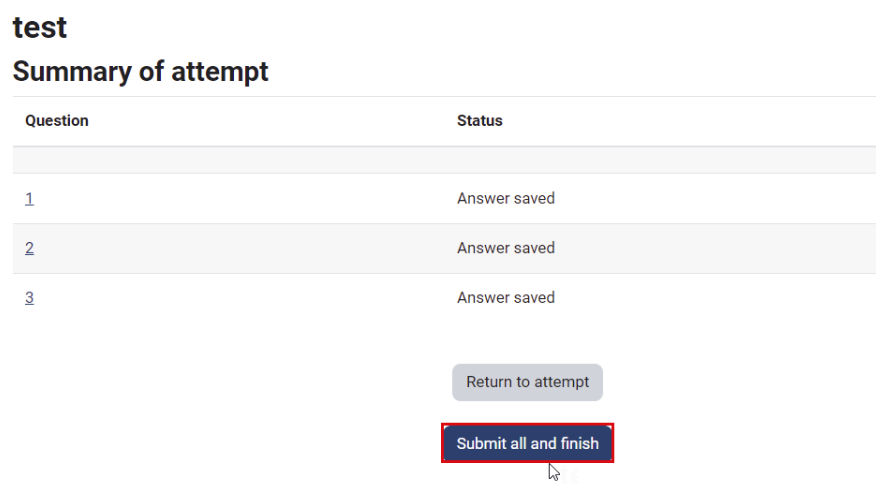
You can view the attempt summary and you can return to the attempt to modify your answers, but the attempt is only submitted once you click on the "Submit all and finish" button.
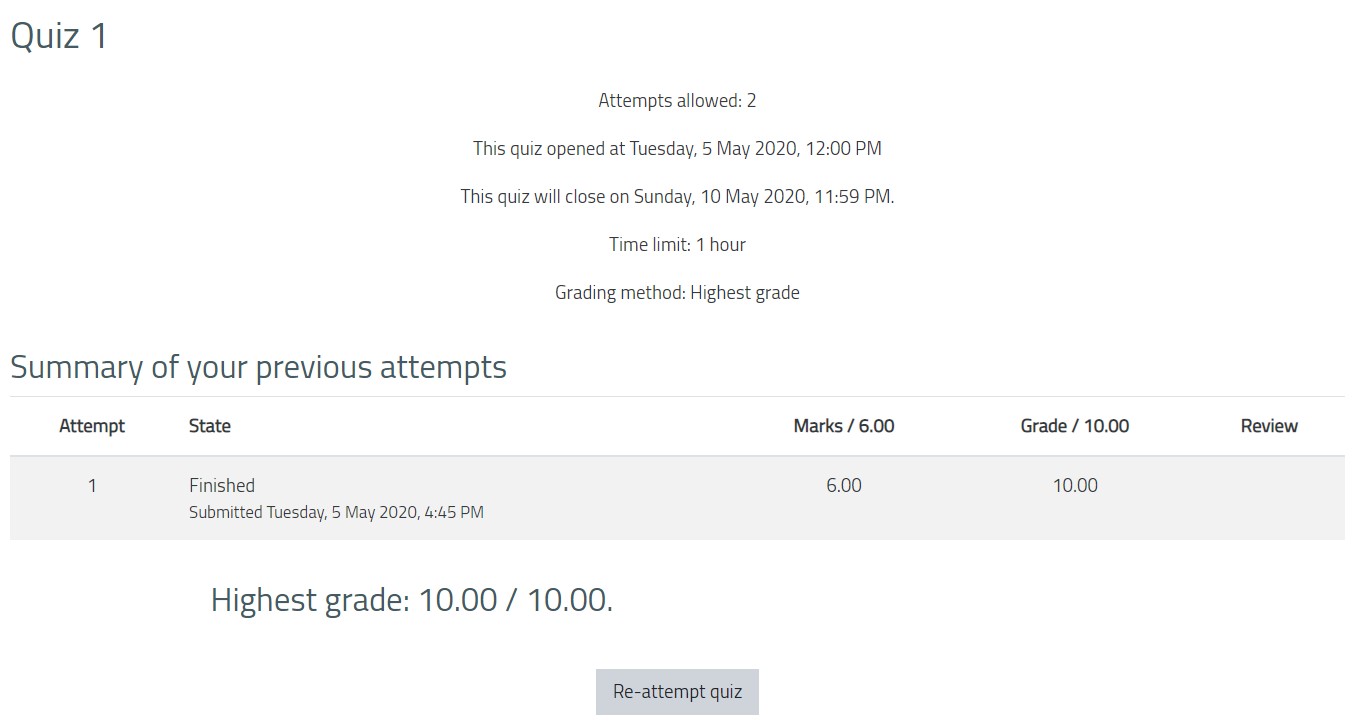
You can view the grades, as per the settings set by the lecturer, as illustrated below:
Note:
If you are using LockDown Browser for the online exam, please refer to this article to learn how to access the exam
Online Exam Guidelines:
All students should meet the minimum technology requirements; otherwise, the IT team cannot support student issues.
Was this article helpful?
Related articles
Moodle
Original source: https://it.ajman.ac.ae/docs/attempt-an-online-exam-1