


Browse Classes
Published 1 Jul 2021Updated 26 Jul 20211 min read
Watch our video tutorial about this topic below:
You can browse the list of the offered classes for a specific term, by following the below steps:
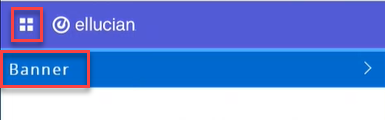
- Click on the menu located on the left, then click on Banner.
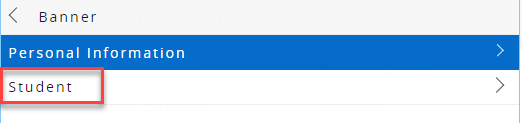
- Click on Student.
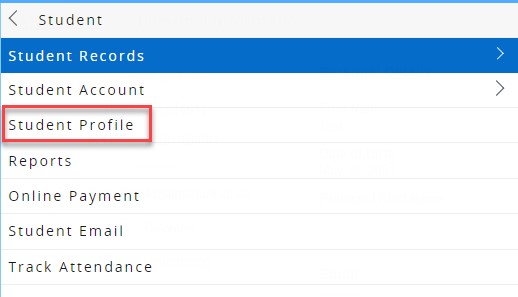
- Click on Student Profile.
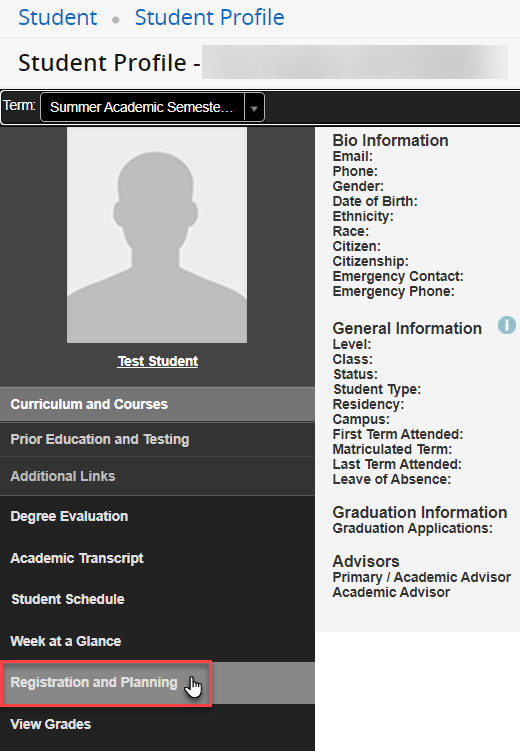
- On your student profile, click on Registration and Planning, which is located on the left side of the screen, as illustrated below. Once you click the button, a new page will open
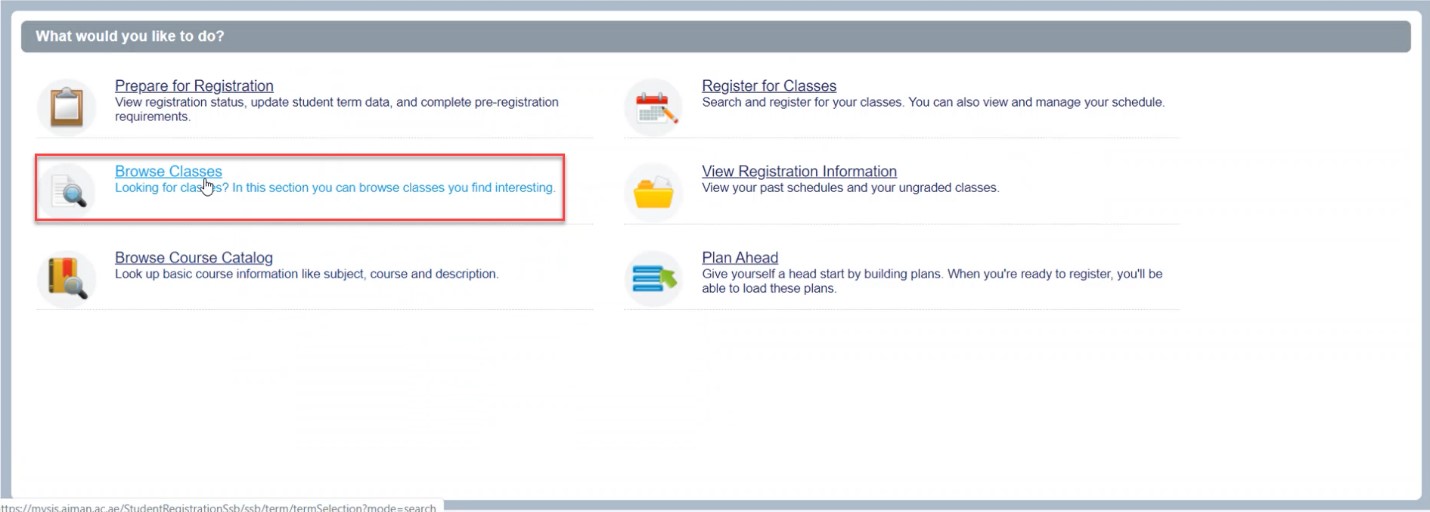
- Click on Browse Classes.
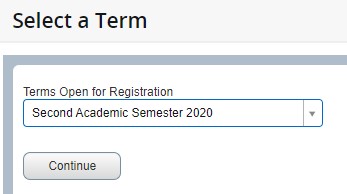
- Select the term that you would like view its offered classes and click Continue.
You can search for a class using the course name or code, or you can click on Search while leaving the criteria empty to browse all classes.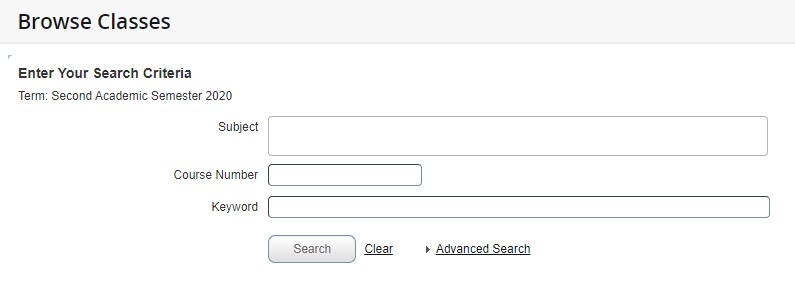
You can view the classes and their details.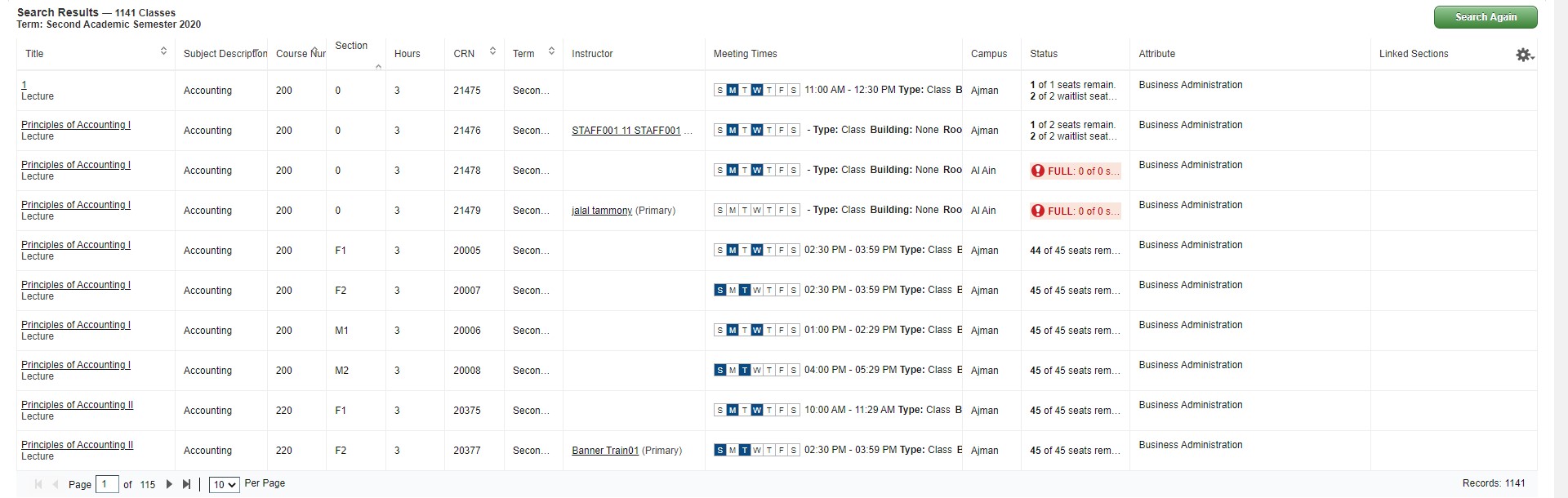
You can navigate between the pages and control the number of records appearing in each page.
Was this article helpful?
Related articles
Class Registration
Original source: https://it.ajman.ac.ae/docs/students-browse-classes