


4. Sign in to your AU Email Using MFA
By Khadija AhmedPublished 6 Oct 2021Updated 6 Oct 20211 min read
To sign in to your AU email address, please follow the below steps:
- Go to Outlook webpage and sign in to your AU email address.
 The below webpage will appear for you:
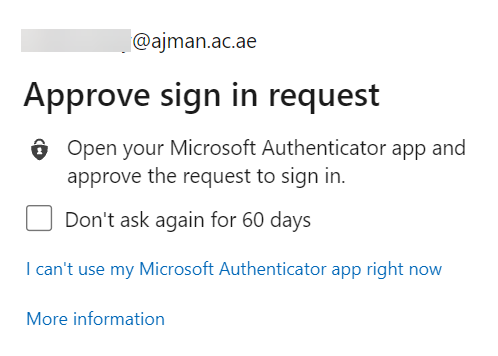
Note:
If you are signing in from your device, check the Don't ask again for 60 days box. - Launch the Authentication app.
- Check the email address available on screen, and if you already requested the sign-in, click on Approve.
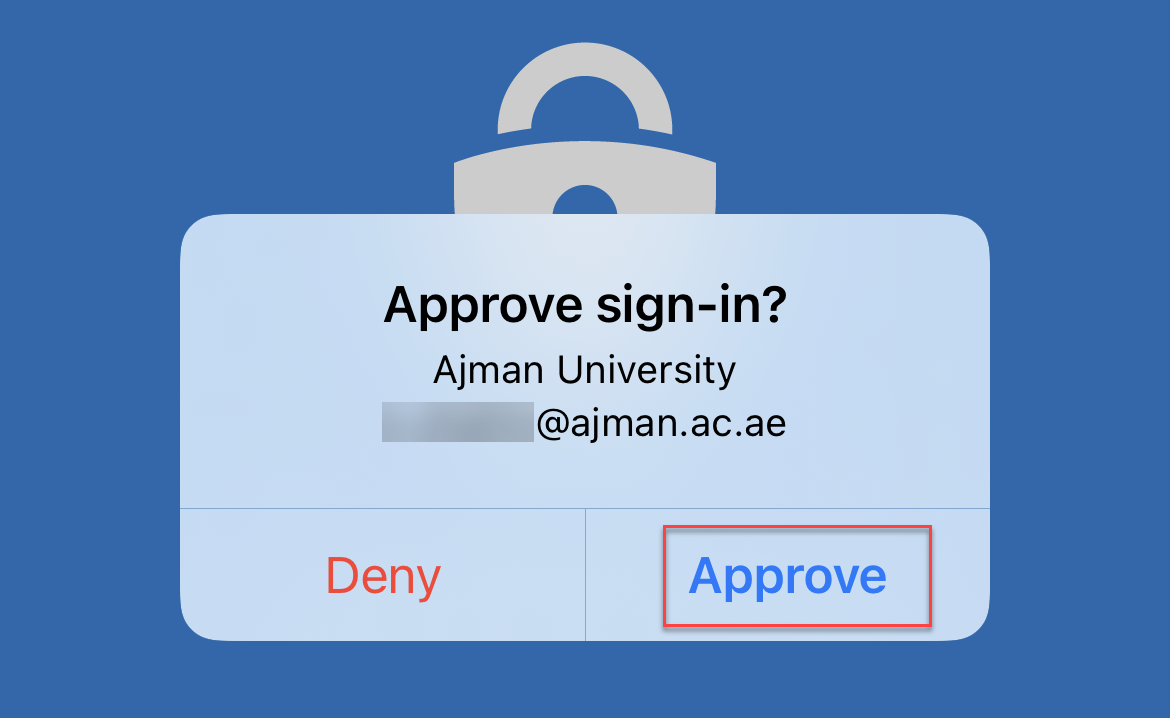
Note:
You must only approve the sign-in request which was made by you, personally. If you are not the one who sent the sign-in request, please click on Deny.
If you suspect that your account is compromised, please contact the Helpdesk immediately. - Wait till the webpage refreshes and directs you to your AU email inbox.
Was this article helpful?
Related articles
Multi-factor Authenticator (MFA)
Original source: https://it.ajman.ac.ae/docs/sign-in-to-your-au-email-it-services-using-mfa