

Create Fixed Assets for Research Project
هذه المقالة غير متوفرة بالعربية بعد. يتم عرض النسخة الإنجليزية.
Fixed Assets for research project include two type:
- Fixed assets purchase requisitions research project (To be created by College). Refer to this article which convers the process of creating Fixed assets PR for research projects.
- Fixed Asset Direct Billing (To be created by Office of Budget).
How to Create Fixed Assets Purchase Requisitions for Research Projects:
You can create fixed assets Purchase Requisitions for your research projects in Dynamics 365 by following the below steps:
-
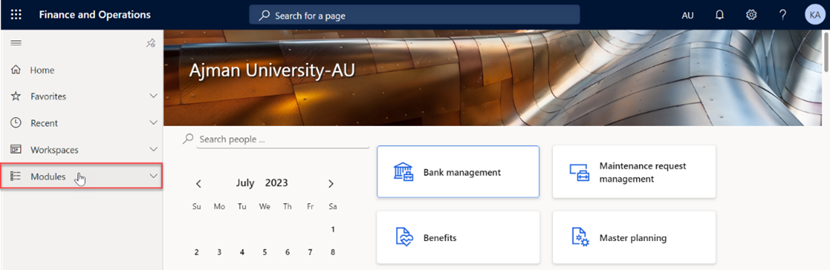
Once logged in, you will be on the Dynamics 365 home page. In the left-hand navigation pane, click on Modules.
-
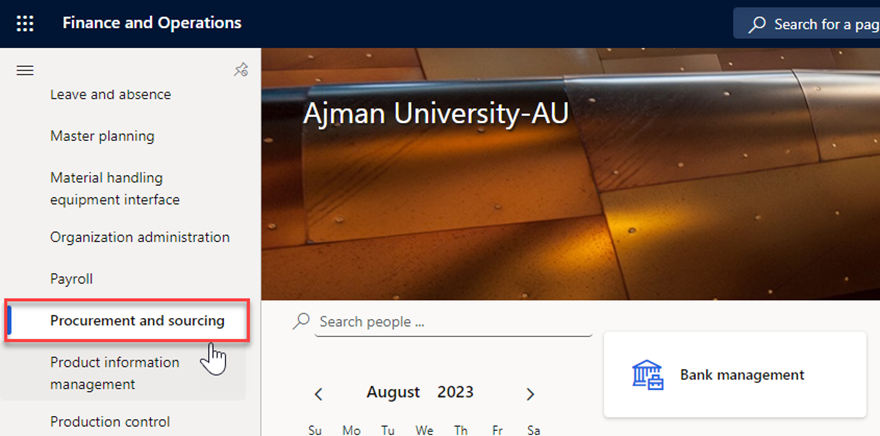
Navigate to and Click on Product Information Management Module.
-
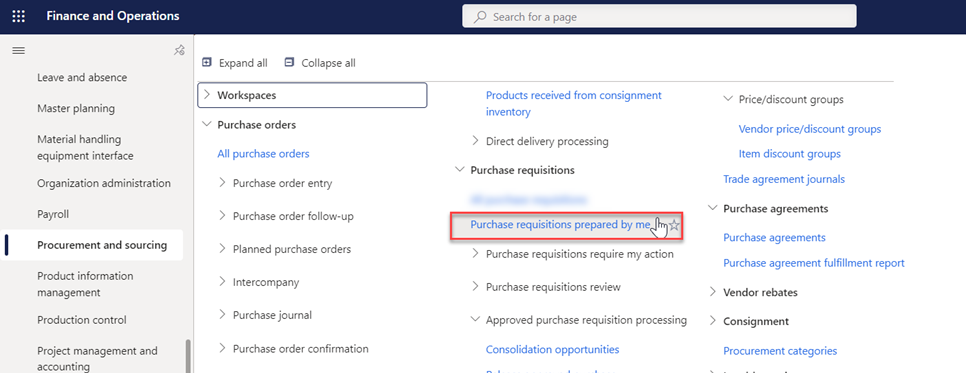
Select “Purchase Requisitions prepared by me”.
-
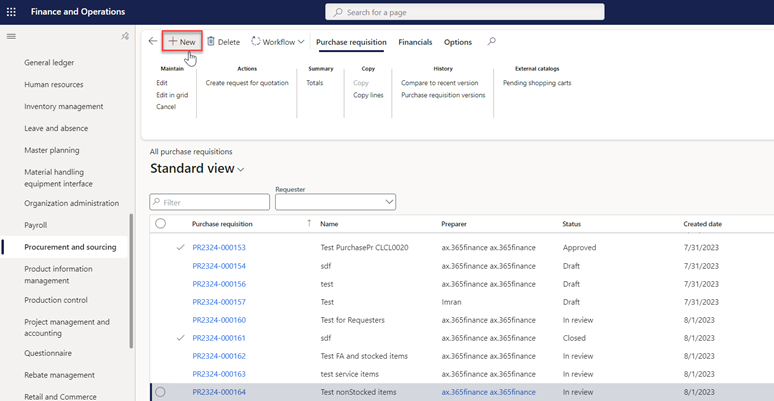
In this module, you will typically see a screen of a list of existing purchase requisitions. To create a new request, click on "New", usually represented by a plus (+) sign.
-
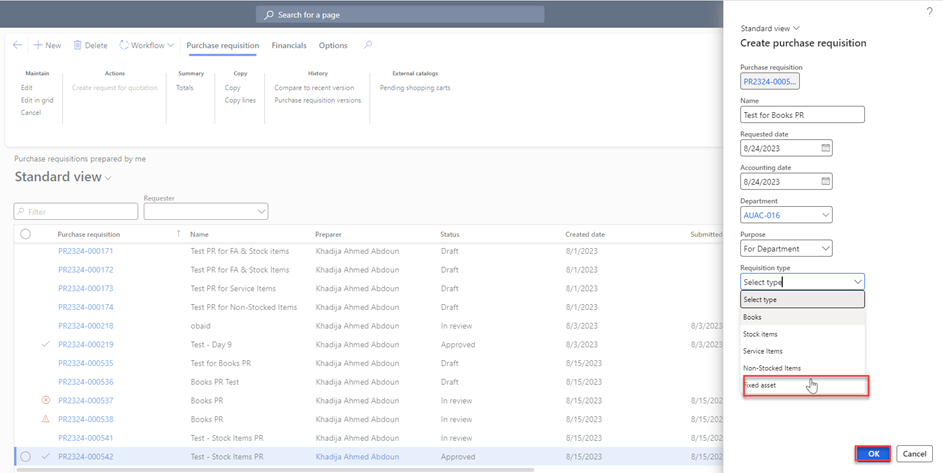
Once you click on “New”, the below page will be displayed where you need to add the below details:
- Name: Type the name of the new PR.
- Department: Represents the name of your Office/College.
- Purpose: Select “for Department”.
- Requisitions Type: Select Fixed Assets.
Once done, click on “OK” as illustrated below:
-
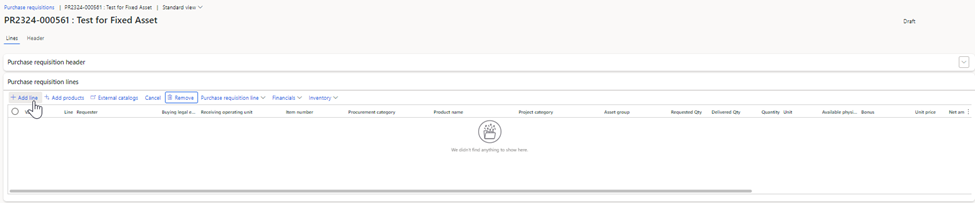
Click on “+ Add Line”. This will create a blank row in the grid where you can enter the details for the new requisition line.
-
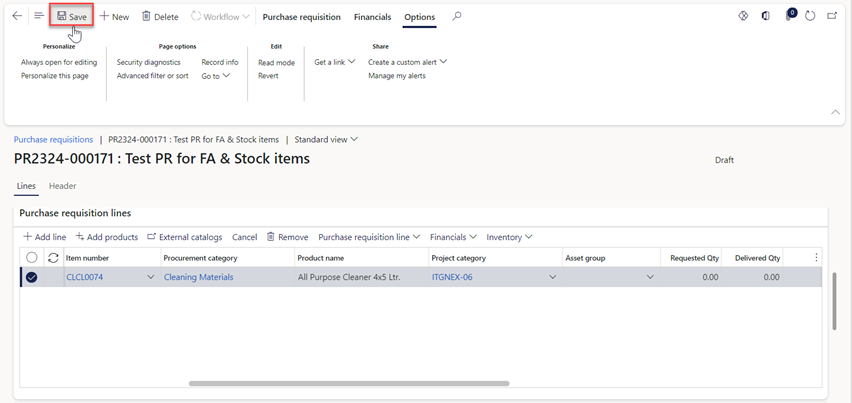
Fill in the necessary information for the requisition such as item number, requested quantity, unit price, and the vendor account. Then, click on “Save”.
-
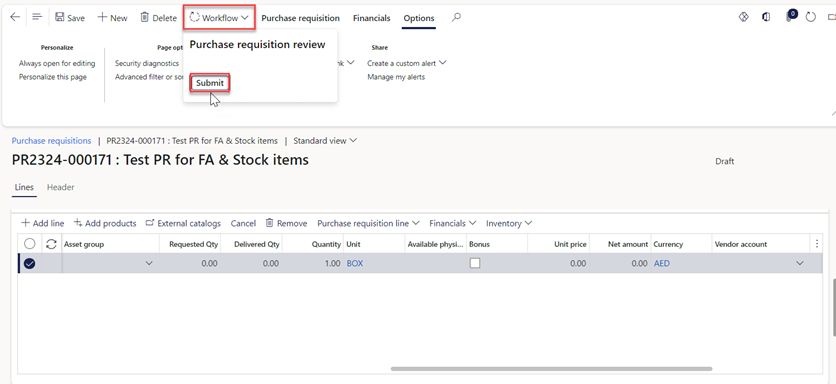
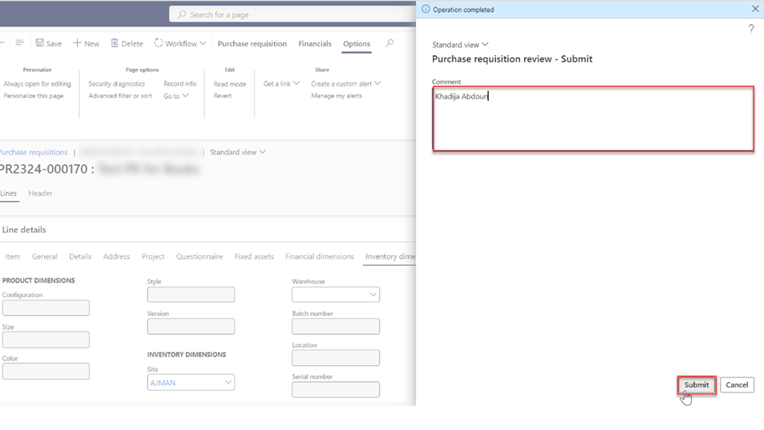
Click on workflow, then Submit.
-
Make sure to type your name in the designated comment box. Then proceed to select the “Submit” button.
Note: The requisition will need to go through an approval workflow. The requisition will be sent to the appropriate approvers based on predefined rules and permissions.
هل كانت هذه المقالة مفيدة؟
مقالات ذات صلة
Research Projects
المصدر الأصلي: https://it.ajman.ac.ae/docs/create-fixed-assets-for-research-project