


Connect to AU Wi-Fi from Smartphone/Tablets
You can connect to AU wireless network from your Smatphone or Tablet by following the steps below:
For IOS users:
-
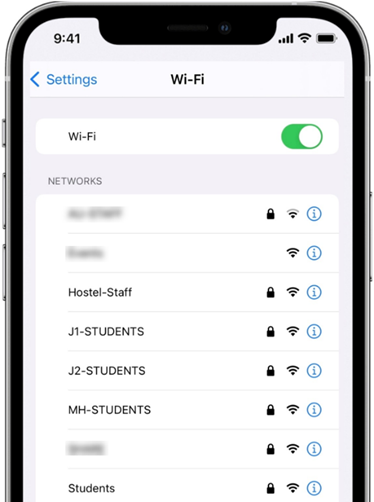
From your Home screen, go to Settings > Wi-Fi.
-
Turn on Wi-Fi. Your device will automatically search for available Wi-Fi networks.
-
Select one of the networks assigned to Students based on your location.
-
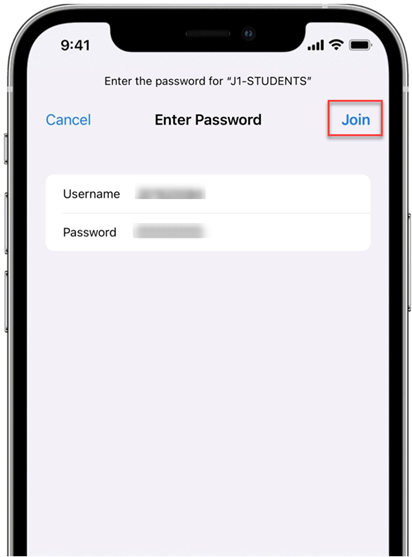
Enter your student ID as your username (e.g., 2024xxxxx) and your password, then tap Join.
Note:
You must use the student ID issued by Ajman University as your username, not the email address.
- Trust the certificate to connect.
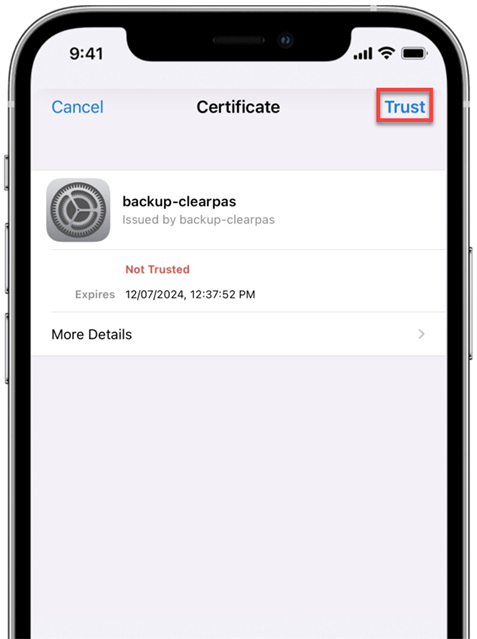
After you've joined the network, next to the network, you'll see a blue tick 
And in the top right-hand corner of your display, you can see the connected Wi-Fi icon 
For Android users:
-
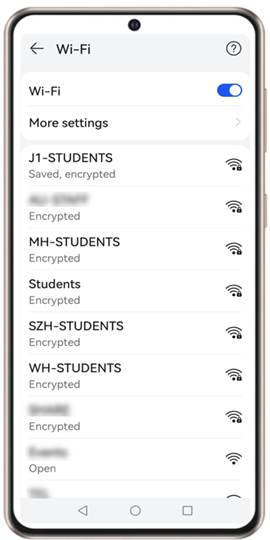
From your Home screen, go to Settings > Wi-Fi.
-
Turn on Wi-Fi. Your device will automatically search for available Wi-Fi networks.
-
Select one of the networks assigned to Students based on your location.
-
Enter your student ID as your username (e.g., 2024xxxxx) and your password.
-
Click on CA certificate, then choose “Do Not Validate”.
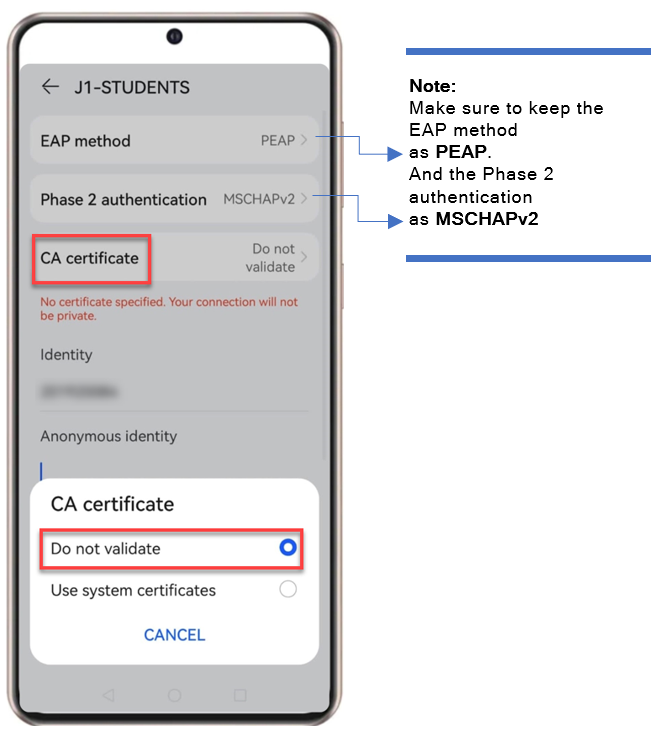
Note:
You must use the student ID issued by Ajman University as your username, not the email address.
- Click on Connect.
Was this article helpful?
Related articles
IT Orientation for AU Students
Original source: https://it.ajman.ac.ae/docs/connect-to-au-wi-fi-from-smartphonetablets-1