

Budget Transfer Process
A budget transfer is a financial transaction or operation in which funds are moved from one budget account to another within an office/college budget.
You can create budget transfers by creating a budget register entry that has a budget code associated with the Transfer budget type. You can decrease the budget of one or more financial dimension values, and then increase the budget of other financial dimension values by the same amount.
Watch our video tutorial about renaming the recordings below:
Here's a step by step procedure to create a budget transfer in Dynamics 365:
-
Open your web browser and navigate to the Dynamics 365 application URL provided by the office of IT.
-
Log in using your credentials (username and password).
-
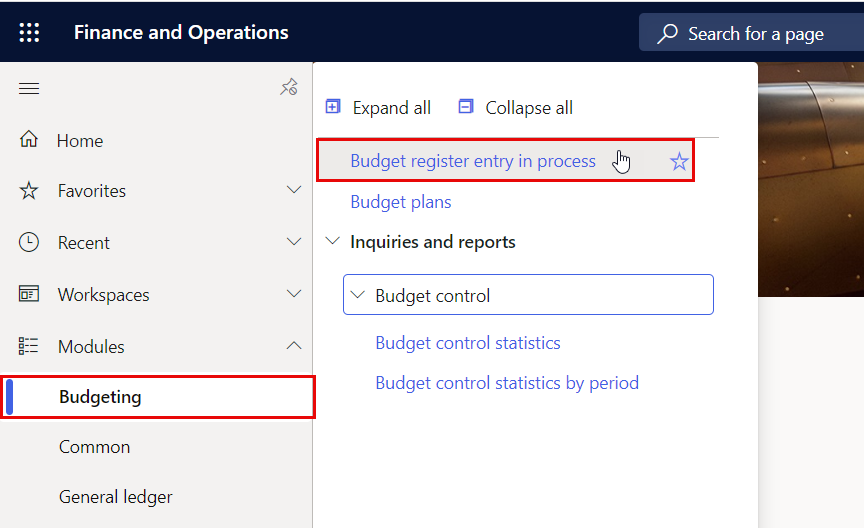
Click on Budget register entry in process in the Budgeting module.
-
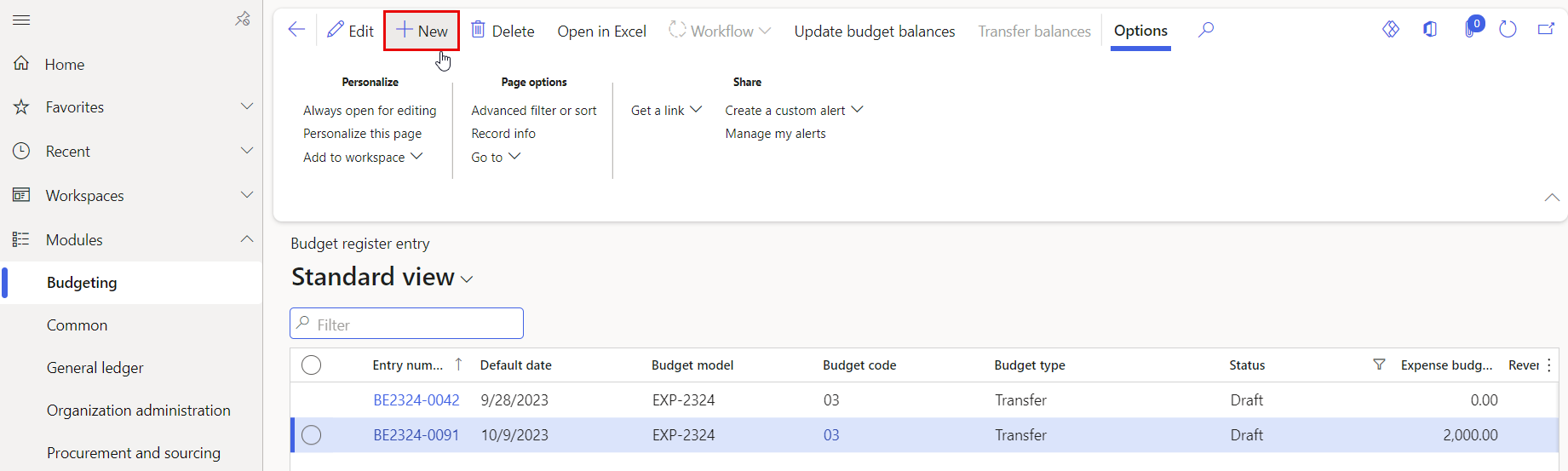
In this module, you will typically see a screen with a list of all Budget transfer requests. To create a new request, click on "New", usually represented by a plus sign (+).
Note:
Requesters can only view and manage their own budget transfer requests.
-
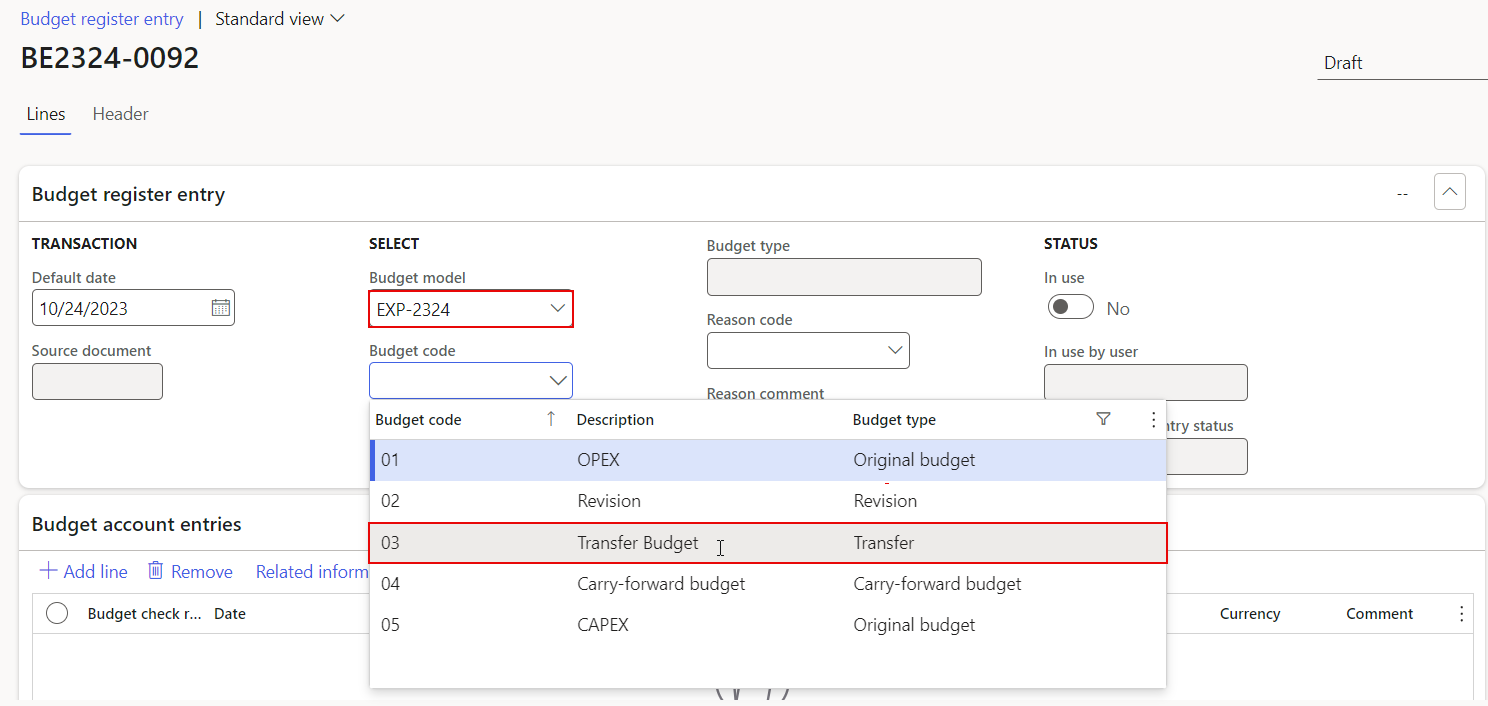
Select the budget model that corresponds to the current year, for example, 2324, and then proceed to select the "Transfer Budget" option from the dropdown menu for budget codes.
-
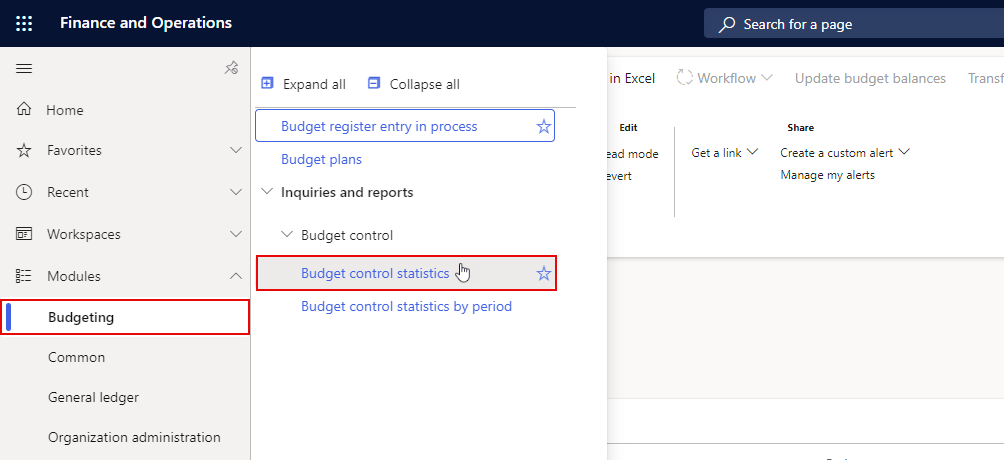
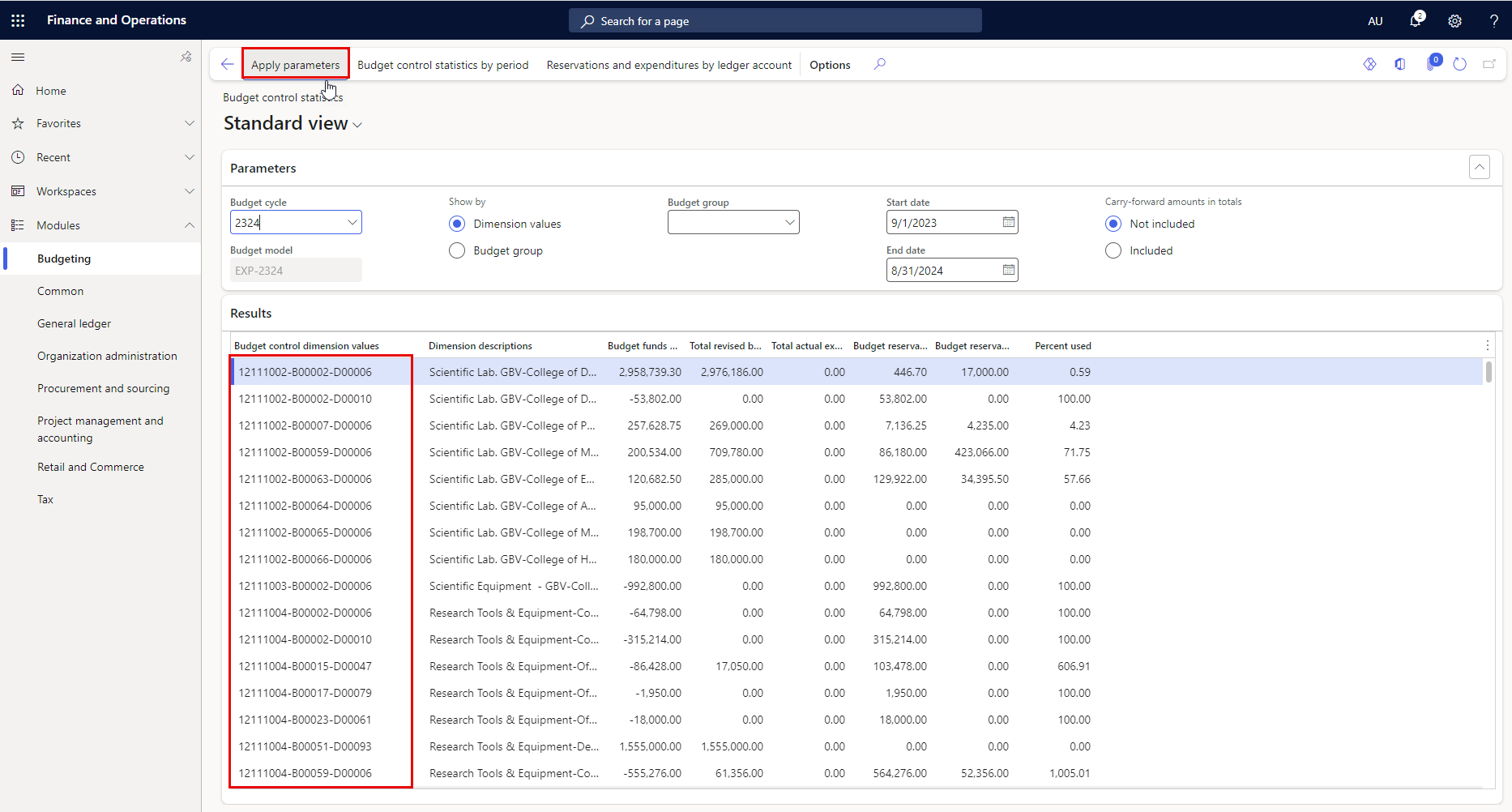
To get the dimension values, open another tab in your browser, and then nagivate to the "Budget Control statistics" in the Budgeting module > Inquiries and reports > Budget control .
-
Click on "Apply parameters", and then copy the Budget Control Dimension value from which you wish to transfer the budget amount . Copy the dimension value to which you want to transfer the budget amount .
-
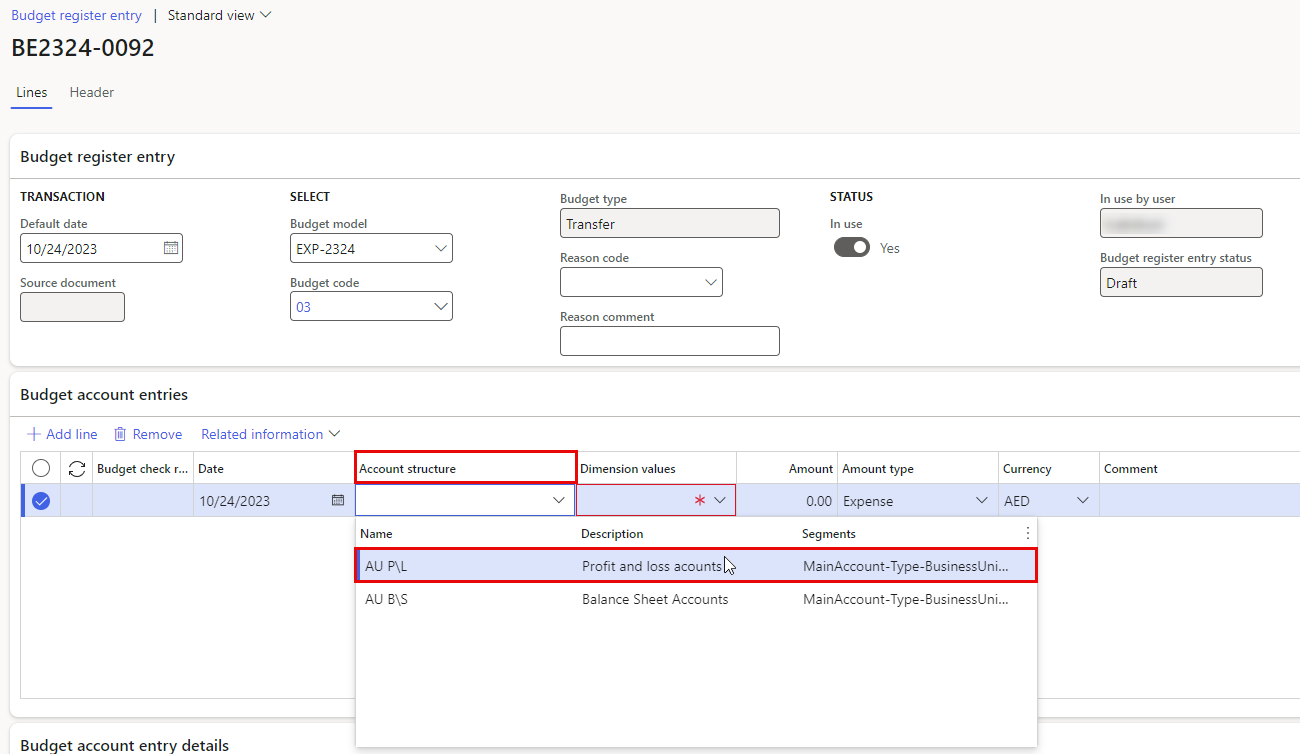
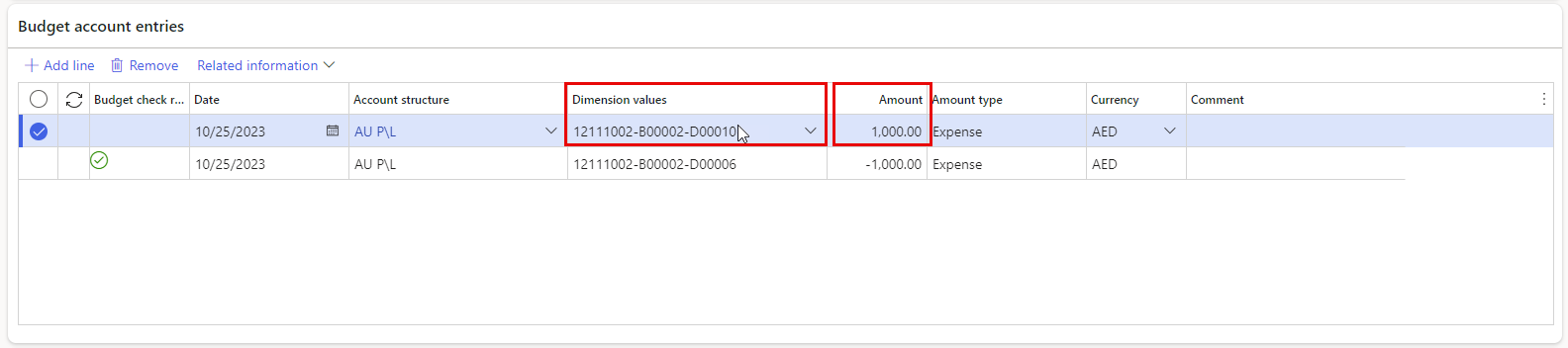
Go back to the budget transfer request you have initiated, click on "Add Line" to add a new line, and then proceed to select the "Profit and loss accounts" option from the dropdown menu for Account structure.
-
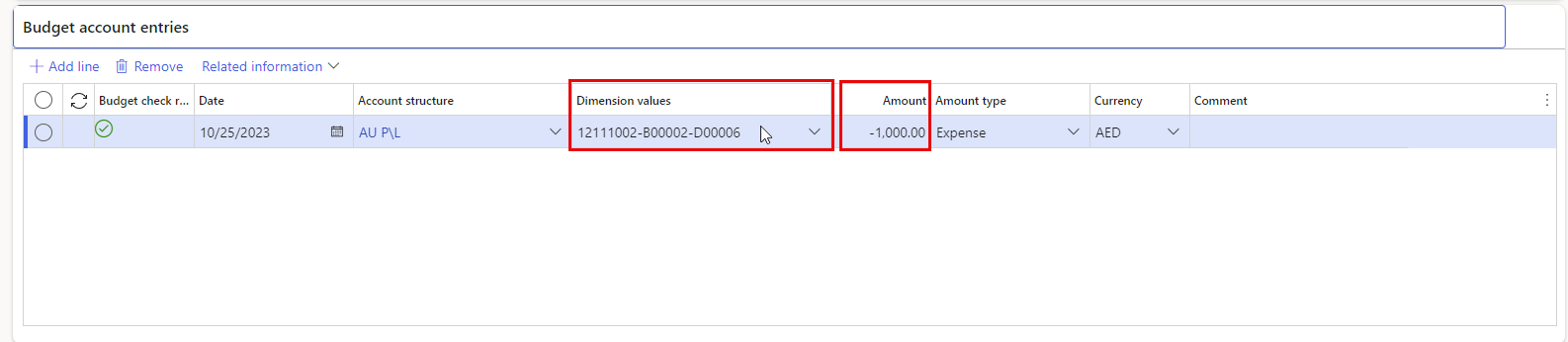
Paste the copied Budget Control Dimension value from which you wish to transfer the budget amount in the Dimension values field, and enter the amount, for example: -1,000.
-
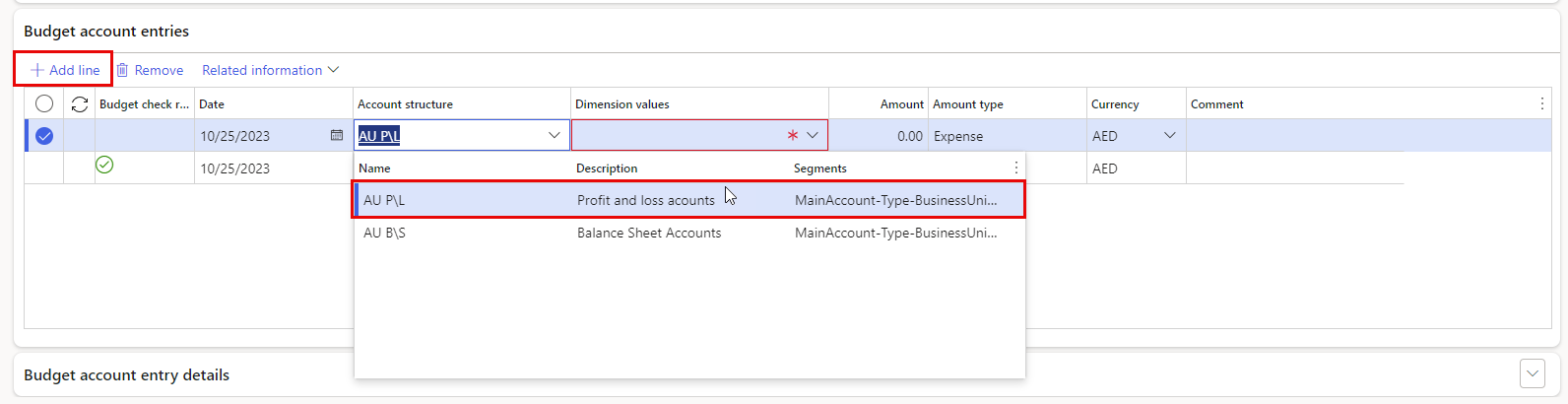
Click on "Add Line" to add a second line, then proceed to select the "Profit and loss accounts" option from the dropdown menu for Account structure.
-
Paste the copied dimension value to which you want to transfer the budget amount into the Dimension values field., and enter the amount, for example: 1000.
-
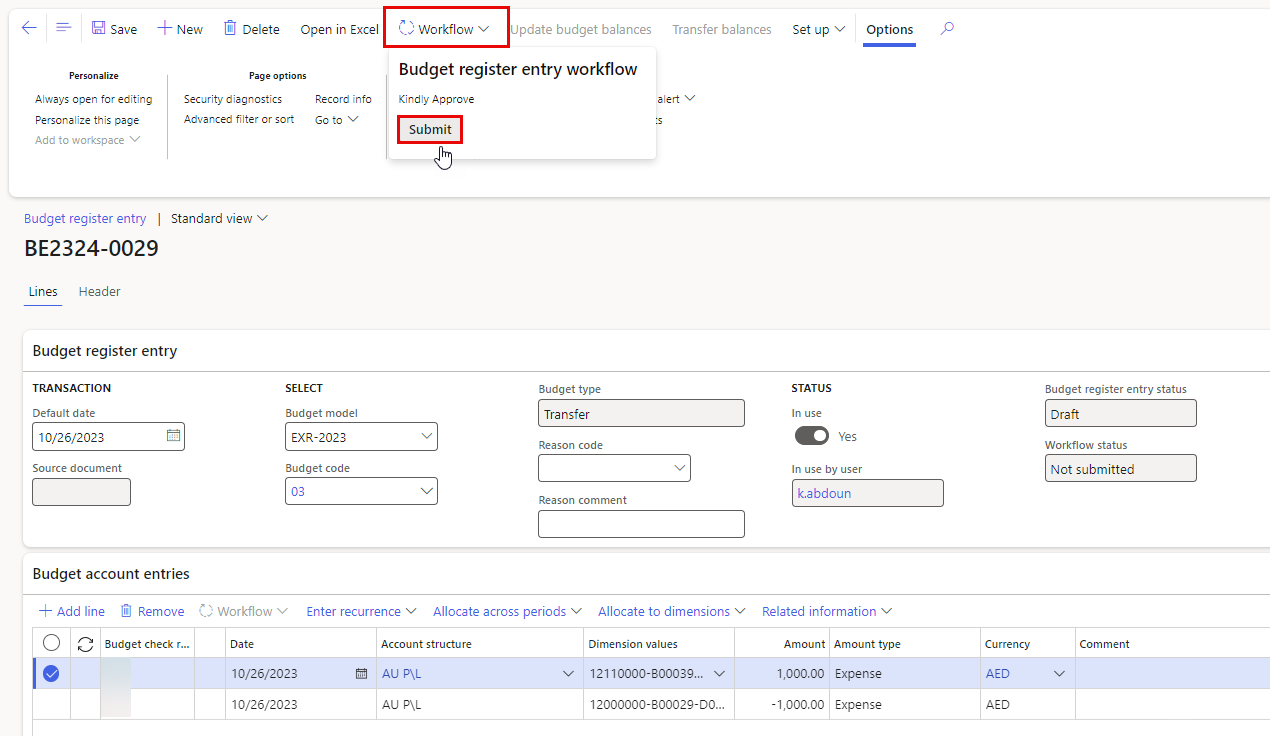
Click on “Workflow”, then “Submit”.
-
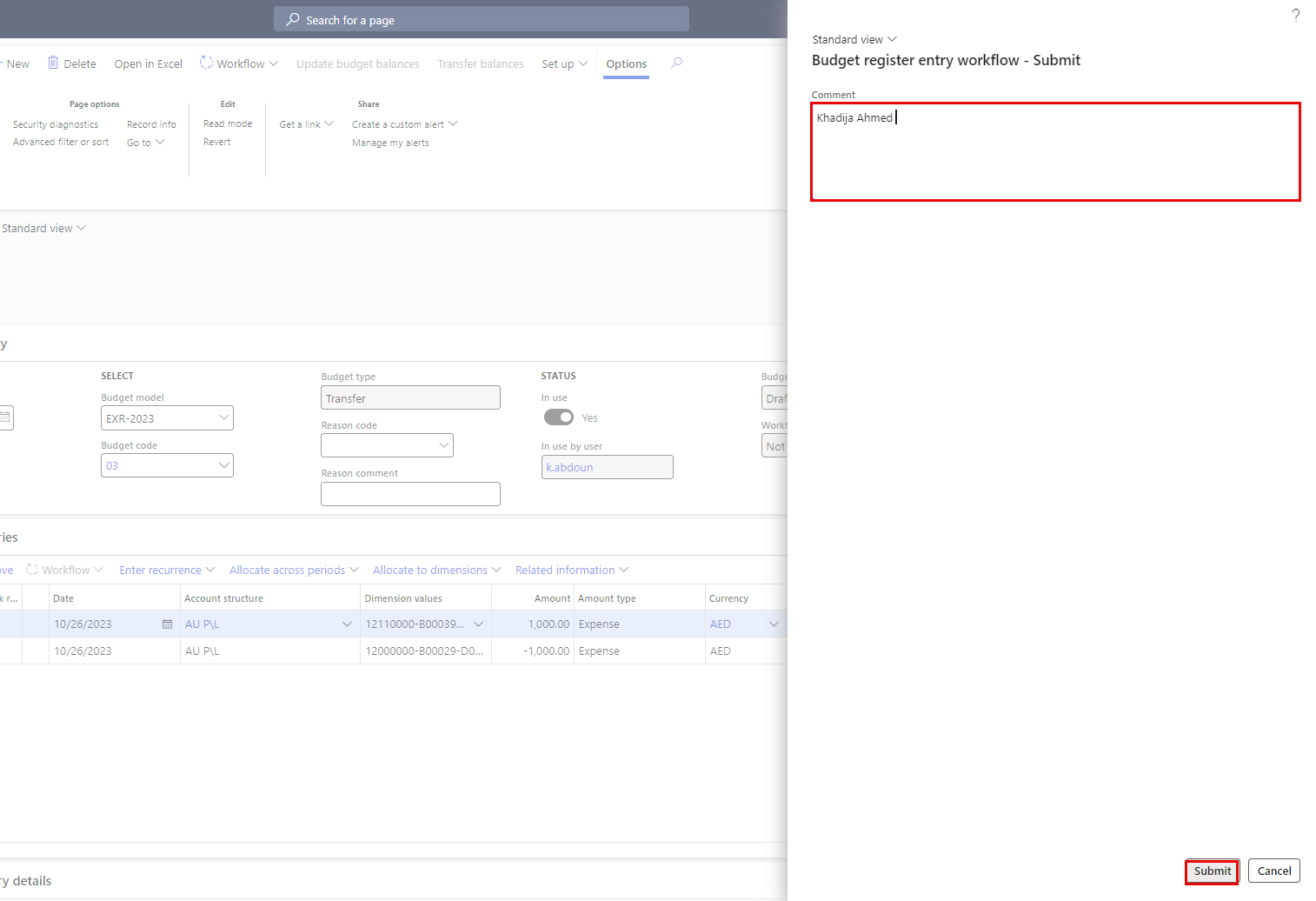
Make sure to type your name in the designated comment box, then proceed to select the “Submit” button.
Note:
The Budget transfer request will need to go through an approval workflow. The request will be sent to the appropriate approvers based on pre-defined rules and permissions.
Was this article helpful?
Related articles
Budgeting
Original source: https://it.ajman.ac.ae/docs/budget-transfer-process-1